What is a File Tab?
Published: 15 Sep 2026
A File tab is a menu found in many software programs, like MS Word or Excel.

It is used to manage files, such as creating a new file, opening an existing file, saving work, printing, viewing properties, and closing the program.
Main Options Inside File Tab
- New – Creates a new blank document or opens a template.
- Open – Opens an already saved document from the computer.
- Save – Saves the current document to prevent data loss.
- Save As – Saves the file with a different name, location, or format.
- Print – Prints the document using a printer.
- Share – Allows you to share the document with others.
- Export – Converts the file into another format, such as PDF.
- Close – Closes the current document.
- Account – Displays Microsoft account and product information.
- Options – Changes MS Word settings and preferences.
In MS Word, where is the File tab located?
In MS Word, the File tab is located at the top-left corner of the window, on the Ribbon.
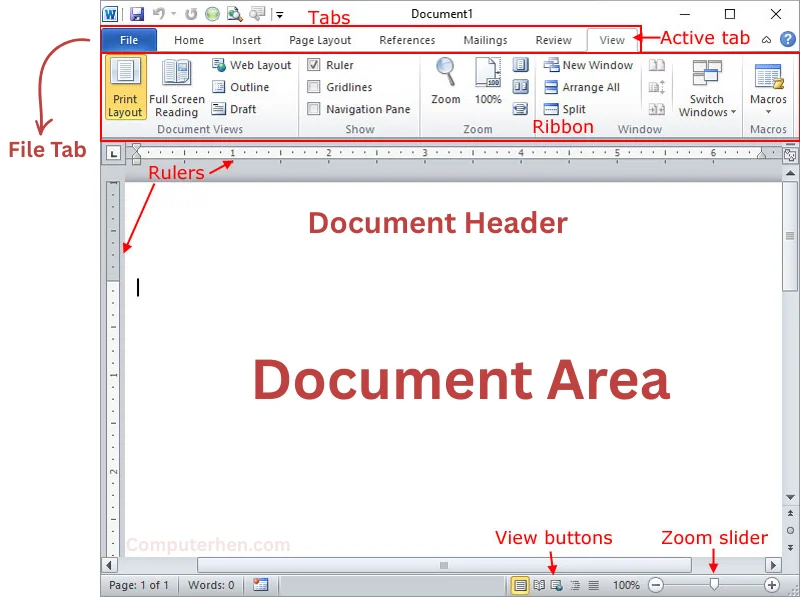
When you click the File tab, it opens the Backstage View, where you can create, open, save, print, and manage documents.
Common Mistakes Students Make
- Forgetting to save the document while working.
- Closing the file without saving changes.
- Confusing Save and Save As options.
- Printing the document without checking preview settings.
- Saving files with unclear or confusing names.
- Not remembering where the file was saved on the computer.
Difference between Save and Save As
| Save | Save As |
|---|---|
| Saves changes in the same file. | Creates a new copy of the file. |
| File name and location stay the same. | You can change the file name or location. |
| Used while working continuously on one document. | Used when you want another version of the file. |
| Shortcut key: Ctrl + S | Shortcut key: F12 |
Final Words
In this article, we learned about the File Tab, its location, main options, and why it is important for managing documents in MS Word. The File Tab helps us save, open, print, and organize our work easily, making computer tasks simple for students.
If you still have any confusion or questions, feel free to ask – I’ll be happy to help you learn better.

- Be Respectful
- Stay Relevant
- Stay Positive
- True Feedback
- Encourage Discussion
- Avoid Spamming
- No Fake News
- Don't Copy-Paste
- No Personal Attacks
- Be Respectful
- Stay Relevant
- Stay Positive
- True Feedback
- Encourage Discussion
- Avoid Spamming
- No Fake News
- Don't Copy-Paste
- No Personal Attacks
