Types of Computer Monitors: Features, Pros & Cons, and Best Uses
Published: 24 Sep 2026
A monitor is similar to a TV, but it is mainly designed for use with computers and usually offers features such as higher resolution, faster refresh rates, and better support for close-up viewing.
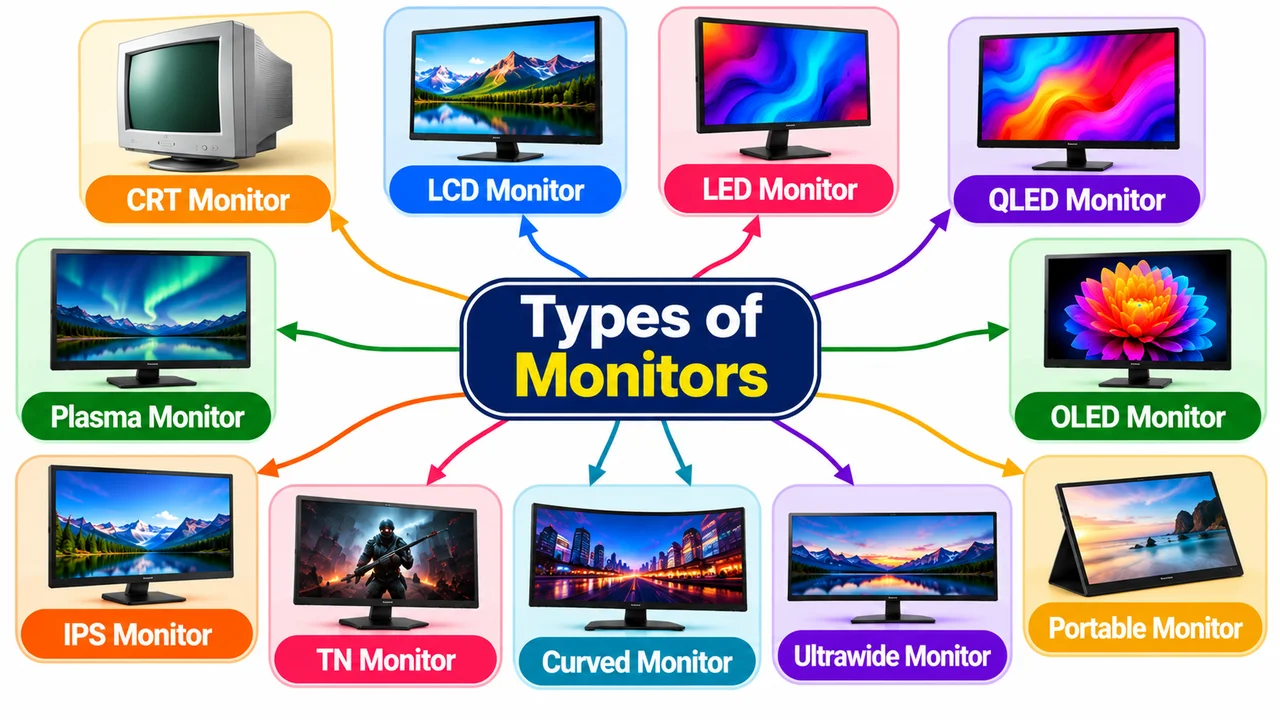
A monitor in the computer is an output device that displays text, images, videos, and other information produced by the computer.
It is an important part of a computer setup because without a monitor, you cannot easily view programs, documents, websites, games, or other information produced by the computer.
When learning about types of computer monitor, it is useful to understand how different displays work and what each one is designed for. This guide explains the main computer monitor types, including their display technology, panel technology, and design.
1. CRT Monitor
A CRT (Cathode Ray Tube) monitor is an older type of computer monitor that uses a large glass tube to display images on the screen.
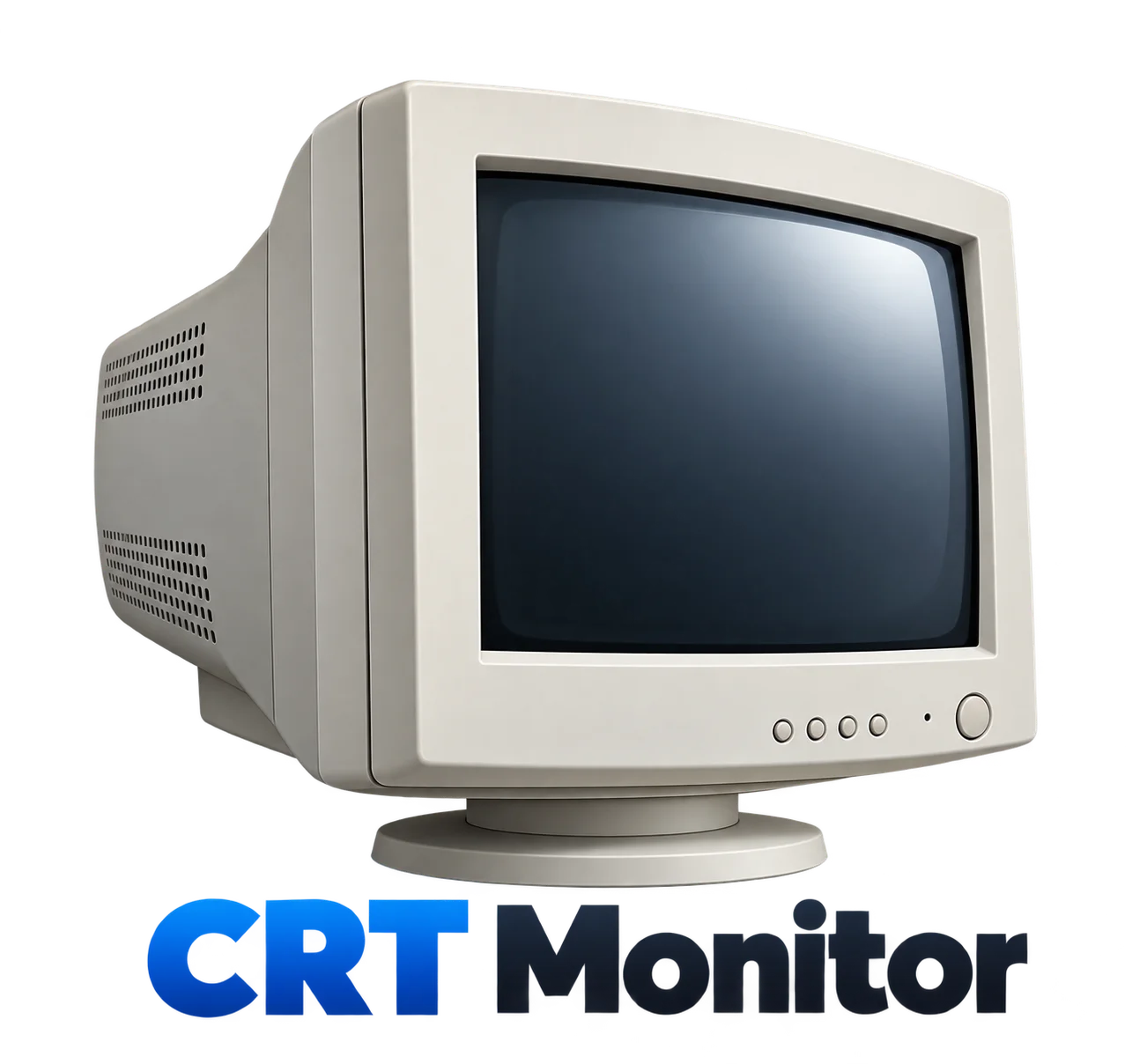
It works by firing a beam of electrons toward the inside of the screen, where the beam creates visible images and colors. CRT monitors are known for their bulky design, deep screen, good motion handling, and solid color display.
They were commonly used with desktop computers, televisions, and older gaming systems before LCD and LED monitors became popular. Today, CRT monitors are rarely used because they are heavy, take up more space, and use more power than modern displays.
2. Plasma Monitor
A plasma monitor is a display that uses tiny gas-filled cells to create light and produce images. When an electric current passes through the gas, it creates plasma that makes phosphors glow and form the image on the screen.
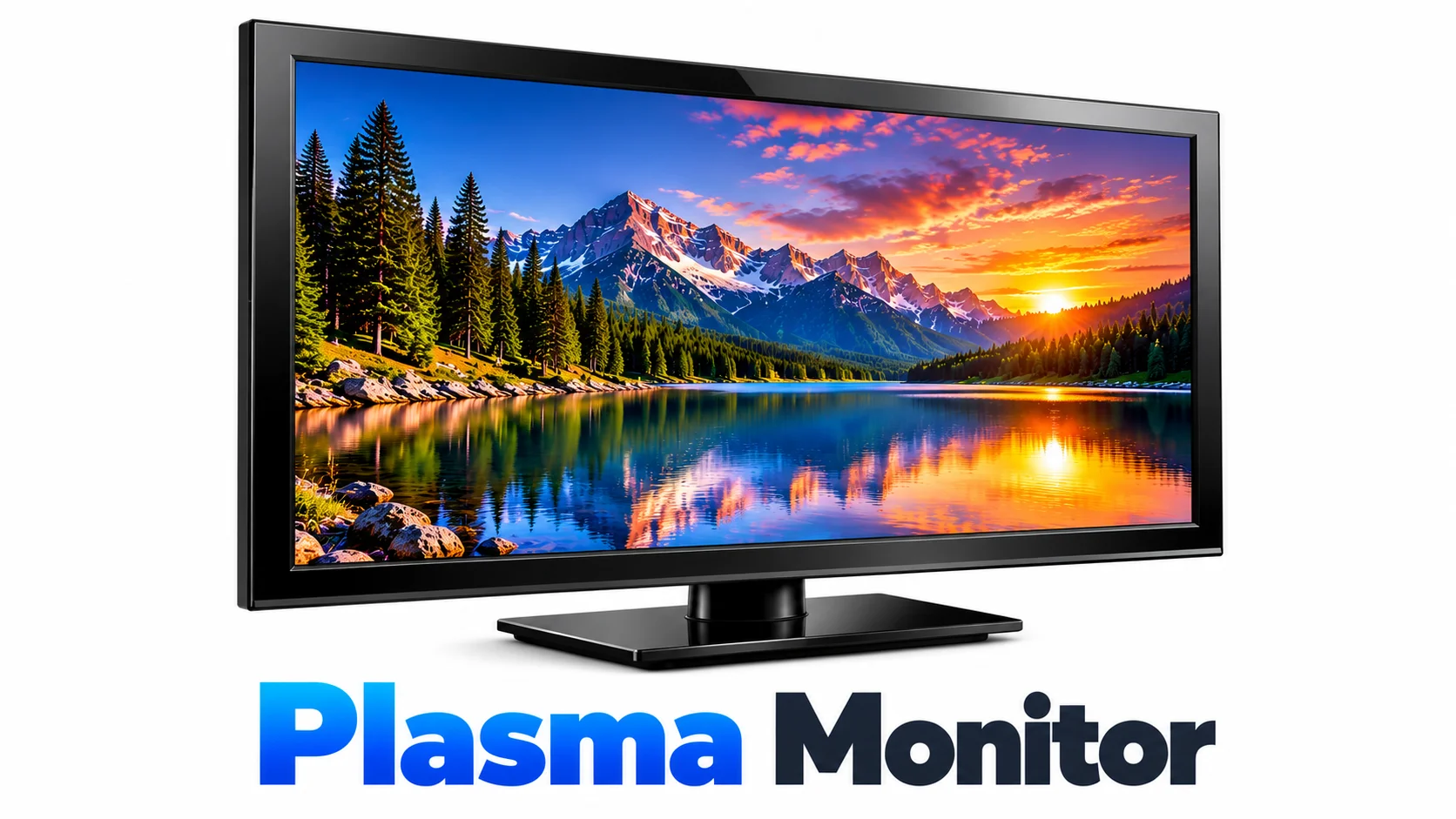
Plasma displays were known for deep blacks, strong contrast, and smooth motion, but they were also heavier, used more power, and generated more heat than modern displays.
They are rarely used today because LCD, LED, OLED, and other newer display technologies offer thinner designs, lower power consumption, and more practical performance.
3. LCD Monitor
An LCD (Liquid Crystal Display) monitor is a flat-screen monitor that uses liquid crystals and a backlight to produce images. It works by controlling how much light passes through the liquid crystal layer, while tiny pixels combine to create text, images, and colors on the screen.
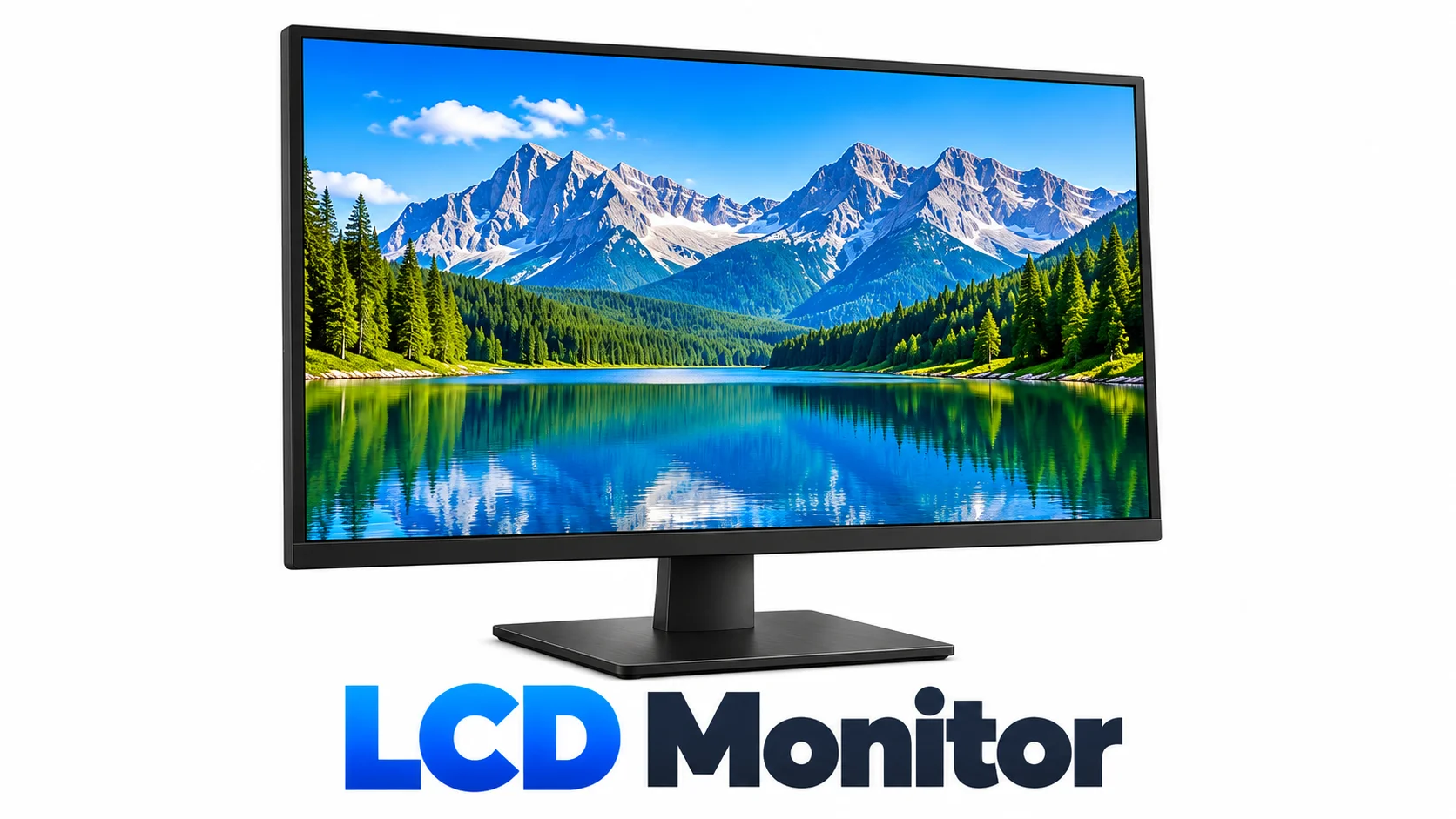
LCD monitors are thinner and lighter than older CRT monitors and generally use less power. They also provide sharp images and are available in different screen sizes and resolutions, making them suitable for everyday tasks such as browsing, studying, office work, and media use.
4. LED Monitor
An LED (Light-Emitting Diode) monitor is an LCD monitor that uses LEDs as its backlight instead of the older fluorescent lights used in traditional LCD displays. The LEDs shine light through the LCD layer, which controls the light to create images and colors on the screen.
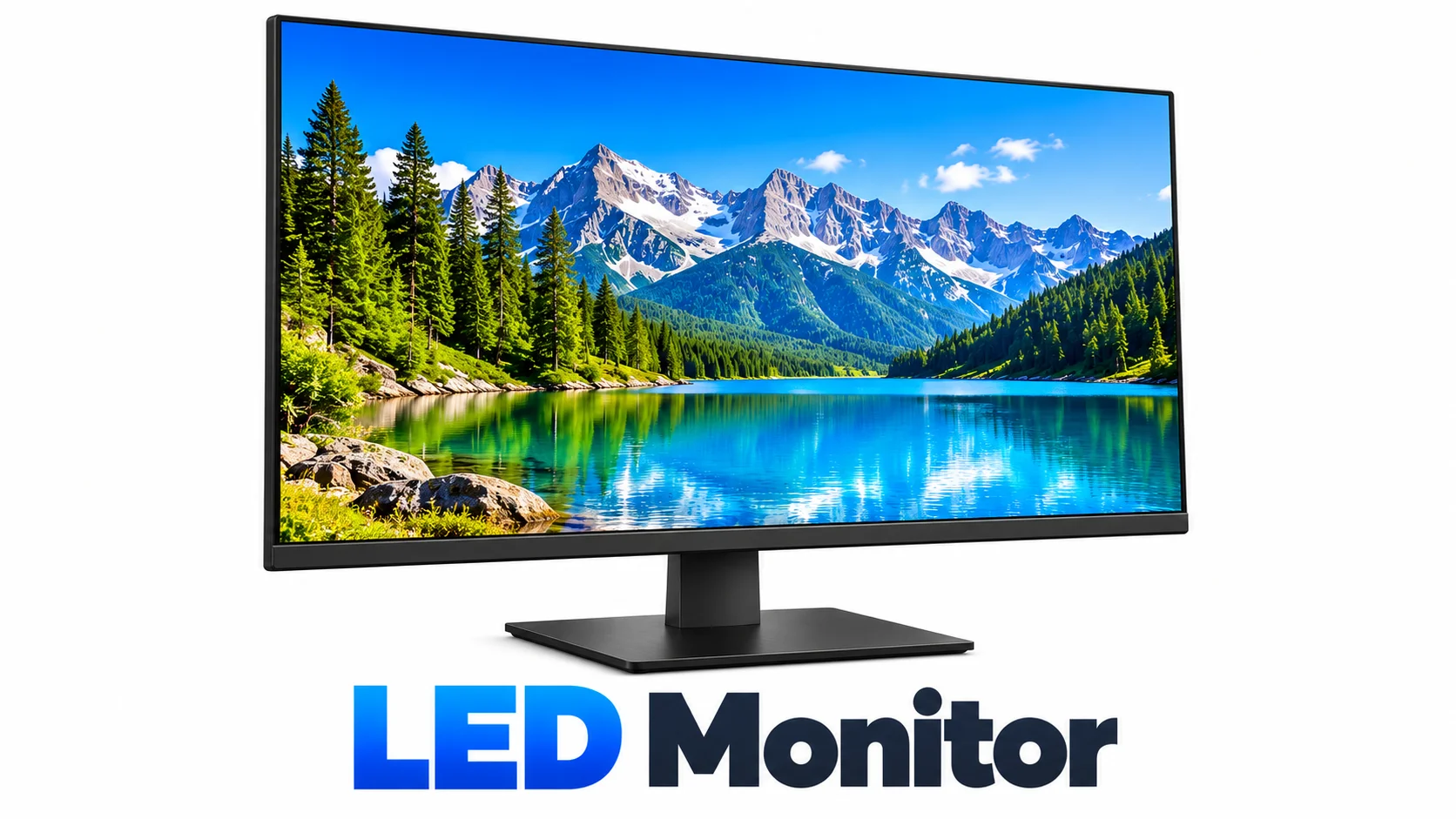
Compared with older LCD monitors, LED monitors are usually thinner, lighter, more energy-efficient, and can provide better brightness and contrast.
However, LED monitors can still have limitations such as uneven backlighting on some models and weaker black levels compared with OLED displays. Since LED monitors are a type of LCD monitor, the main difference is the backlight technology, not the basic way the image is formed.
5. QLED Monitor
A QLED (Quantum Dot Light-Emitting Diode) monitor is a type of LCD display that uses a quantum-dot layer to improve color and brightness.
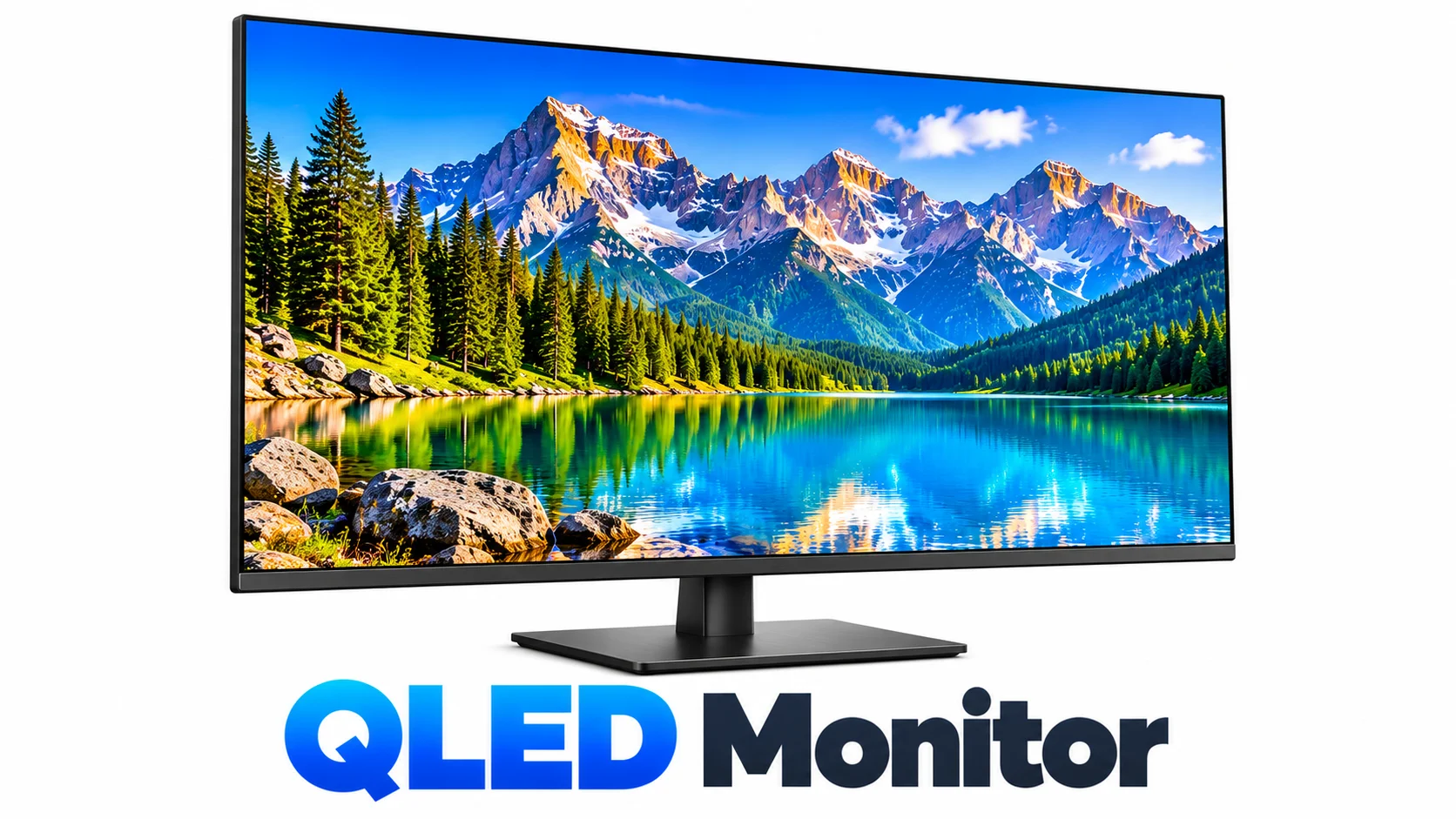
It still uses an LED backlight, which shines through the LCD panel and quantum dots to produce the image. QLED monitors can provide high brightness, vivid colors, and good picture quality, making them useful for gaming, movies, and everyday work.
However, they cannot produce the same true black levels as OLED because they still use a backlight. QLED vs OLED mainly comes down to how they produce light: QLED uses an LED backlight with quantum dots, while OLED pixels produce their own light and can turn off individually for deeper blacks.
6. OLED Monitor
An OLED (Organic Light-Emitting Diode) monitor is a display that uses self-lit pixels to produce images. Unlike LCD and LED monitors, OLED pixels create their own light, so the screen does not need a separate backlight.
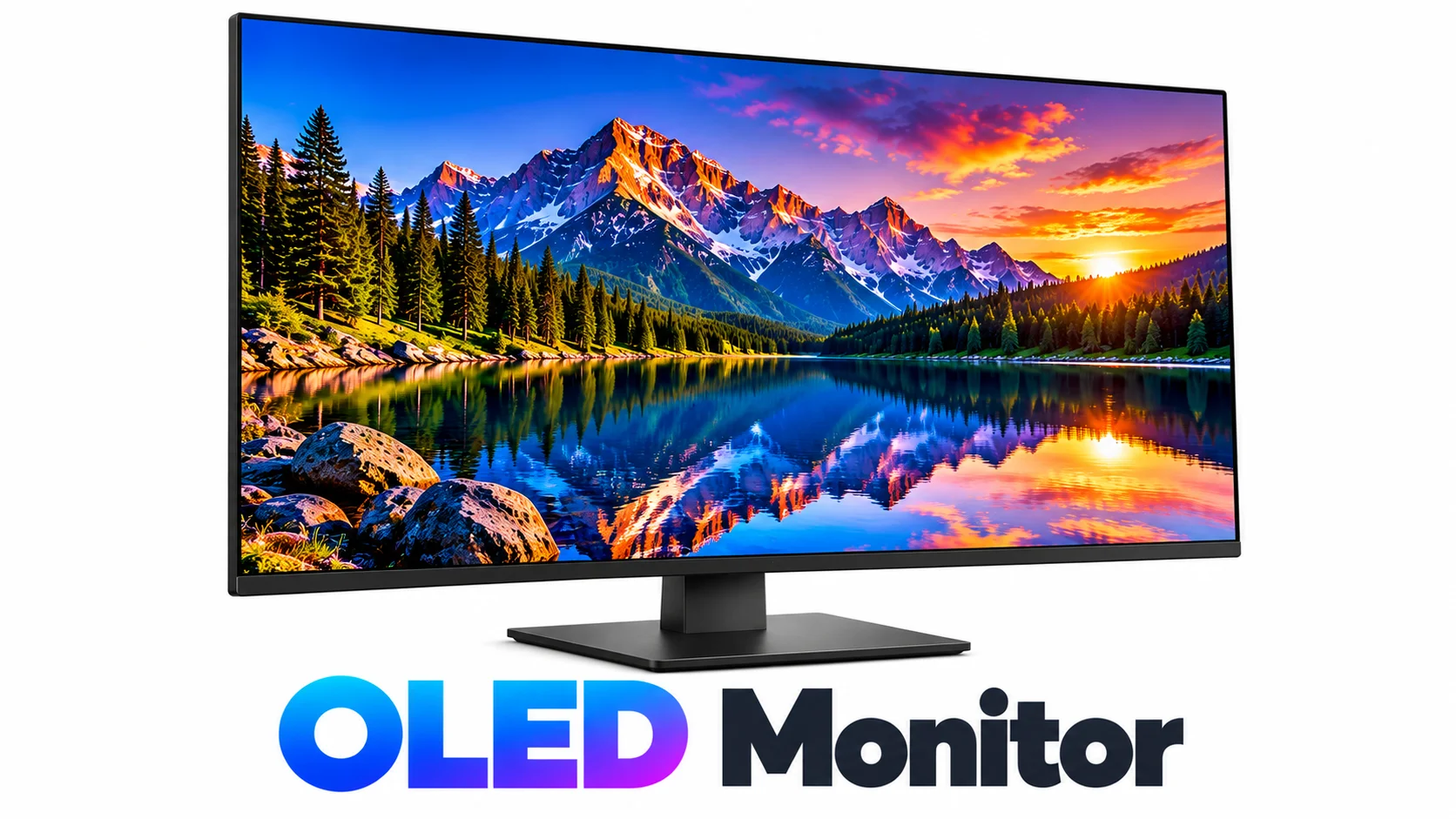
Each pixel can turn completely off, producing deep blacks, excellent contrast, and vibrant colors. OLED monitors can also offer fast response times and thin designs, making them useful for gaming, video editing, graphic design, and other tasks where image quality matters.
However, they are usually more expensive and can be affected by burn-in, where a static image may leave a lasting mark on the screen after long periods of display.
7. IPS Monitor
An IPS (In-Plane Switching) monitor is an LCD monitor known for its accurate colors and wide viewing angles. Its panel technology keeps colors and images looking consistent even when you view the screen from the side.
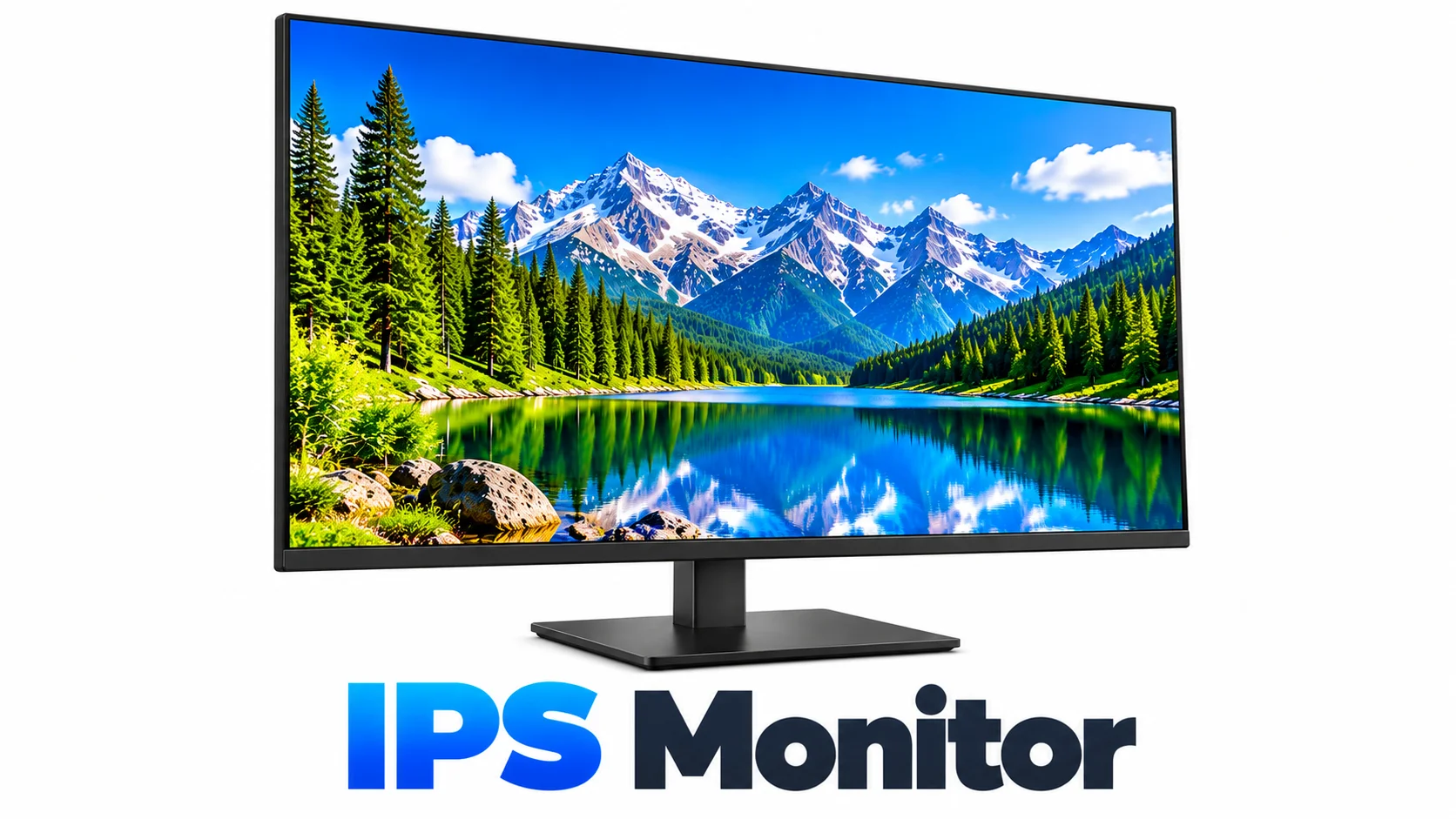
IPS monitors also provide good image quality and are available with high resolutions and fast refresh rates. They are commonly used for graphic design, photo and video editing, office work, content creation, and gaming, especially when color accuracy and clear viewing from different angles are important.
8. TN Monitor
A TN (Twisted Nematic) monitor is an LCD monitor known for its fast response times and high refresh rates. Its panel technology can display moving images quickly, which helps reduce motion blur and makes TN monitors useful for fast-paced gaming.
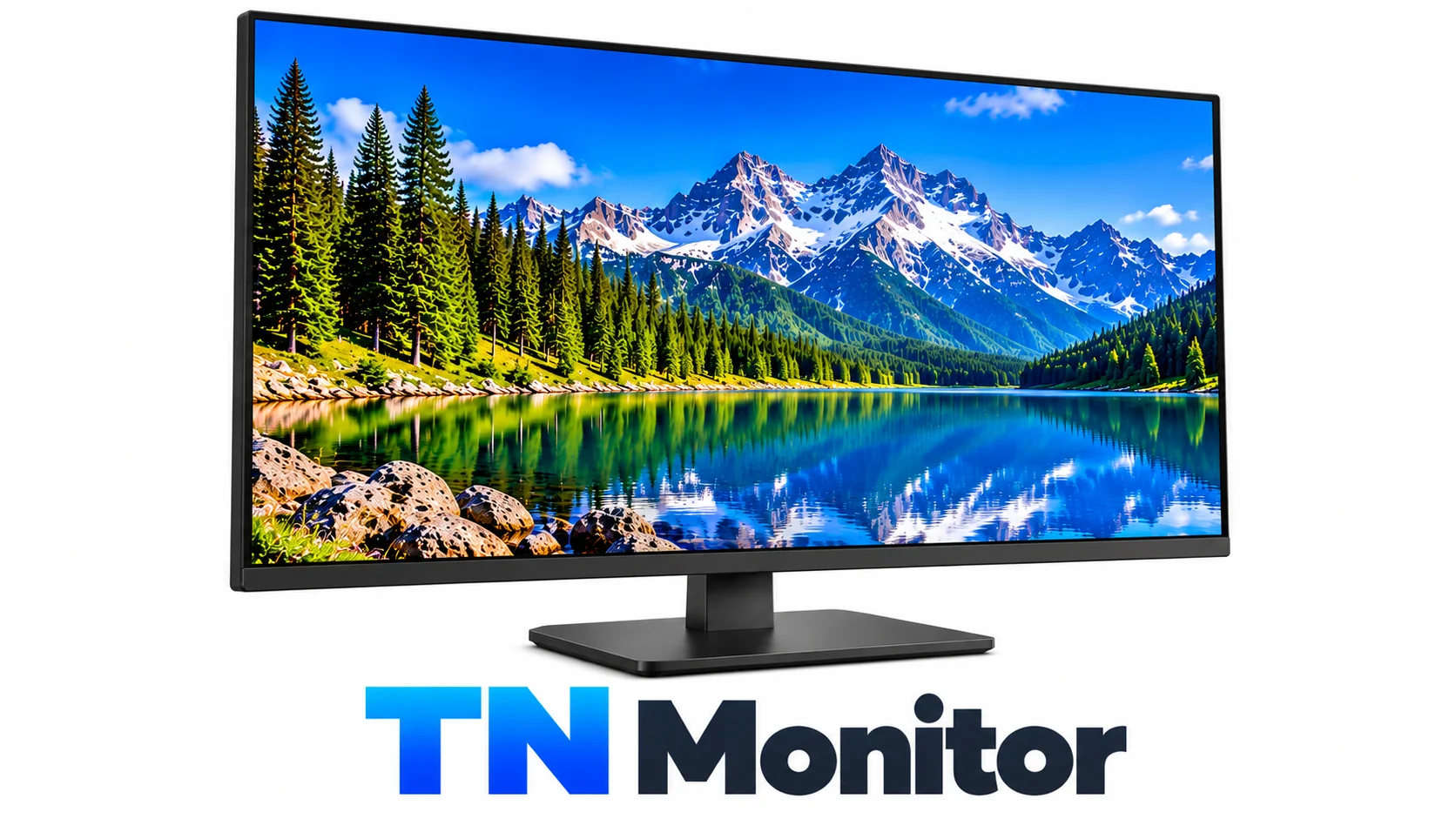
They are also usually more affordable than many IPS and OLED monitors. However, TN panels generally have weaker color quality and narrower viewing angles than IPS panels.
They are mainly used for competitive gaming, everyday computing, and budget-friendly setups where speed and price are more important than color accuracy.
9. VA Monitor
A VA (Vertical Alignment) monitor is an LCD monitor known for its high contrast and deep black levels. Due to its panel technology, pixels can block more backlight than many other LCD panel types, which helps produce darker blacks and a stronger difference between bright and dark areas.
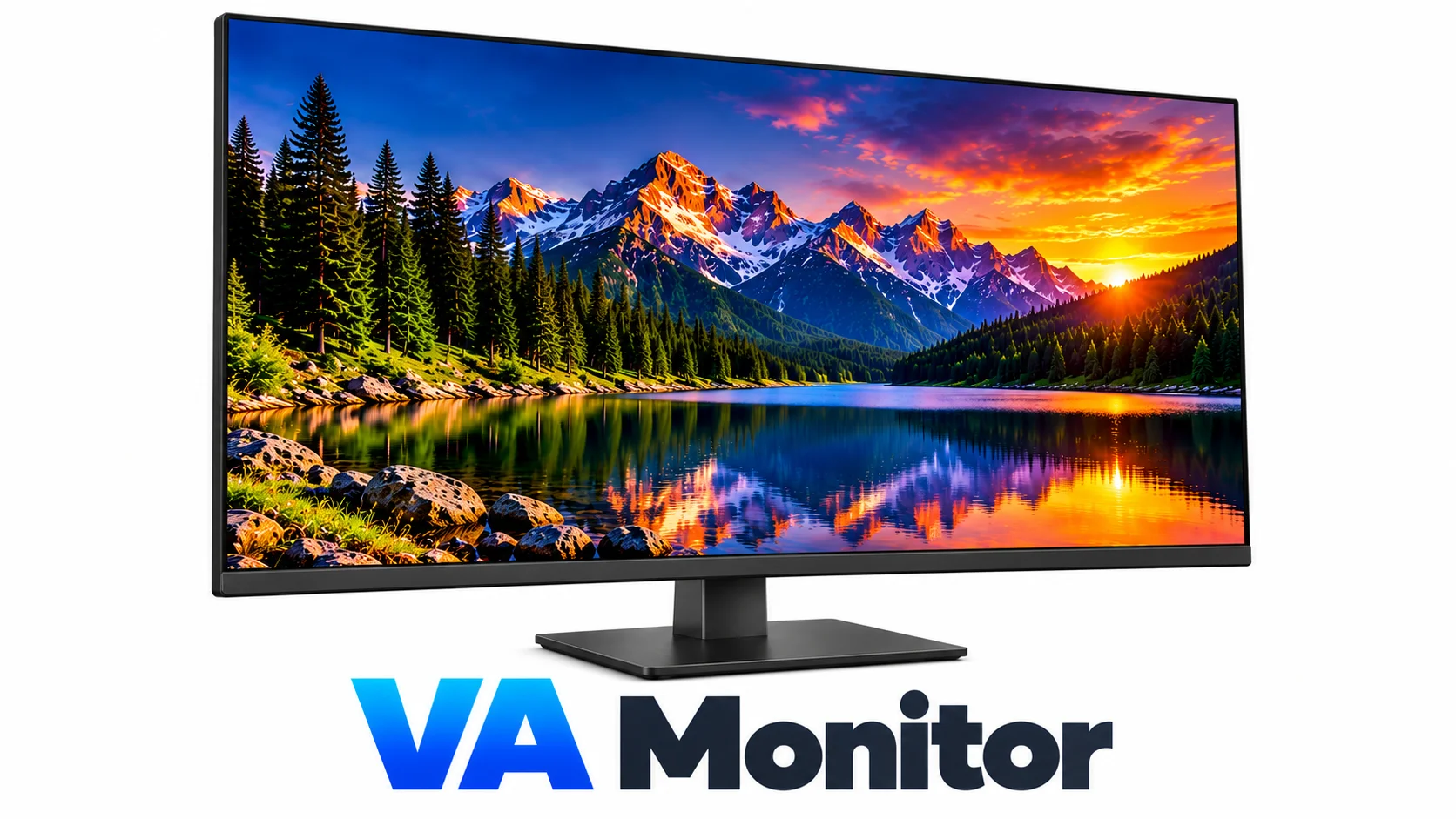
VA monitors usually offer good image quality, decent color reproduction, and wider viewing angles than TN panels, but their response times can be slower than TN and some IPS displays. They are a good fit for movies, gaming, office work, and general use, especially when strong contrast is important.
10. Flat Monitor
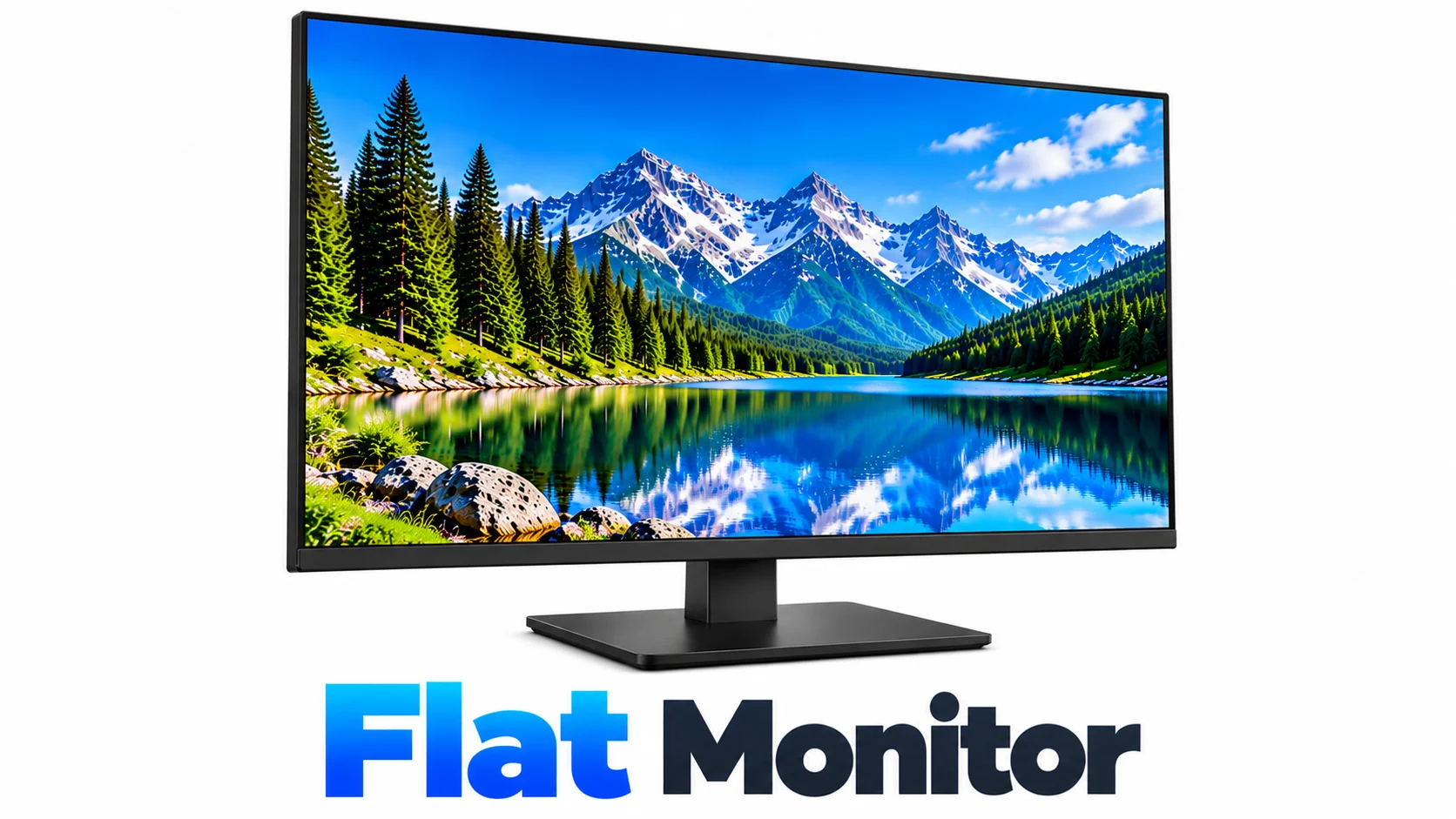
A flat monitor has a straight, flat screen and is the most common monitor design. It takes up less space and works well for everyday tasks such as studying, office work, browsing, and gaming. Its simple design also makes it easy to place on most desks.
11. Curved Monitor
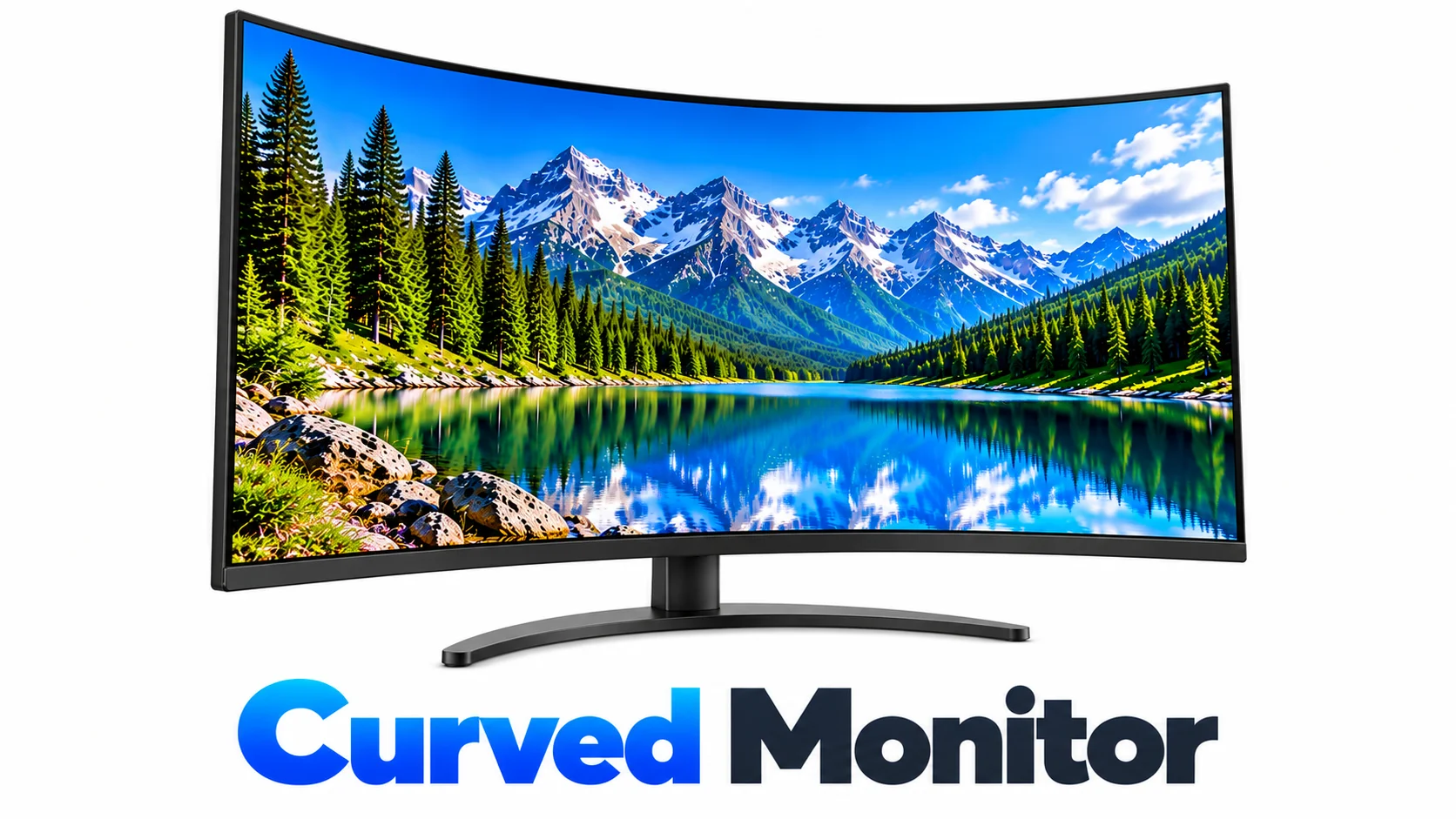
A curved monitor has a screen that bends slightly toward the viewer. The curved design can provide a more immersive viewing experience and may feel more comfortable when looking across a large screen. It is commonly used for gaming, movies, and large desktop setups.
12. Ultrawide Monitor
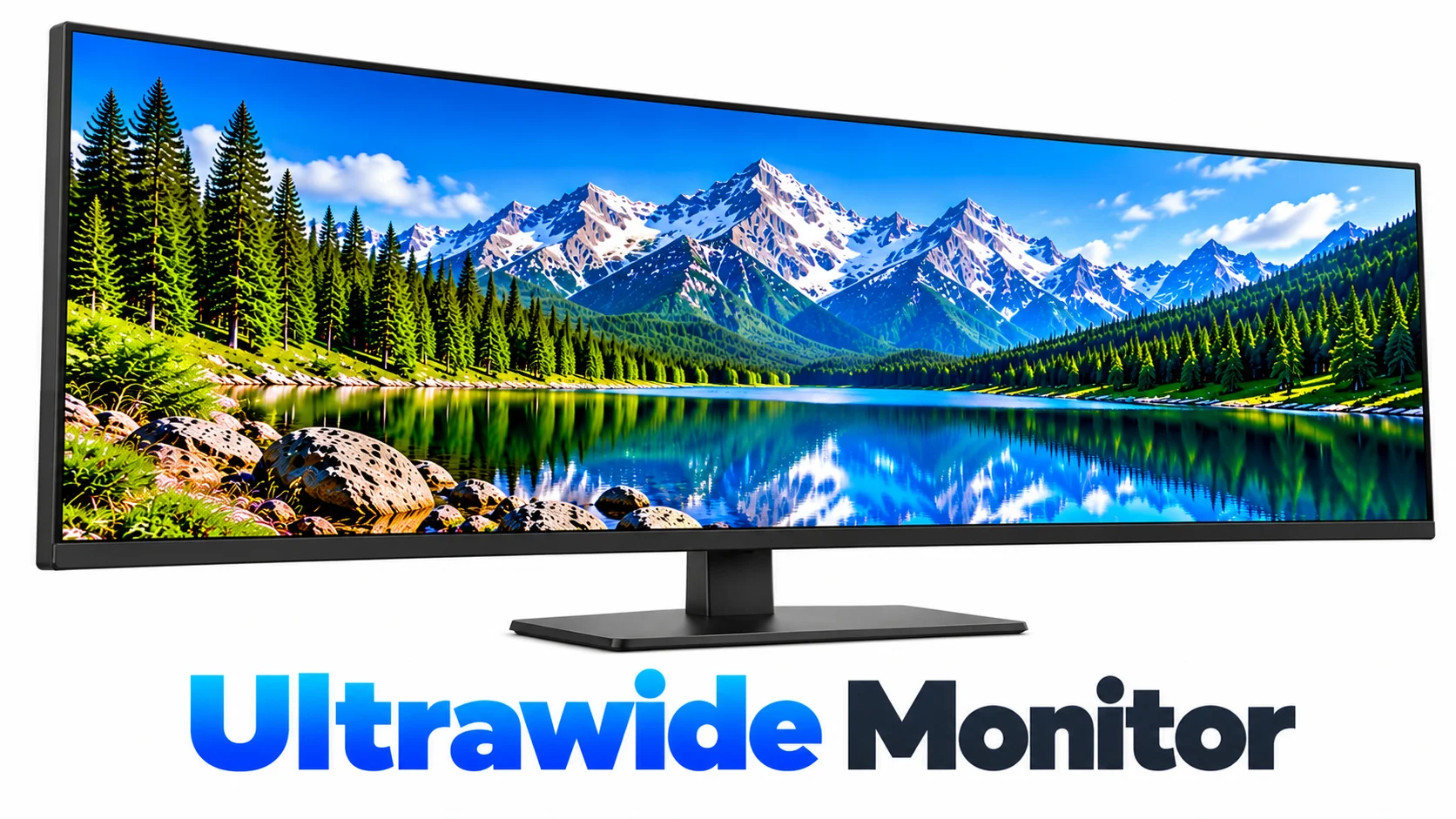
An ultrawide monitor has a wider screen than a standard monitor, usually with a 21:9 or wider aspect ratio. The extra horizontal space allows users to keep multiple windows open side by side without needing two separate monitors. It is useful for multitasking, video editing, gaming, and productivity.
13. Portable Monitor
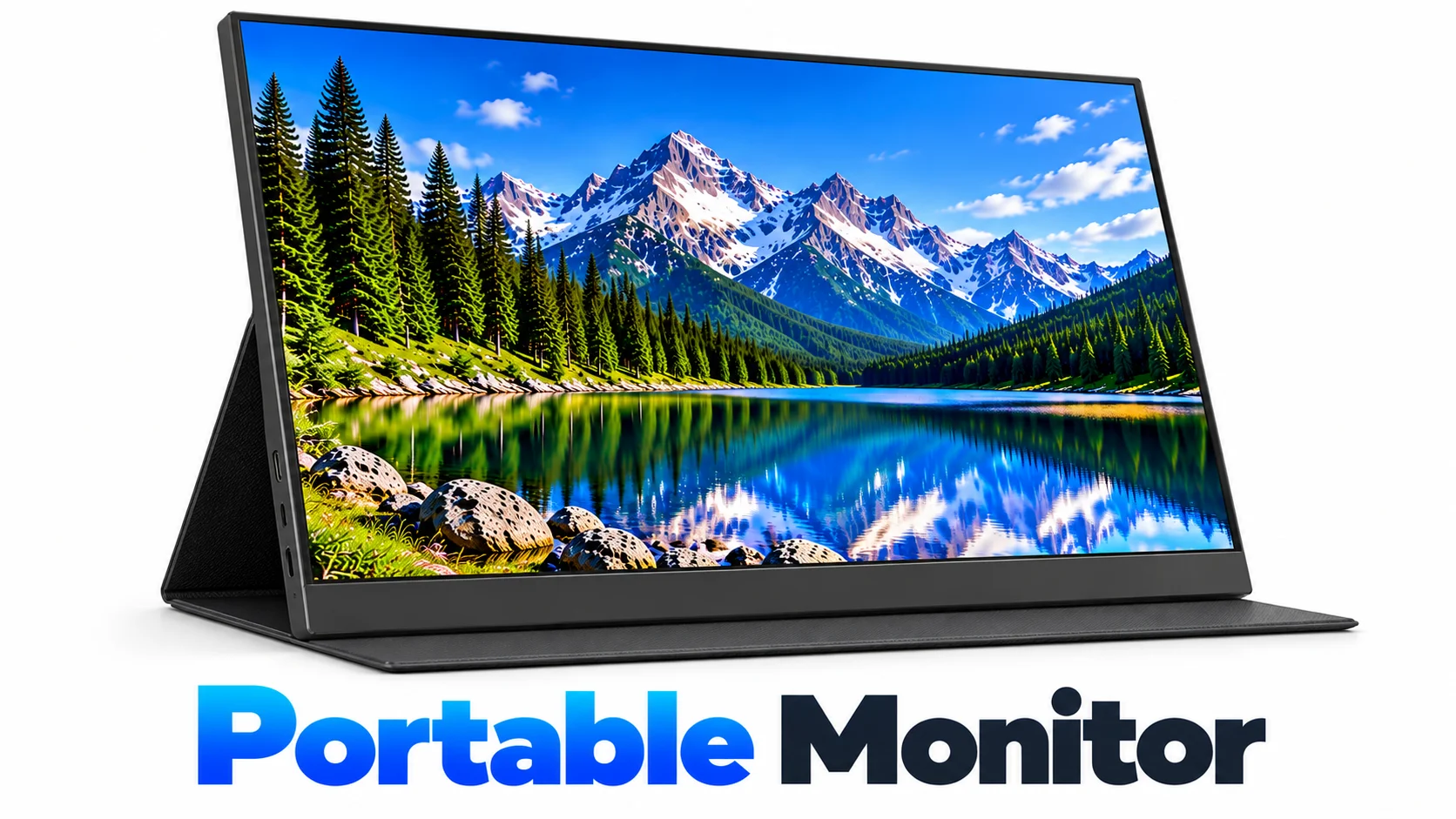
A portable monitor is a thin and lightweight display designed to be carried easily. It can connect to a laptop, tablet, or other compatible device to provide extra screen space while traveling or working away from a desk. It is useful for students, remote workers, and people who need a second screen on the go.
14. Touchscreen Monitor
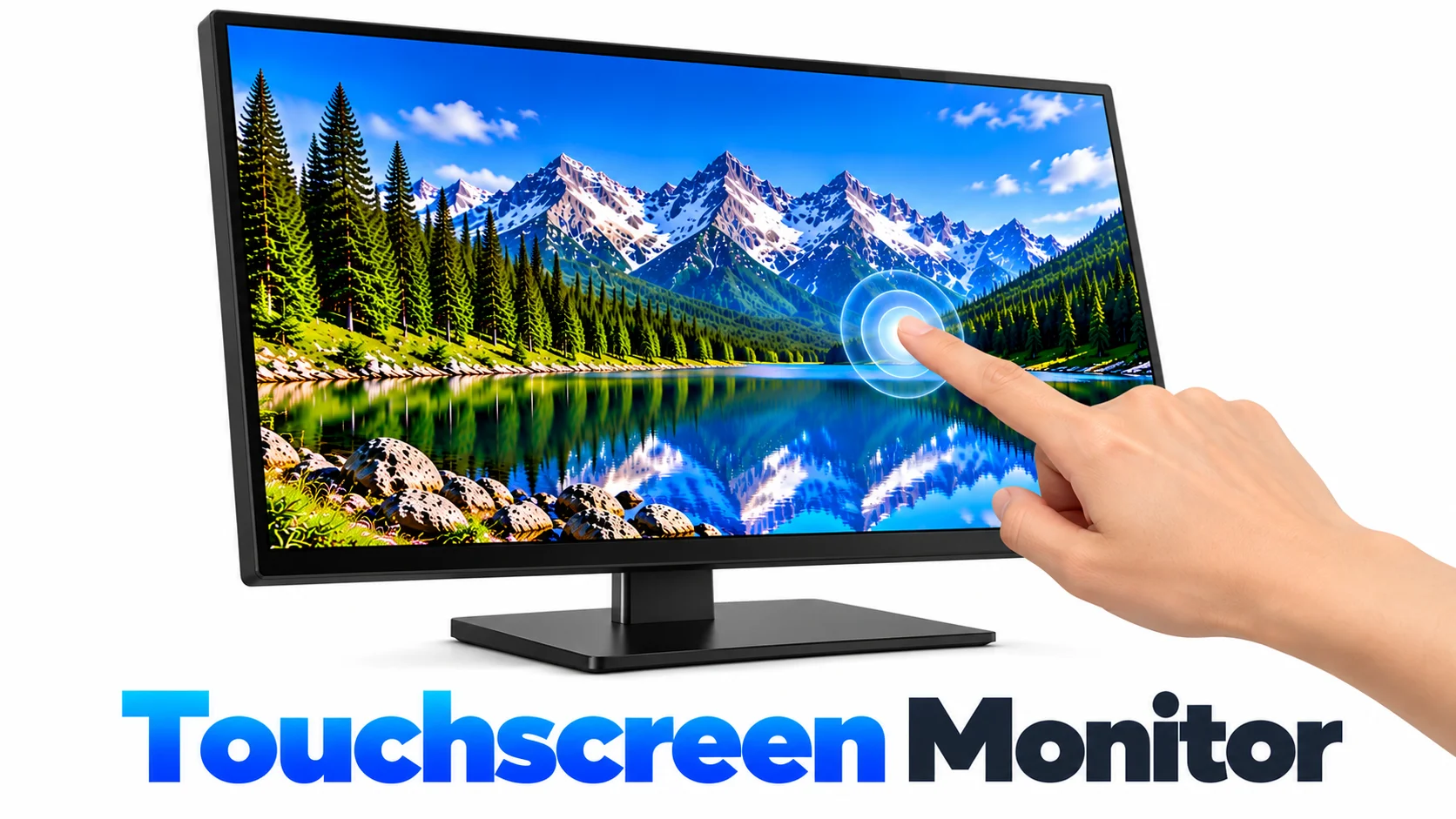
A touchscreen monitor lets users control the computer directly by touching icons, menus, and other items on the screen. It combines display and touch input in one device, making it useful for kiosks, point-of-sale systems, classrooms, workplaces, and interactive applications.
Which Type of Monitor in Computer Is Best?
There is no single best type of computer monitor for everyone. The right monitor depends on what you do, how you use your computer, and your budget. Here are some common choices based on different needs:
- For Students and Office Work: LCD, LED, IPS, or VA monitors can work well because these tasks usually do not require extremely high refresh rates or advanced display features.
- For Gaming: TN, IPS, or OLED monitor – choose based on the required response time, refresh rate, and image quality.
- For Graphic Design: IPS or OLED monitor – useful when accurate colors and strong image quality are important.
- For Movies & Entertainment: VA or OLED monitor – suitable for strong contrast, deep blacks, and an immersive viewing experience.
- For Multitasking: Ultrawide monitor – provides more horizontal screen space for working with multiple windows.
- For Travel: Portable monitor – useful when you need an extra screen while working away from your main desk.
- For Touch-Based Work: Touchscreen monitor – useful for interactive applications, kiosks, classrooms, and point-of-sale systems.
Final Words
There are many types of computer monitors, and each one is designed for different needs. CRT, LCD, LED, OLED, and QLED monitors use different display technologies, while IPS, TN, and VA panels offer different performance features.
Flat, curved, ultrawide, portable, and touchscreen designs also serve different purposes. The right monitor depends on your work, gaming needs, viewing preferences, and budget.



- Be Respectful
- Stay Relevant
- Stay Positive
- True Feedback
- Encourage Discussion
- Avoid Spamming
- No Fake News
- Don't Copy-Paste
- No Personal Attacks
- Be Respectful
- Stay Relevant
- Stay Positive
- True Feedback
- Encourage Discussion
- Avoid Spamming
- No Fake News
- Don't Copy-Paste
- No Personal Attacks
