Backlight Bleed Test – Detect your Display for Backlight Bleeding
Published: 1 Nov 2026
Tip: Test your screen in a dark room with moderate brightness to make backlight bleeding easier to notice.
Screen Bleeding: What It Is, Causes, How to Test, and Fix It
Screen bleeding is a display issue in which unwanted light leaks through the edges or corners of an LCD screen, creating bright patches that are especially noticeable on dark backgrounds. It can make dark scenes look uneven and reduce picture quality.
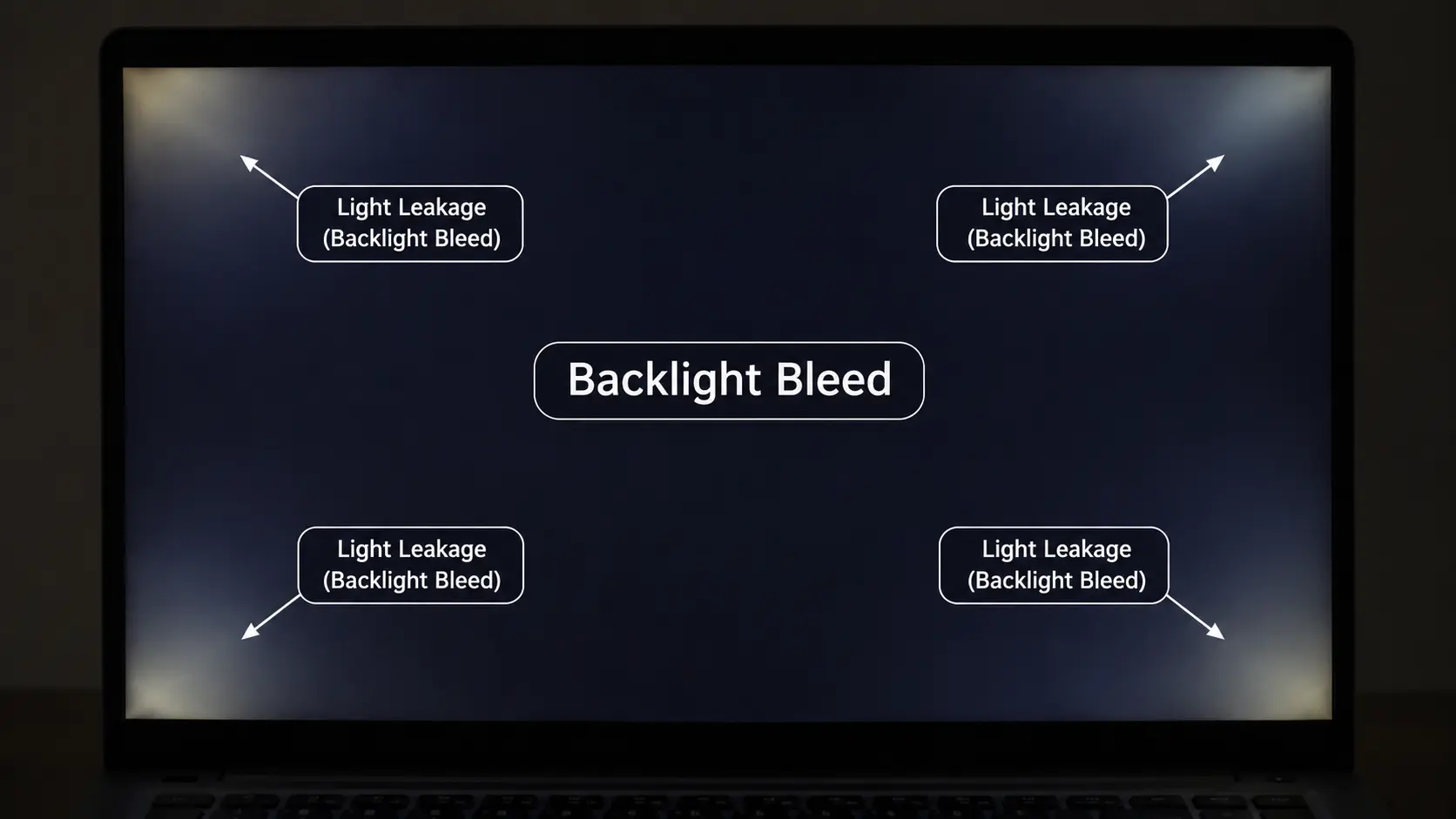
In this guide, you’ll learn what causes screen bleeding, how to identify it, how it differs from IPS glow, and how to test, fix, and prevent it.
What Causes Screen Bleeding?
Screen bleeding usually happens when the LCD panel or its surrounding structure allows backlight to escape unevenly. Common causes include:
- Uneven Pressure on the LCD Panel: Pressure from the screen frame or bezel can affect the panel layers and cause light to leak around certain areas.
- Poor Panel Assembly: If the LCD panel or backlight layers are not fitted evenly during manufacturing, some areas may allow more light to pass through.
- Physical Damage: Dropping a laptop, twisting its lid, or applying excessive pressure can damage the display structure and lead to light leakage.
Screen Bleeding vs. IPS Glow
Screen bleeding and IPS glow can look similar, especially when viewing dark images in a dim room. However, they have different causes.
Screen bleeding is unwanted backlight leakage caused by uneven panel pressure, assembly, or defects. IPS glow is a viewing characteristic of IPS technology that can make corners or areas of the screen appear brighter, particularly when viewed from certain angles.
How to tell the difference: Change your viewing position while displaying a black image. IPS glow usually changes in appearance as your viewing angle changes, while screen bleeding generally stays in the same areas.
Note: This is a useful visual clue, but it cannot guarantee an accurate diagnosis.
How to do Backlight Bleeding Test
You can use our Screen Bleeding Test Tool to inspect your monitor or laptop display for light leakage and uneven brightness. It displays different solid colors across your screen so you can examine how different areas look.
Follow these steps:
- Open the Test Tool: Open our Screen Bleeding Test Tool in your browser and click the Start Test button.
- Check the Black Screen: Select black and turn off the room lights. Look for unwanted bright patches around the screen edges and corners.
- Check Other Colors: Switch between white, gray, red, green, blue, and other available colors to inspect uneven brightness, discoloration, and visible display defects.
- Use Fullscreen Mode: Click the Fullscreen button to cover the entire display without browser distractions.
- Exit the Test: Click the Exit Test button when you finish inspecting your screen.
Tip: Black is the most useful color for checking backlight bleeding. Keep your screen brightness at a normal level and avoid setting it to maximum just for the test.
Our tool provides visual testing only. It does not automatically detect or diagnose hardware problems.
Is Screen Bleeding Normal?
Minor screen bleeding can occur in LCD displays because of differences in panel construction and backlight distribution. A small amount may only be visible when displaying a black image in a dark room.
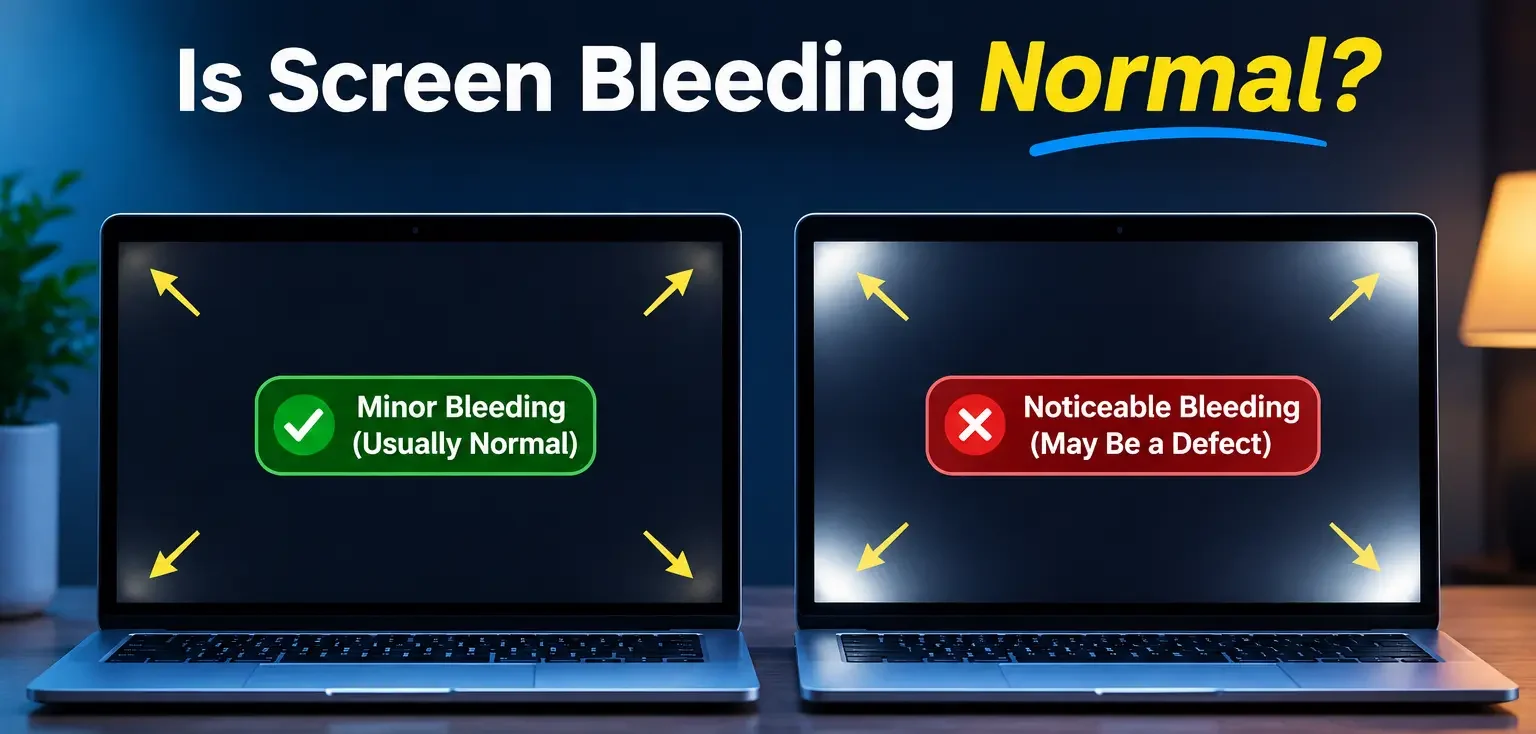
However, bright patches that remain noticeable during normal use may indicate a display defect. If the issue affects your viewing experience, especially on a new device, contact the manufacturer to check whether repair or replacement is covered by the warranty.
How to Fix Screen Bleeding
Screen bleeding is usually a hardware-related issue, so software changes cannot permanently repair it. Lowering the screen brightness may make the light leakage less noticeable, but it does not fix the underlying problem.
If the display frame is loose or misaligned, have a qualified technician inspect it. Avoid pressing the affected areas or trying to bend the bezel, as this can cause further damage.
If the bleeding is severe, contact the manufacturer for warranty support. Replacing the LCD panel may be necessary when the panel itself is damaged.
Can Screen Bleeding Get Worse Over Time?
Screen bleeding does not always get worse. Minor light leakage may remain unchanged throughout the display’s lifespan.
However, if the panel or its frame becomes damaged or develops additional pressure points, the affected areas may become more noticeable. If you notice new bright patches or a clear change in existing ones, have the display inspected by a technician.
How to Prevent Screen Bleeding
- Handle the Display Carefully: Open and close your laptop gently without twisting the screen.
- Keep Objects Away from the Screen: Check that pens, headphones, or other objects are not left between the keyboard and display before closing the lid.
- Use a Padded Laptop Case: Protect your device from pressure and impacts while carrying it.
- Clean the Screen Gently: Use a soft microfiber cloth and avoid applying excessive pressure.
- Avoid DIY Panel Adjustments: Do not try to bend the bezel or adjust the LCD panel yourself. Ask a qualified technician for help if the frame needs repair.
Note: These steps help reduce the risk of physical damage, but they cannot guarantee that screen bleeding will never occur.
Final Words
The best way to deal with screen bleeding is to identify how noticeable it is during normal use. Start with a black-screen test using our Screen Bleeding Test Tool, then check your display from different viewing angles.
If the light leakage is severe or affects everyday use, contact the manufacturer or a qualified technician. Proper handling can also help protect your LCD screen from physical damage.



- Be Respectful
- Stay Relevant
- Stay Positive
- True Feedback
- Encourage Discussion
- Avoid Spamming
- No Fake News
- Don't Copy-Paste
- No Personal Attacks
- Be Respectful
- Stay Relevant
- Stay Positive
- True Feedback
- Encourage Discussion
- Avoid Spamming
- No Fake News
- Don't Copy-Paste
- No Personal Attacks
