LCD Display Issues: How to Diagnose, Prevent and Fix Problems
Published: 14 Oct 2026
Is your LCD screen flickering, showing lines, or suddenly going blank? Does the problem come from the display itself, the cable, the power supply, or something else?
Finding the real cause can save you from replacing a perfectly good screen. In this guide, we’ll cover the most common LCD display problems, how to identify them, and the practical steps you can take to troubleshoot them safely.
Common Causes of LCD Display Issues
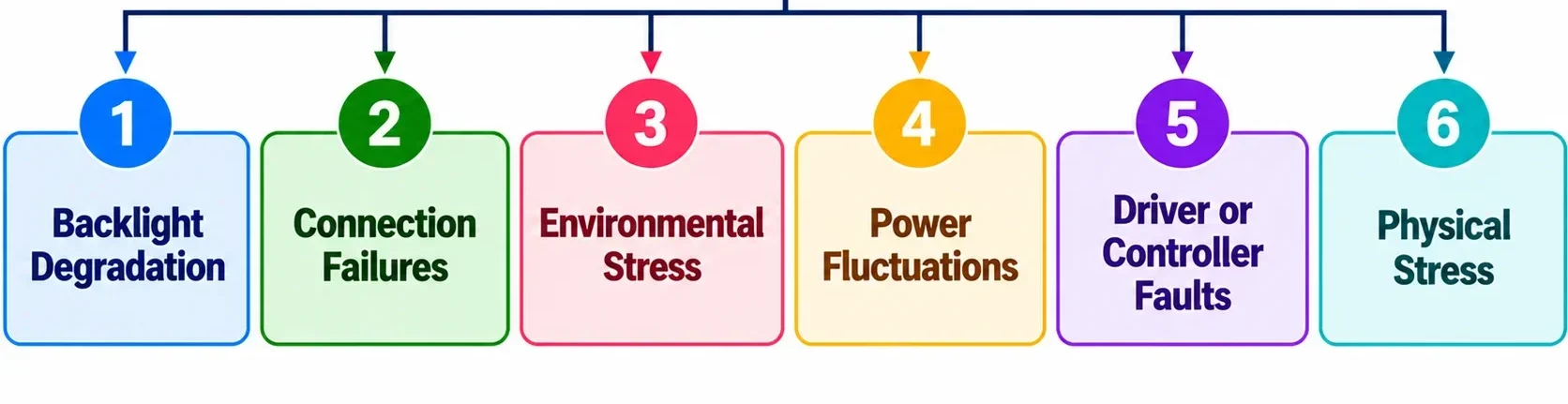
LCD display problems can occur due to hardware damage, power issues, or software faults. Understanding these common causes helps you identify the problem and find the right fix, let’s see:
1. Backlight Degradation
Backlight bleed or degradation happens when the light source behind an LCD screen becomes weaker over time, making the display look dim, uneven, or darker than usual.
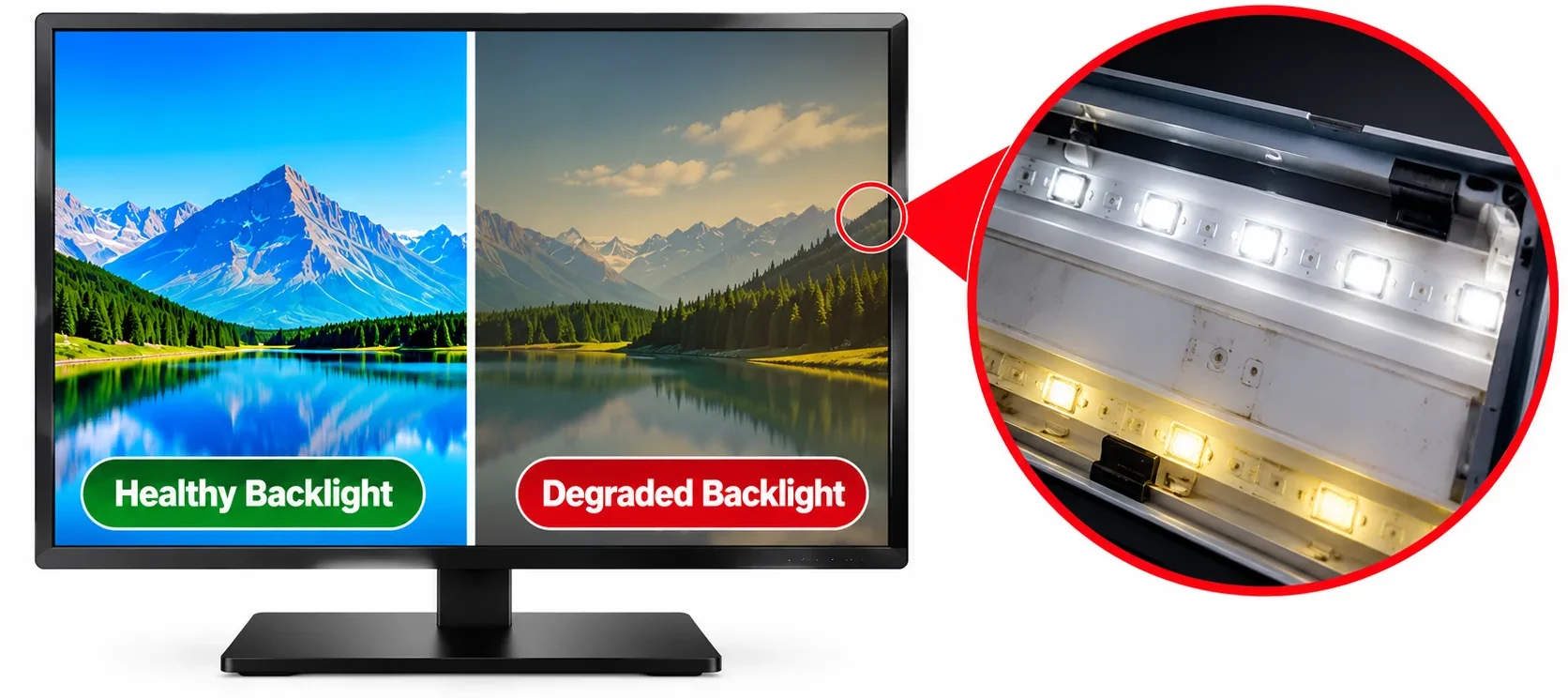
It usually occurs because the LEDs or other lcd backlight components naturally wear out after long-term use, while excessive heat can speed up the process. You may notice that increasing the screen brightness does not fully fix the problem. If the image is still visible but the screen remains very dark, the backlight may need to be repaired or replaced.
2. Connection Failures
Connection failures occur when the cable, ribbon cable, or connector between the LCD panel and its control hardware becomes loose, damaged, or poorly connected.
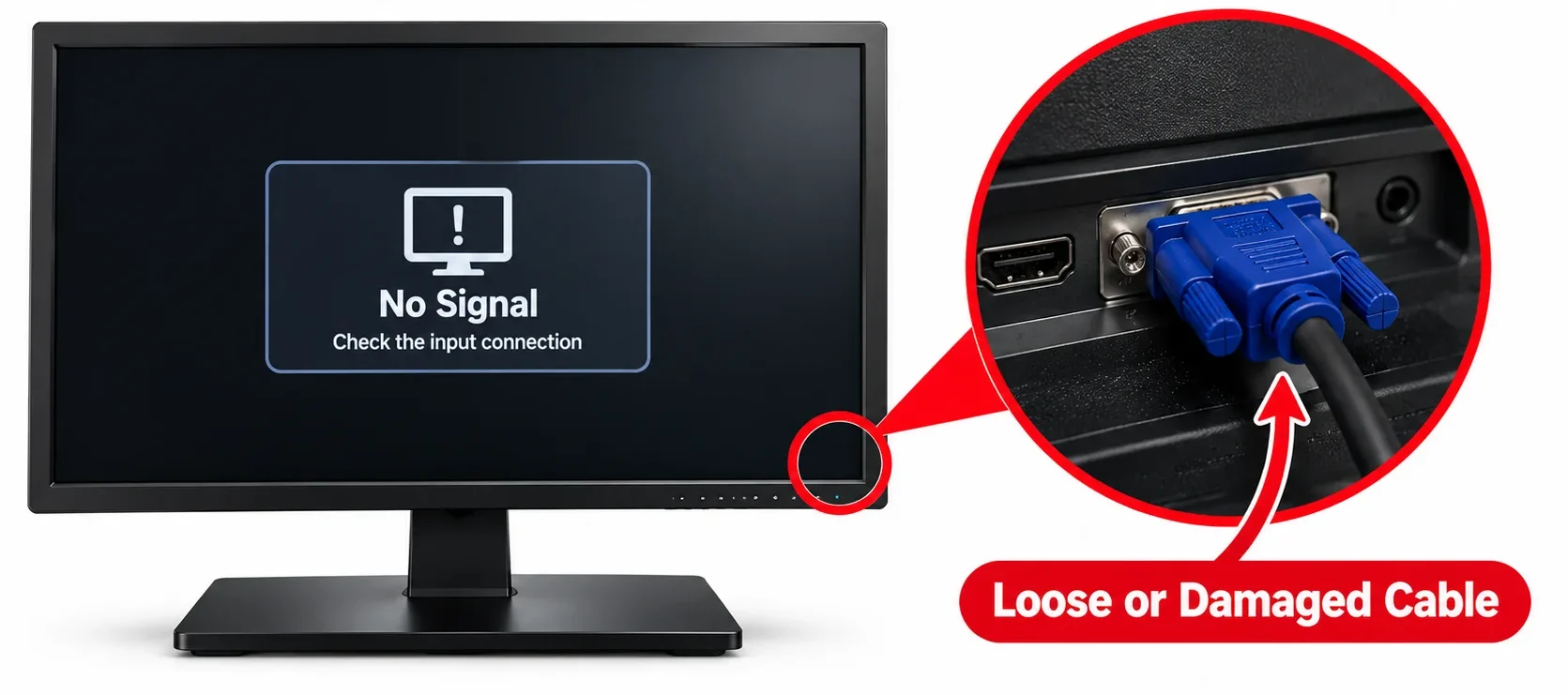
This can cause flickering, horizontal or vertical lines, missing colors, or a completely blank screen. Loose connections may happen because of movement, vibration, repeated opening and closing of a laptop, or physical damage.
3. Environmental Stress
Environmental stress can affect an LCD display when it is exposed to excessive heat, very low temperatures, moisture, dust, or direct sunlight for long periods.
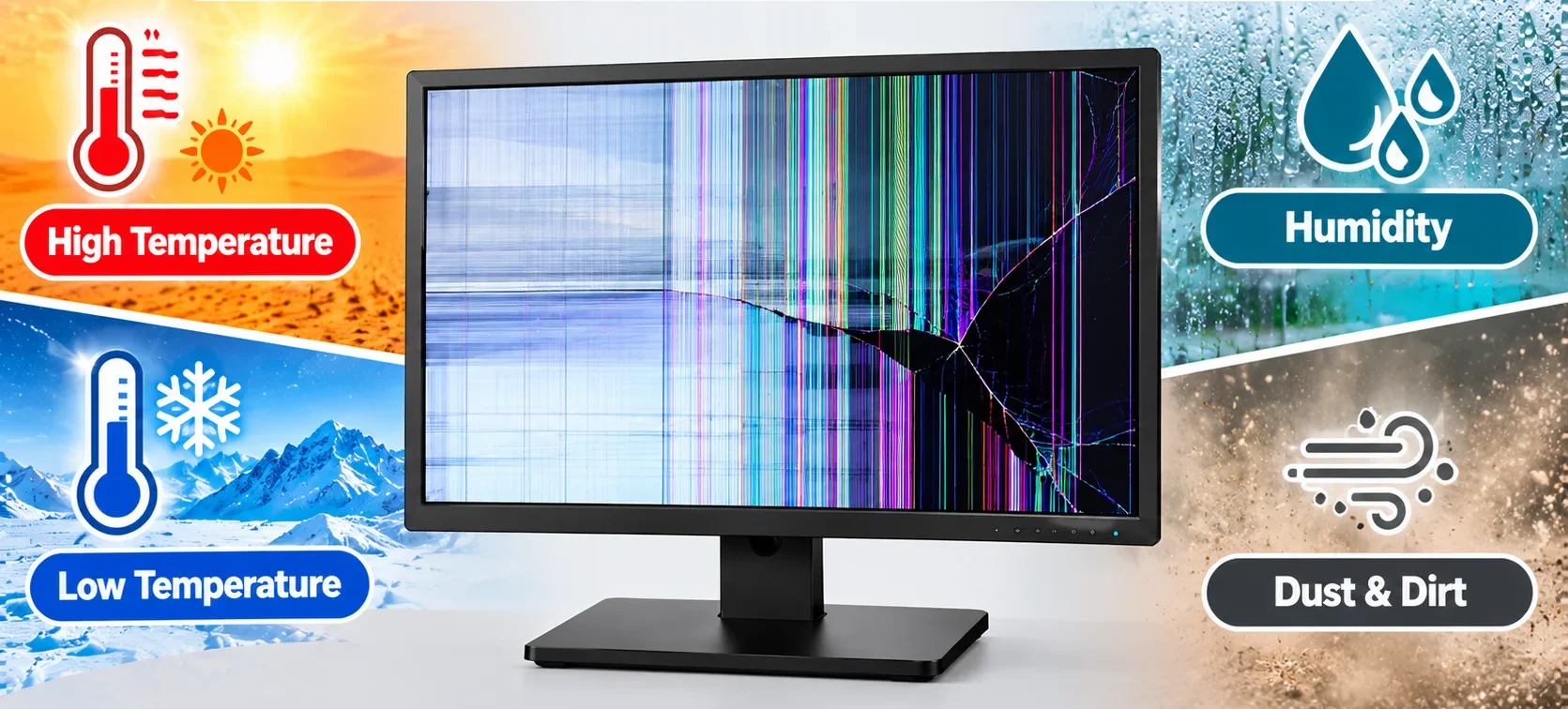
High heat can damage electronic components and speed up backlight wear, while moisture can cause corrosion or short circuits. Extreme temperatures can also affect how the liquid crystals respond, causing slow, distorted, or uneven images.
4. Power Fluctuations
Power fluctuations happen when the voltage supplied to an LCD display suddenly rises or drops.
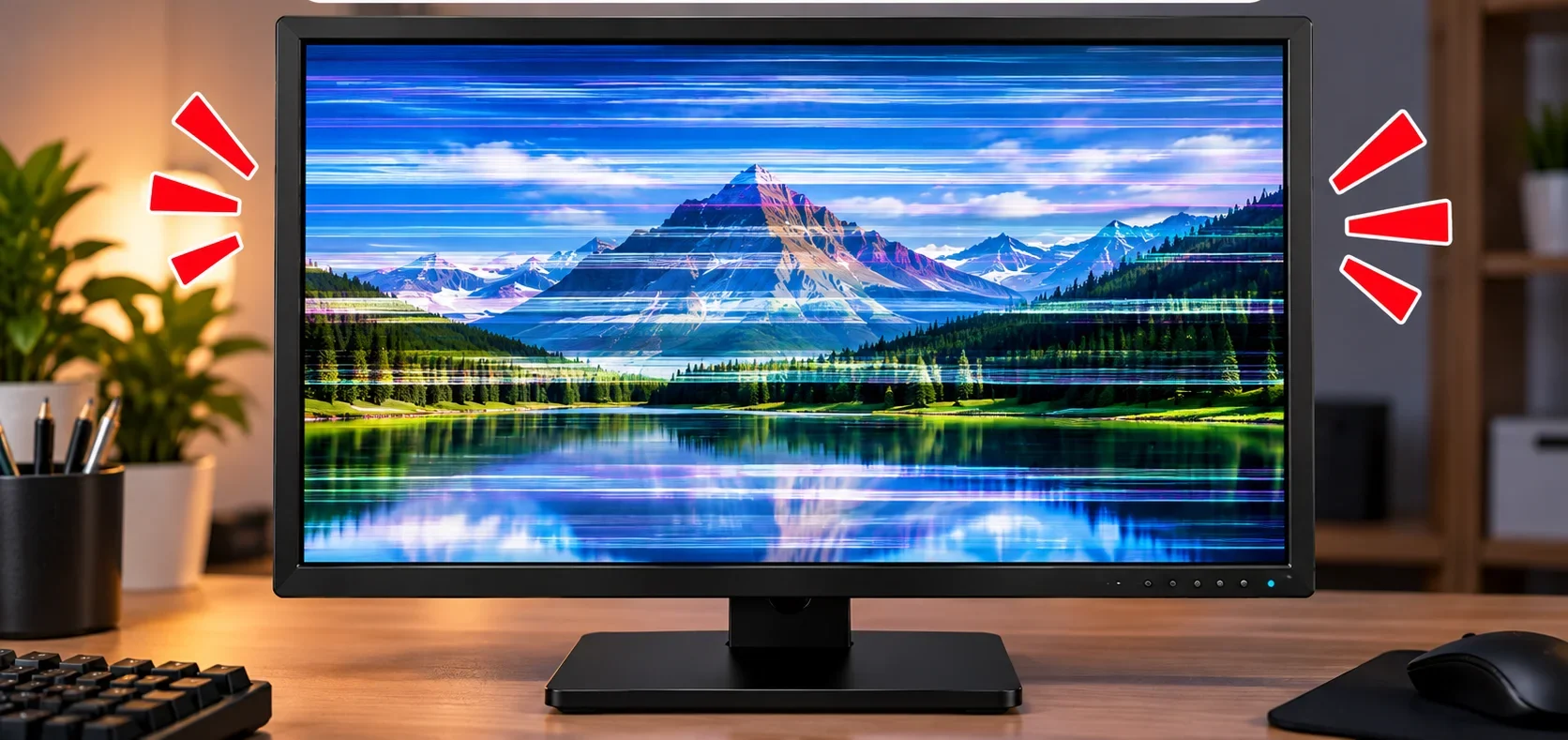
Unstable power can cause flickering, random shutdowns, screen resets, or even damage to the display’s power circuitry. Power surges are especially risky because they can damage components such as the power board or controller.
5. Driver or Controller Faults
Driver or controller faults occur when the electronics that control how an LCD displays images stop working correctly. A faulty display driver, controller board, or related firmware can cause flickering, missing colors, distorted images, lines, or a blank screen.
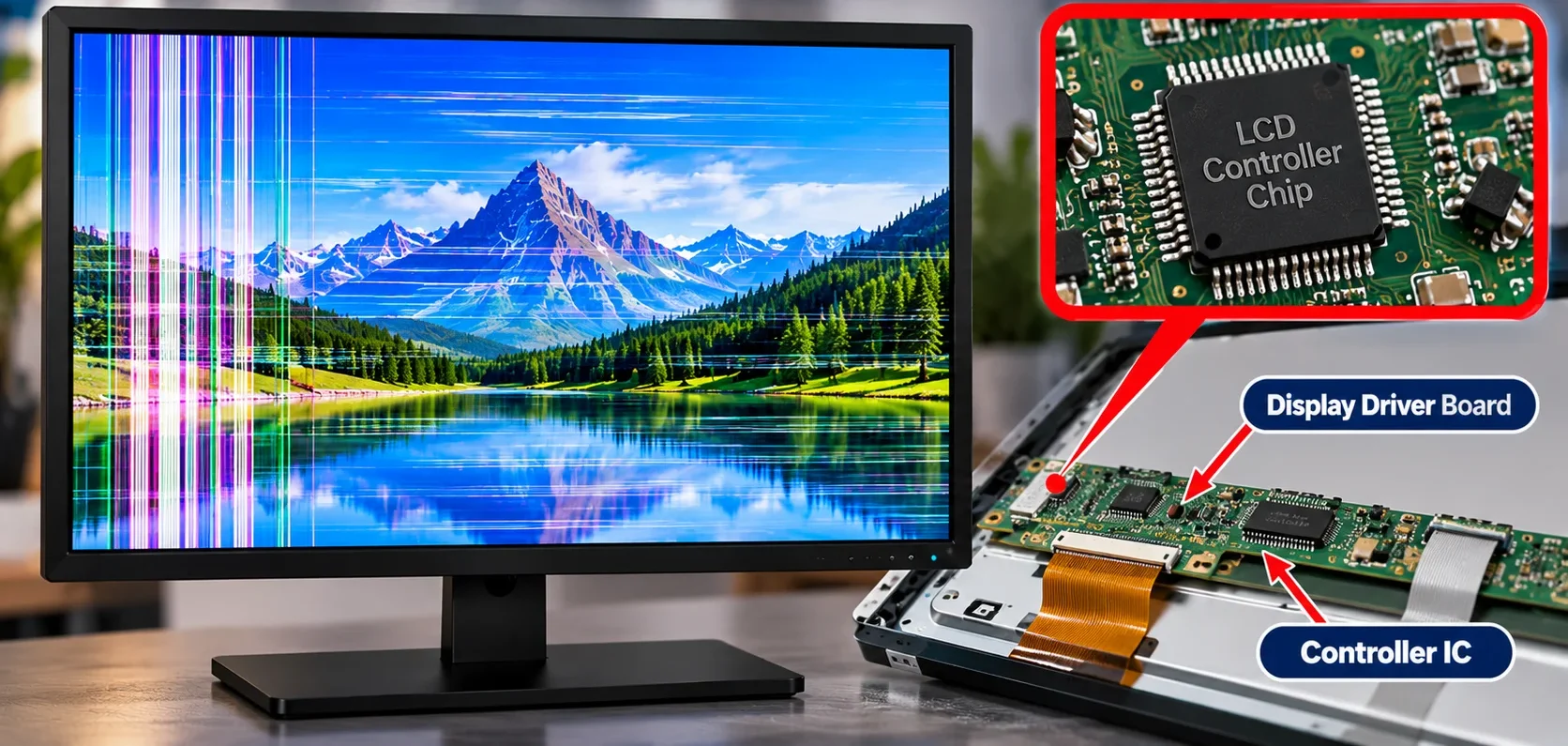
These faults may result from overheating, electrical damage, component failure, or firmware problems. If cables and power are working properly but the display still behaves incorrectly, the controller or driver circuitry may need professional testing or replacement.
6. Physical Stress
Physical stress occurs when an LCD panel is exposed to pressure, impact, bending, or repeated vibration. It can damage the delicate layers inside the screen and cause cracks, black spots, colored lines, dead areas, or distorted images.
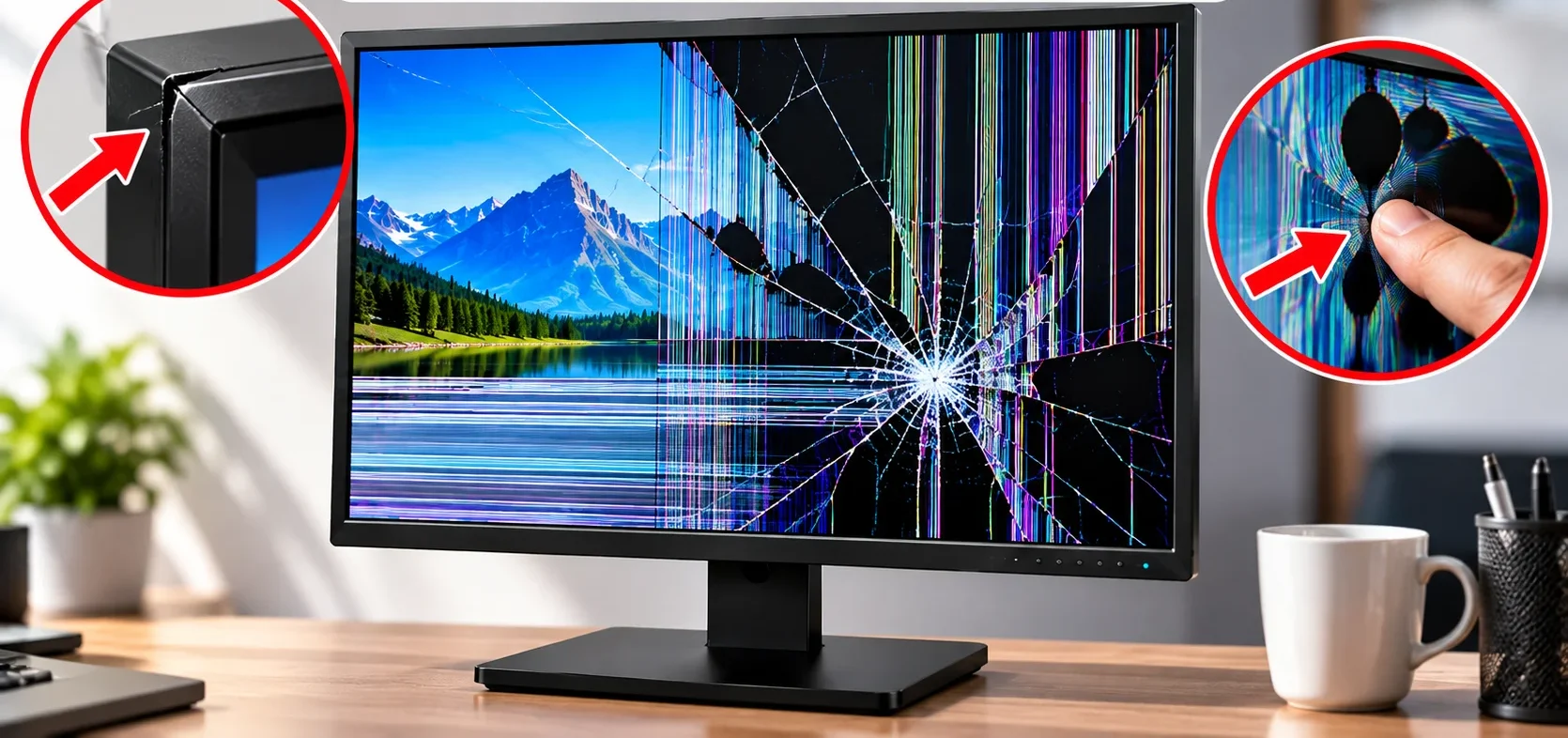
Unlike a loose connection, physical panel damage usually cannot be fixed through settings or software. If the LCD panel itself is cracked or internally damaged, replacement is often the practical solution.
When You Should Avoid Troubleshooting
Stop troubleshooting if the LCD shows burning smell, smoke, liquid damage, exposed wires, severe physical damage, or signs of overheating.
You should also avoid opening the display if you are not familiar with its internal components, as some parts can carry dangerous electrical charges even when the device is turned off. In these situations, disconnect the power safely and get the display checked by a qualified technician.
How to Diagnose LCD Display Issues
Before fixing an LCD screen, you need to identify the cause of the problem. These simple diagnostic steps will help you find the issue and choose the right solution.
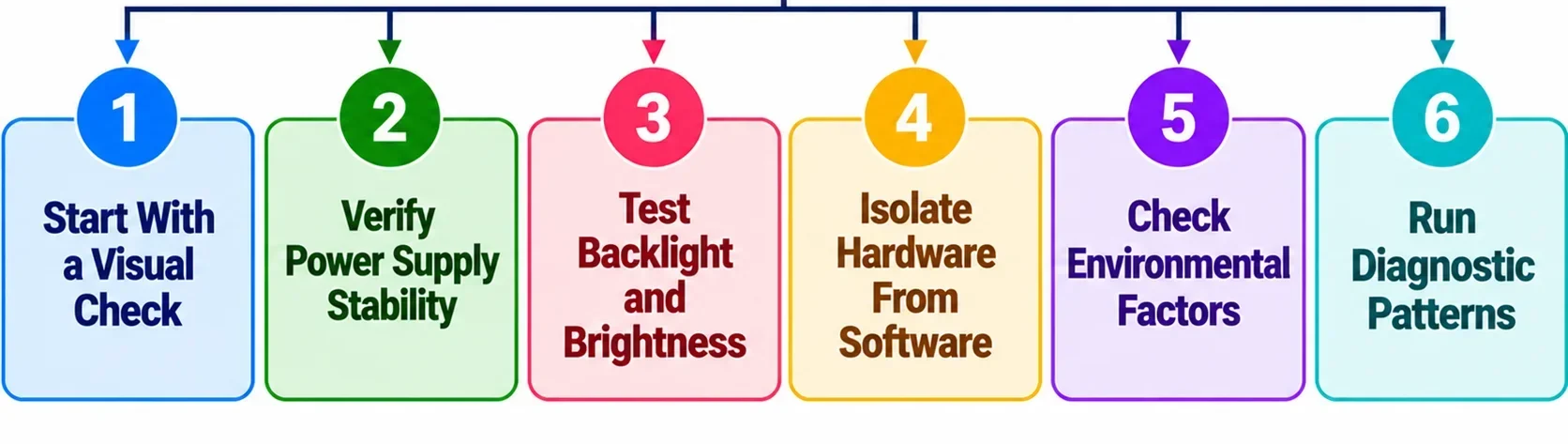
1. Start With a Visual Check
Start by carefully inspecting the screen and its surroundings before changing any settings or opening the device. Look for cracks, black spots, lines, flickering areas, discoloration, or uneven brightness on the panel.
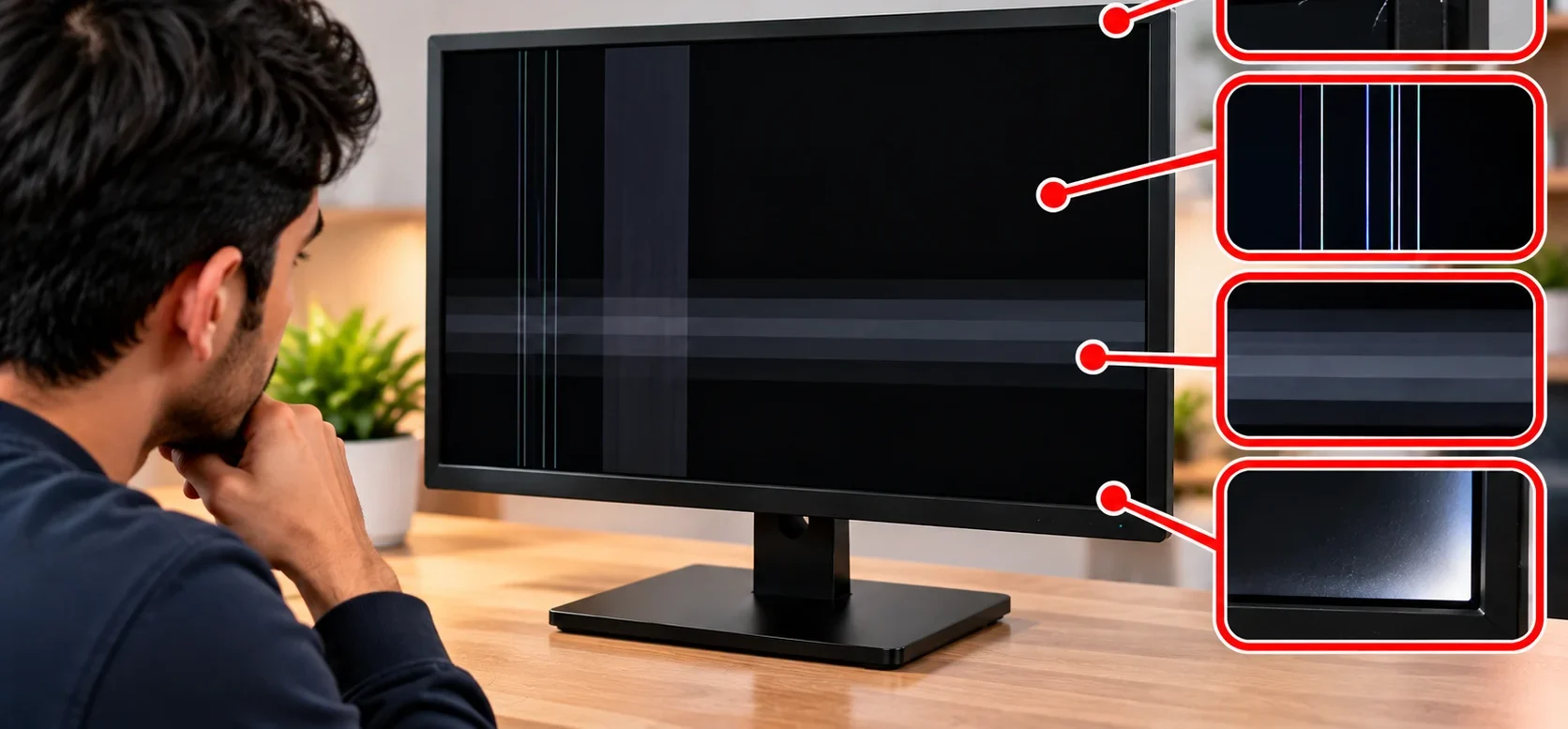
Also check the power cable, display cable, and connectors for visible damage or looseness. A visual check can quickly show whether the problem is likely caused by physical damage or a connection issue and helps you avoid unnecessary repairs.
2. Verify Power Supply Stability
Check that the LCD display is receiving a stable and correct power supply. A damaged power cable, faulty adapter, loose connection, or unstable outlet can cause flickering, sudden shutdowns, or a blank screen.
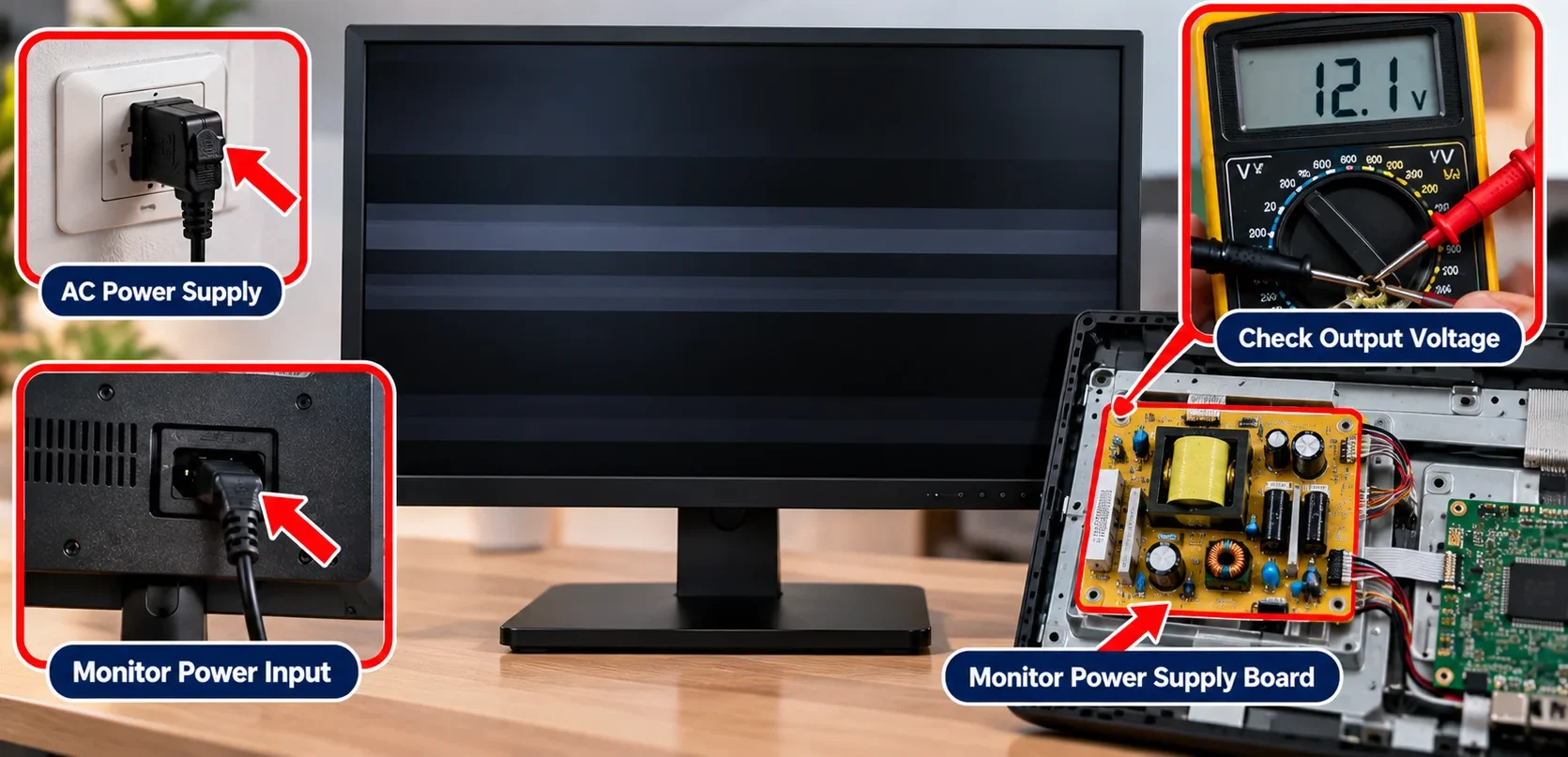
If possible, test the display with a known-good compatible power cable or adapter and another reliable outlet. Never use an adapter with the wrong voltage or power rating, as it can damage the display.
3. Test Backlight and Brightness
Increase the display brightness and check whether the screen becomes noticeably brighter. If the image is visible but remains very dim or uneven, the backlight may be weakening or failing.
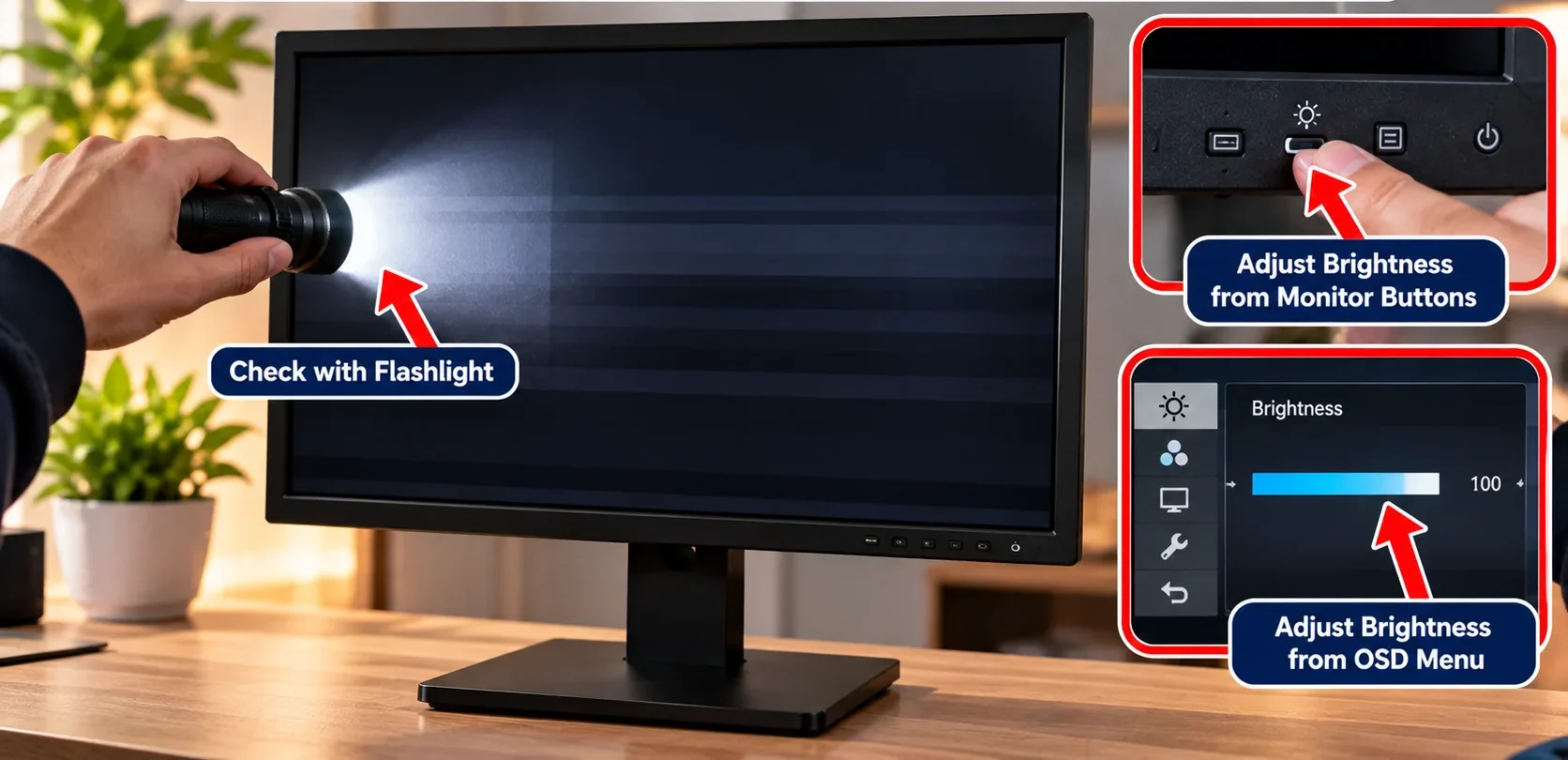
You can also shine a flashlight at an angle toward a dark screen; if you can faintly see the image, the LCD panel may still be working while the backlight has a problem. This test helps separate a backlight issue from a completely failed display.
4. Isolate Hardware From Software
First determine whether the problem comes from the LCD hardware or the computer’s software. Check if the issue appears before the operating system loads, such as on the manufacturer logo or BIOS screen.
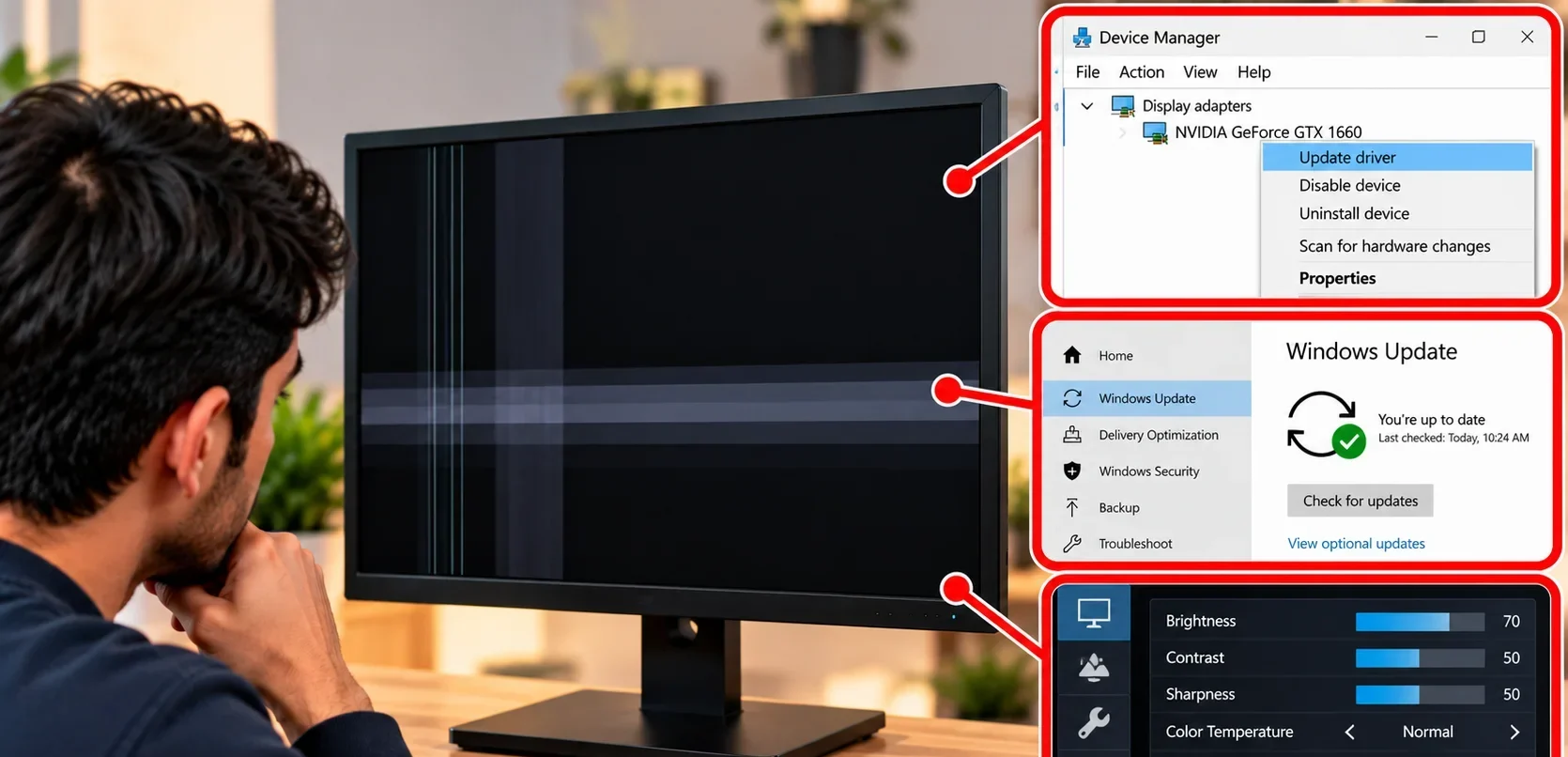
If it appears there, the display, cable, power supply, or other hardware is more likely responsible. If the screen works normally during startup but develops problems after Windows loads, check the display driver, resolution, refresh rate, and graphics settings.
5. Check Environmental Factors
Check whether the LCD is being used in conditions that could affect its performance. Excessive heat, moisture, dust, very low temperatures, and direct sunlight can cause display problems or shorten component life.
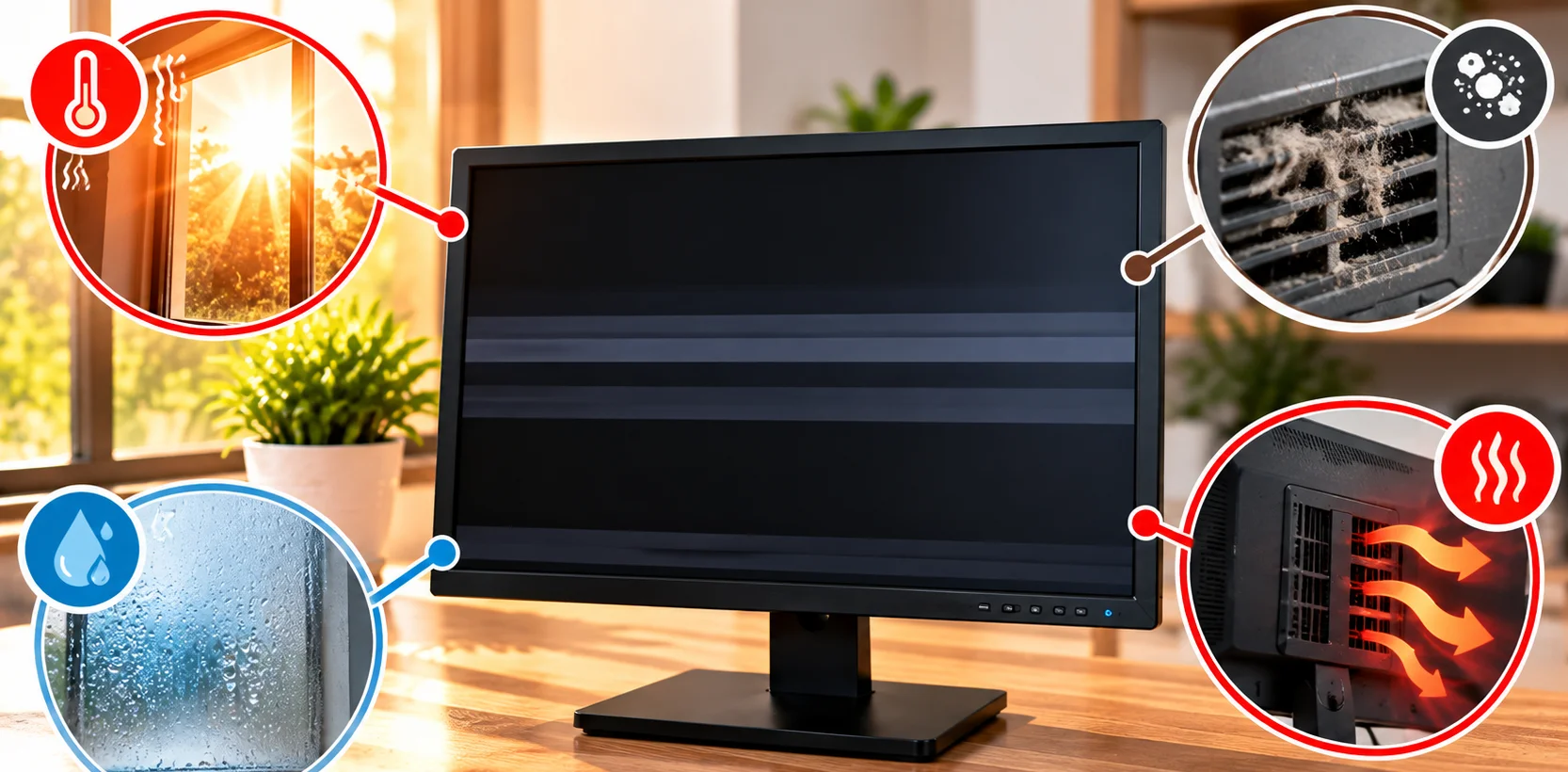
Make sure the device has proper airflow and is kept away from liquids and high-heat sources. If the problem appears only in extreme temperatures or humid conditions, allow the display to return to a normal environment and check it again.
6. Run Diagnostic Patterns
Diagnostic patterns can help identify dead pixels, stuck pixels, color problems, uneven brightness, and lines across the screen.
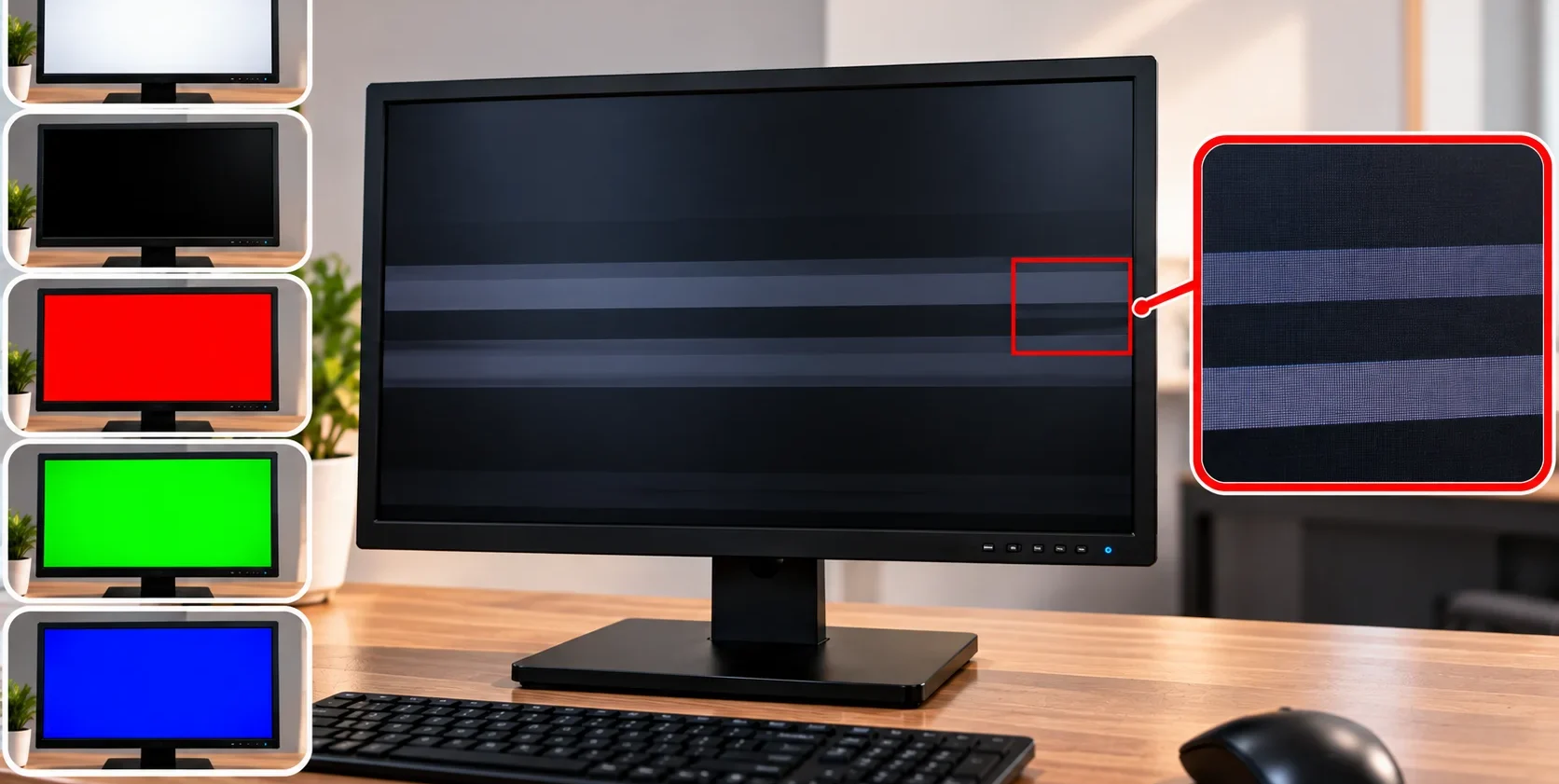
Display solid colors such as white, black, red, green, and blue and inspect the entire panel carefully. A pixel that remains permanently black or stuck on one color may indicate a panel problem. These tests help confirm whether the issue is limited to certain colors or areas of the LCD.
Preventive Maintenance for LCD Displays
- Environmental Control: Keep the LCD in a cool, dry, and well-ventilated area. Avoid excessive heat, moisture, and direct sunlight.
- Regular Cleaning: Clean the screen with a soft microfiber cloth. Avoid spraying liquid directly onto the display.
- Power Management: Turn off the display when it is not needed for long periods to reduce unnecessary component wear.
- Stable Power Supply: Use a reliable power source and a suitable surge protector to protect the display from voltage spikes.
- Scheduled Inspections: Regularly check cables, connectors, vents, and the screen for signs of damage or unusual behavior.
When to Repair vs. Replace an LCD Display
Not every LCD problem means you need a new display. The right choice depends on the type of damage, repair cost, and age of the display.
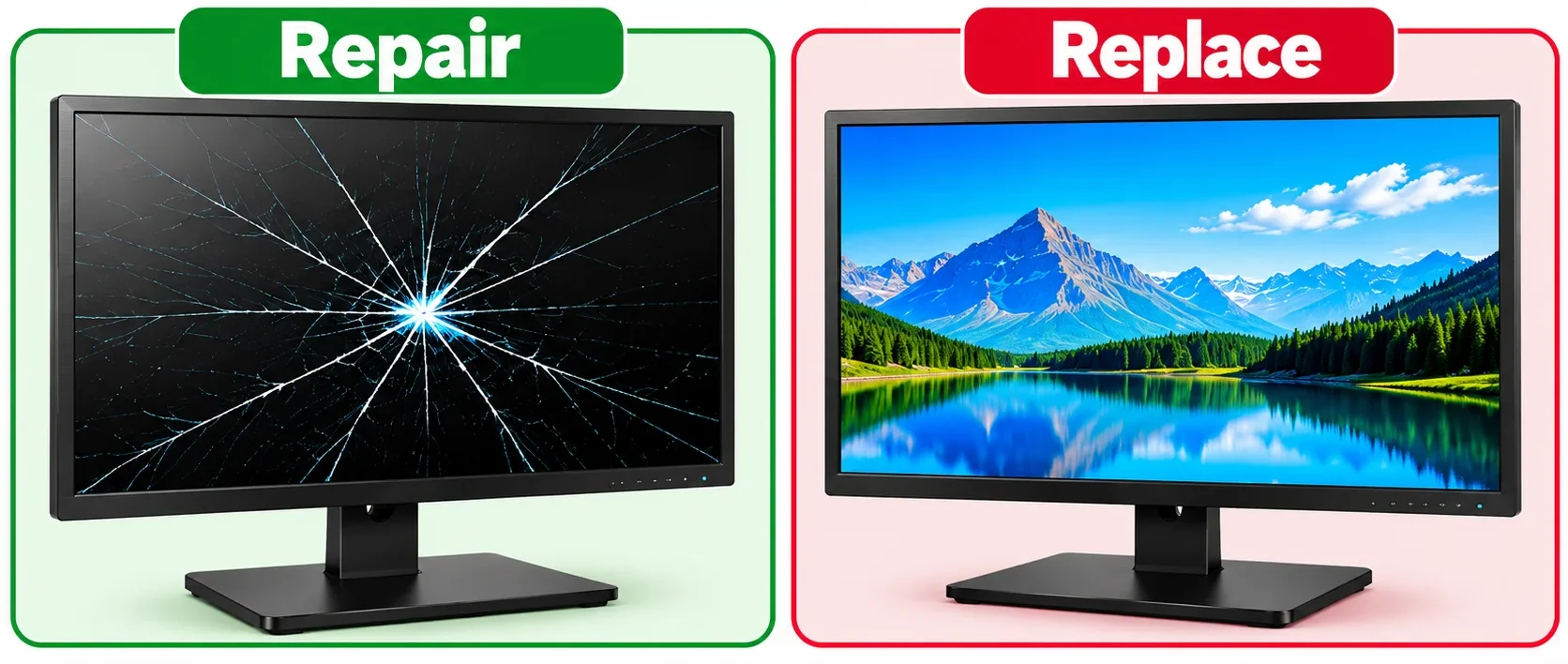
Repair the LCD When:
- The problem is caused by a loose or damaged cable.
- The backlight or power component can be replaced at a reasonable cost.
- The display has no major physical damage.
- The repair cost is much lower than buying a new display.
Replace the LCD When:
- The panel has cracks, severe physical damage, or large dead areas.
- The LCD has multiple recurring problems.
- The required replacement parts are difficult or expensive to find.
- Repair costs are close to the price of a new display.
- The display is old and a newer model offers significantly better reliability or features.
Conclusion
Most LCD display problems can be identified by checking the screen, connections, power supply, backlight, and environment.
Simple issues like loose cables or unstable power may be easy to fix, while damaged panels or internal components often need professional repair.
Regular cleaning, proper ventilation, and stable power can also help prevent future problems. If the repair cost is too high or the panel is badly damaged, replacing the display may be the better choice.



- Be Respectful
- Stay Relevant
- Stay Positive
- True Feedback
- Encourage Discussion
- Avoid Spamming
- No Fake News
- Don't Copy-Paste
- No Personal Attacks
- Be Respectful
- Stay Relevant
- Stay Positive
- True Feedback
- Encourage Discussion
- Avoid Spamming
- No Fake News
- Don't Copy-Paste
- No Personal Attacks
