What is Computer Mouse? How It Works, Parts, Types & Uses
Published: 11 Sep 2026
Have you ever thought about it? How a small device like a mouse lets you control almost everything on your computer screen? You can use it to open files, select text, click buttons, move objects, scroll through webpages, and interact with software with just a few simple movements.
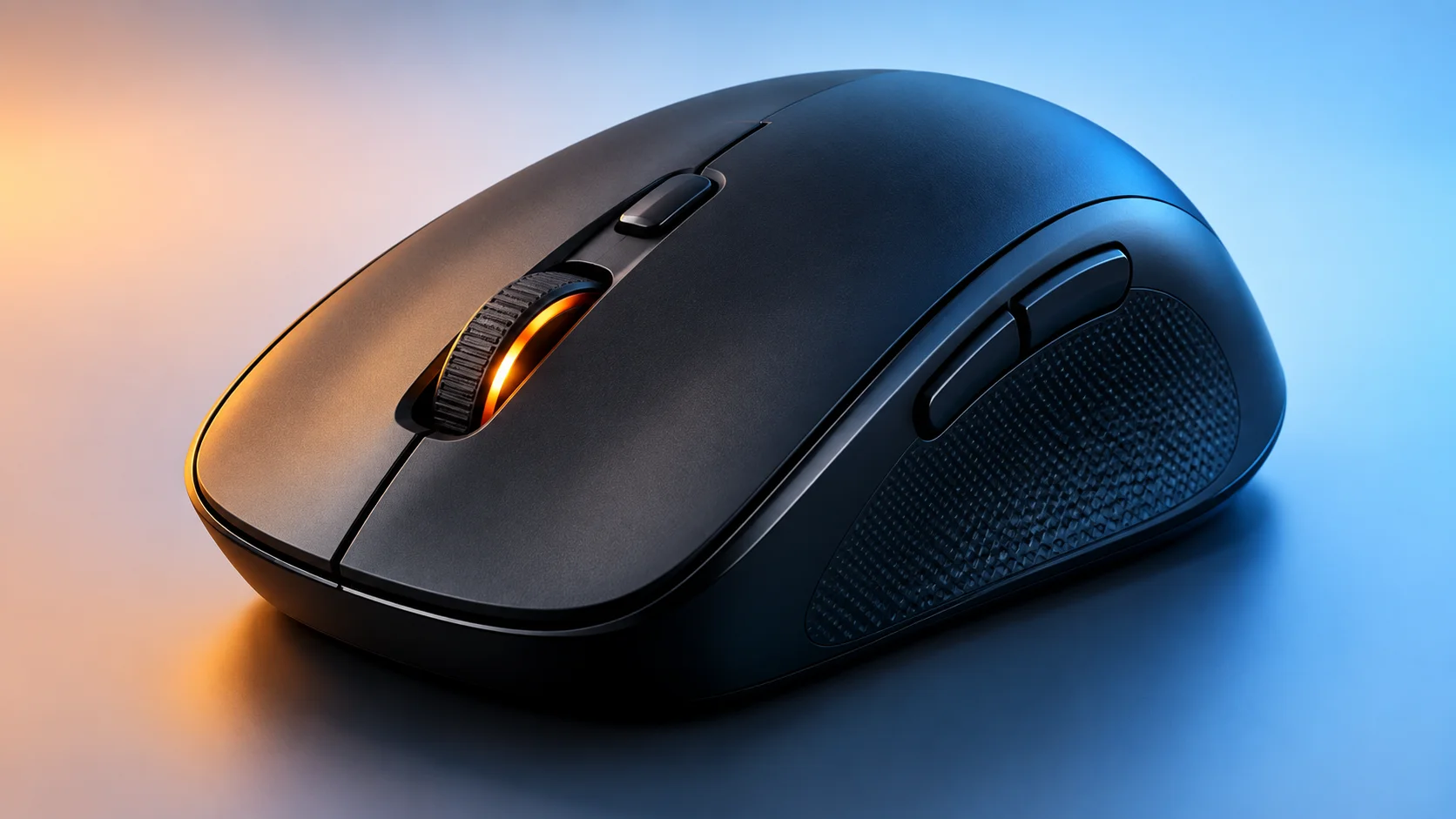
Definition: “A computer mouse is a handheld pointing device that controls the pointer on the screen and lets you interact with graphical elements on a computer.“
For example, when you move the mouse across your desk, the pointer moves across the screen. You can then place the pointer over a folder and double-click it to open the folder.
Unlike a keyboard, which mainly uses keys to enter text and commands, a mouse gives you direct control over items displayed on the screen. This makes it especially useful when working with files, websites, images, documents, and other graphical interfaces.
In this guide, you’ll learn about mouse, its main parts, different types of computer mice, common uses, advantages and disadvantages, difference between mouse and computer mouse and simple ways to maintain one.
Basic Parts of Mouse
The main parts of mouse include:
- Buttons: Used to click, select, and perform commands.
- Scroll Wheel: Helps scroll through pages and documents.
- Sensor: Detects the mouse’s movement and direction.
- PCB: Processes button presses and movement signals.
- Cable/Wireless Receiver: Connects the mouse to the computer.
- Body/Shell: Provides the mouse with its shape and protects internal parts.
- Feet/Skates: Help the mouse move smoothly across the surface.
How Does a Computer Mouse Work?
So buddies, what does the mouse do in a computer? A mouse works by detecting your hand movement and converting it into digital signals that the computer can understand.
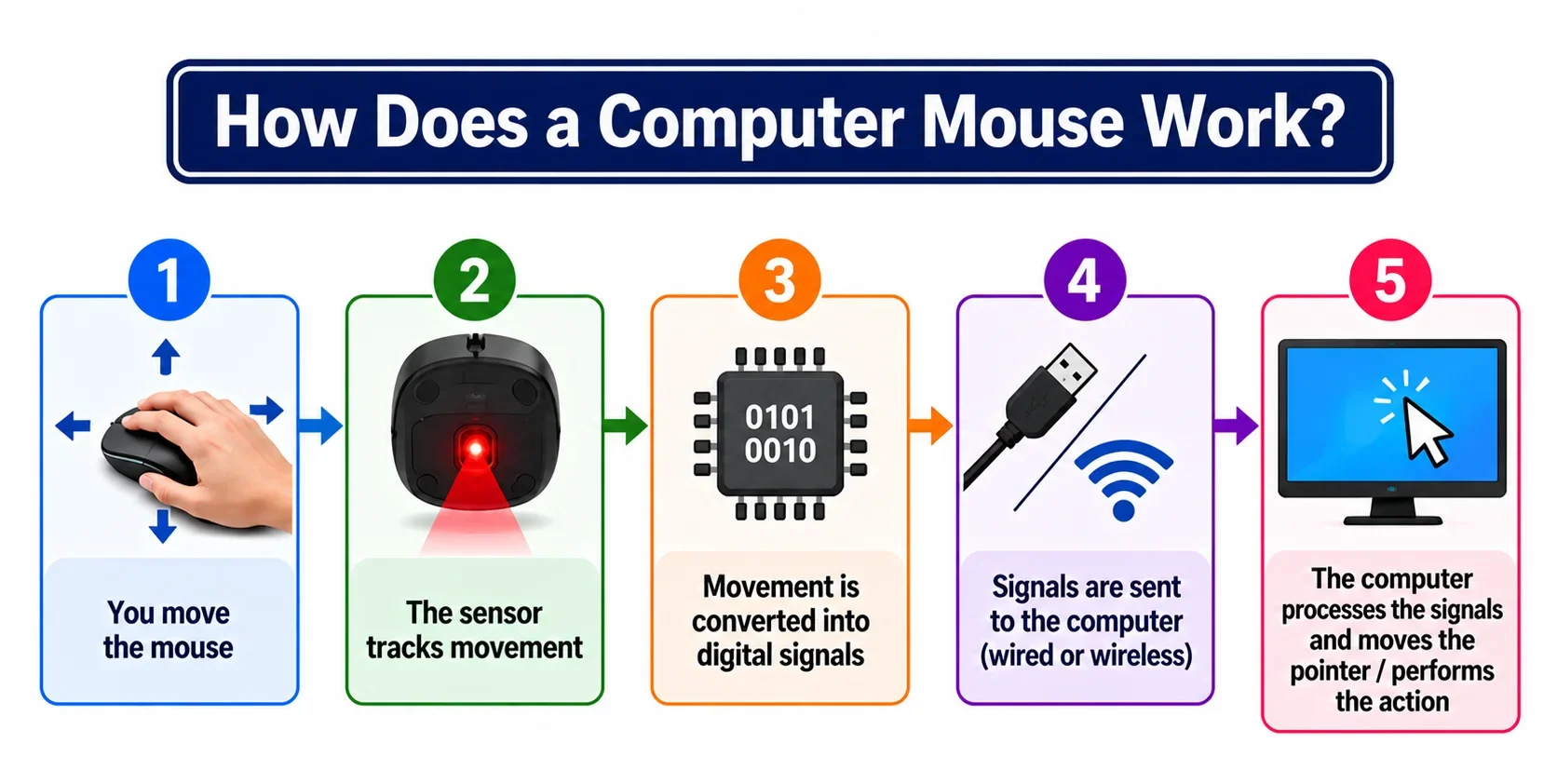
When you move the mouse, its sensor tracks the direction and distance of the movement and sends this data to the computer through a wired or wireless connection.
The computer’s operating system then processes these signals and moves the pointer on the screen accordingly. When you press a button, the mouse sends another signal, which the computer interprets as a click, double-click, or other command.
History of Computer Mouse
The computer mouse originated from research led by Douglas Engelbart at the Stanford Research Institute (SRI) during the 1960s. The first working prototype was built by Bill English in 1964 from Engelbart’s design.
It had a wooden body, two wheels for detecting movement, and a single button. The device was later patented in 1967 as the “X-Y Position Indicator for a Display System,” with the patent granted in 1970.
Engelbart publicly demonstrated the mouse in his famous 1968 presentation, while later developments at Xerox PARC and other companies helped turn the early experimental device into the familiar computer mouse used today.
Types of Computer Mouse
Computer mice can be classified in different ways, such as by their connection method, tracking technology, or design. This also helps explain computer mouse definition in practical terms, because modern mice come in several forms.
1. Based on Connection
- Wired Mouse: A wired mouse connects to a computer using a USB cable. It provides a stable connection and does not need batteries, making it a reliable choice for everyday use.
- Wireless Mouse: A wireless mouse connects to a computer without a cable, usually through Bluetooth or a USB receiver. It gives users more freedom to move the mouse and keeps the desk less cluttered.
2. Based on Tracking Technology
- Optical Mouse: An optical mouse uses an LED light and an image sensor to detect movement on a surface. It is common, accurate, and works well for regular computer tasks.
- Laser Mouse: A laser mouse uses a laser beam to track movement instead of an LED. It can detect movement more precisely.
- Mechanical Ball Mouse: A mechanical ball mouse uses a small rubber or metal ball underneath to detect movement. As the ball rolls, internal sensors measure its direction and distance.
3. Based on Design
- Trackball Mouse: A trackball mouse has a large ball that users move with their fingers or thumb. The device itself stays in one place, making it useful when desk space is limited.
- Gaming Mouse: A gaming mouse is designed for fast and precise control in video games. It often includes adjustable DPI, extra buttons, and a comfortable design for long gaming sessions.
Uses of Computer Mouse
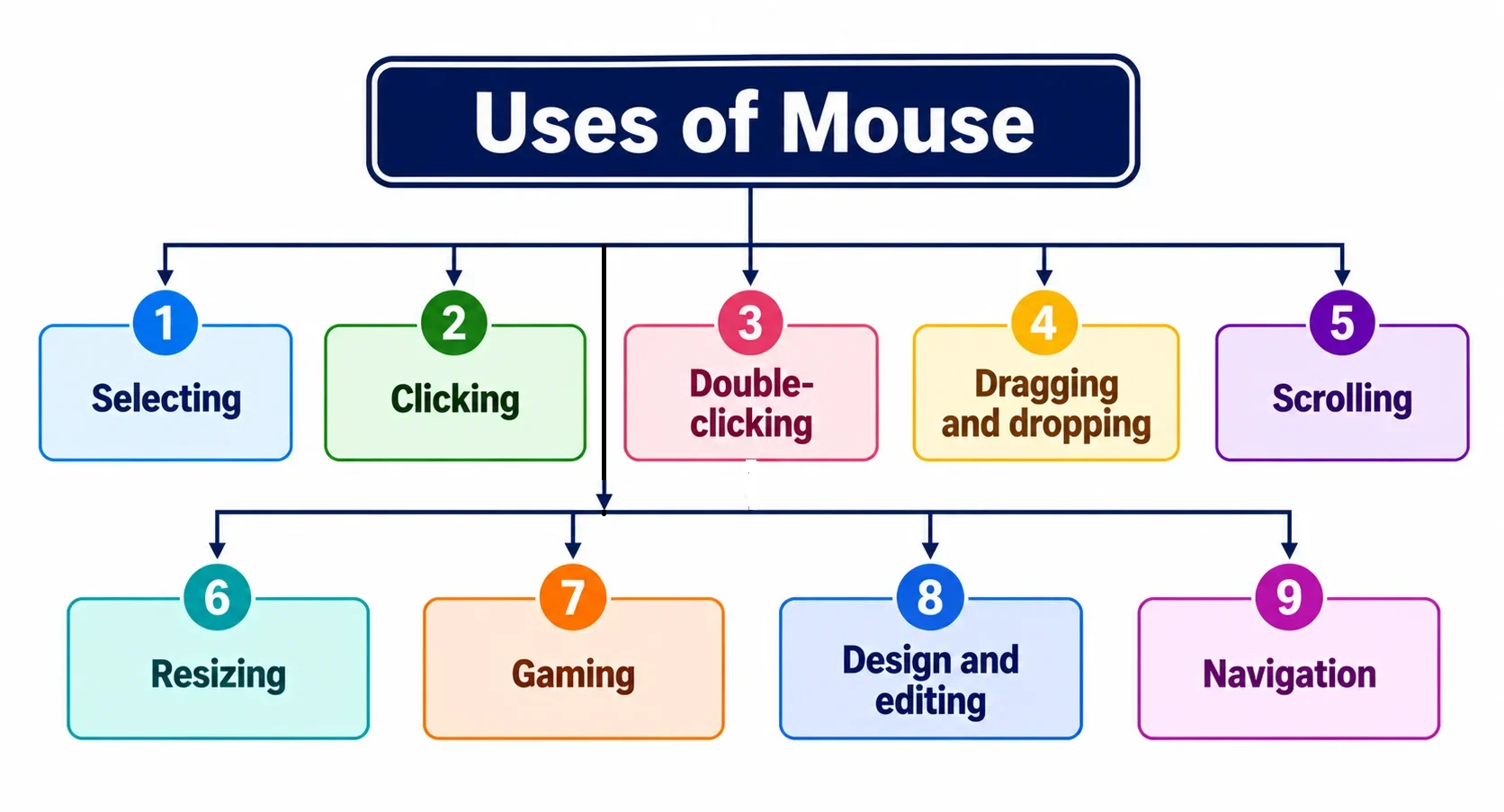
A mouse is useful for many everyday computer tasks. This is a simple mouse computer function that most users perform every day.
- Selecting: Select files, text, icons, and other objects.
- Clicking: Press buttons, links, menus, and controls.
- Double-clicking: Open files, folders, and applications.
- Dragging and dropping: Move files or objects from one location to another.
- Scrolling: Move through long webpages, documents, and lists.
- Resizing: Change the size of windows, images, and other objects in supported software.
- Gaming: Control characters, cameras, menus, and other game elements.
- Design and editing: Select and move objects in image, video, and design software.
- Navigation: Move around graphical interfaces and access different parts of an application.
Advantages of Computer Mouse
- Precise control: A mouse can provide accurate pointer movement for selecting small objects or working in design software.
- Fast navigation: You can quickly move between buttons, folders, links, and other screen elements.
- Useful for graphical tasks: Dragging, resizing, selecting, and moving objects is often easier with a mouse.
- Reduces keyboard use: Many common actions can be performed without memorizing keyboard shortcuts.
- Many choices: Users can choose from wired, wireless, ergonomic, gaming, and other mouse designs.
Disadvantages of Computer Mouse
- Requires desk space: A traditional mouse needs enough surface area to move.
- Can cause discomfort: Using an unsuitable mouse for long periods may make your hand or wrist uncomfortable.
- Wireless models need power: Battery-powered mice need charging or battery replacement.
- Surface can affect tracking: Some sensors may perform poorly on glass, very reflective, or uneven surfaces.
- Cables can get in the way: Wired mice can have limited movement if the cable is short or poorly positioned.
Difference Between Computer Mouse and Mouse
The term mouse can refer to two different things. A computer mouse is a small input device used to control the pointer and interact with items on a computer screen.
On the other hand, a mouse is also a small animal that is commonly found around homes and other places. Although both have the same name, they are completely different in meaning and purpose.
Why are computer mouse called mouse? The computer mouse was called a “mouse” because its early design looked somewhat like a small real mouse. Its body resembled a mouse, while the attached cable looked like a tail.
Mouse Care and Maintenance Tips
Buddies, proper care keeps your mouse smooth, accurate, and comfortable to use. Keep the mouse and its sensor clean to prevent tracking problems, and clean the scroll wheel to avoid rough scrolling.
Avoid bending the cable repeatedly, keep liquids away, and charge or replace batteries on time. Using a clean mouse pad also helps ensure smooth movement and consistent tracking.
Final Thoughts
A computer mouse is a simple but important pointing device that makes it easier to interact with a computer. It lets you move the pointer, click, select, drag, scroll, and perform many other actions through a graphical interface.
Understanding what a computer mouse does, its main parts, how it works, and how different types compare can help you choose the right mouse and use it more effectively.
Frequently Asked Questions
A mouse pointer is the small arrow, hand, or other symbol that appears on the computer screen and moves when you move the mouse. It shows the current position controlled by the mouse and helps you select, click, drag, and interact with objects.
A mouse pad is a flat surface placed under a mouse. It provides a consistent surface for tracking and allows the mouse to glide smoothly.
A mouse pad is not always required, because many modern mice can work directly on a desk. However, a suitable mouse pad can improve tracking and reduce friction.
DPI, or dots per inch, is commonly used to describe a mouse’s sensitivity. A higher DPI setting generally means the pointer moves farther on the screen when you move the mouse the same physical distance.
For example, a high DPI setting can help you move across a large screen with less hand movement, while a lower setting can provide more controlled movement.
A wired mouse connects to the computer through a physical cable, while a wireless mouse communicates through technologies such as Bluetooth or a USB receiver.
Wired mice do not need a separate battery for normal operation, while wireless mice provide more freedom of movement but need a power source.



- Be Respectful
- Stay Relevant
- Stay Positive
- True Feedback
- Encourage Discussion
- Avoid Spamming
- No Fake News
- Don't Copy-Paste
- No Personal Attacks
- Be Respectful
- Stay Relevant
- Stay Positive
- True Feedback
- Encourage Discussion
- Avoid Spamming
- No Fake News
- Don't Copy-Paste
- No Personal Attacks
