What is Navigation Pane | File Explorer – Word | Gmail & Settings
Published: 16 Feb 2026
A Navigation Pane in computer is a section of a window that helps users move from one place to another. It shows folders, files, or options.
It makes finding and opening items quick and easy, especially for beginners.We see the Navigation Pane in many common places on a computer, for example:
Navigation Pane in File Explorer
In File Explorer, the Navigation Pane is seen on the left side of the window. It shows options like This PC, Documents, Downloads, Pictures, and drives.
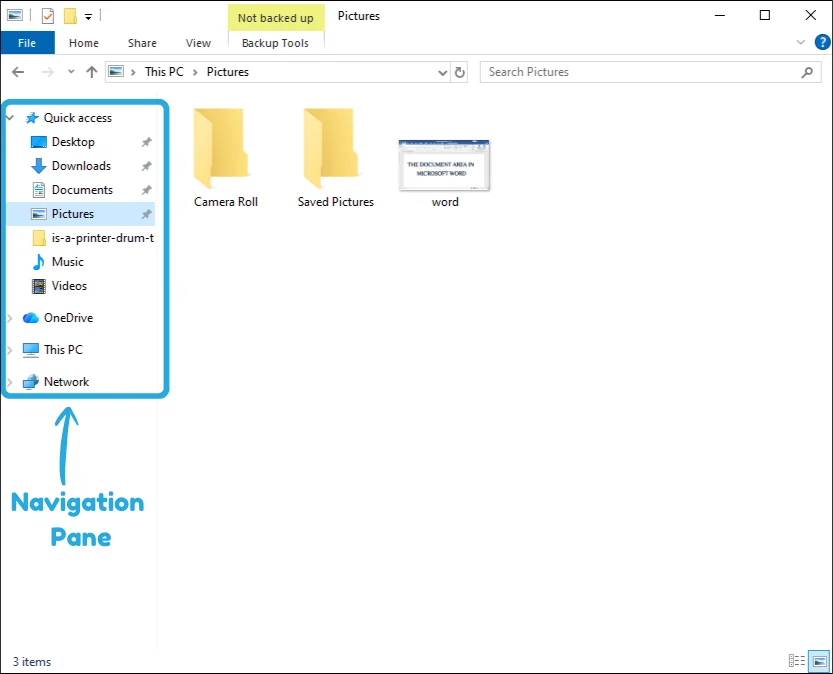
This pane helps us quickly move between folders and locations without confusion.
Navigation Pane in MS Word
In MS Word, the Navigation Pane appears on the left side of the window when it is turned on.
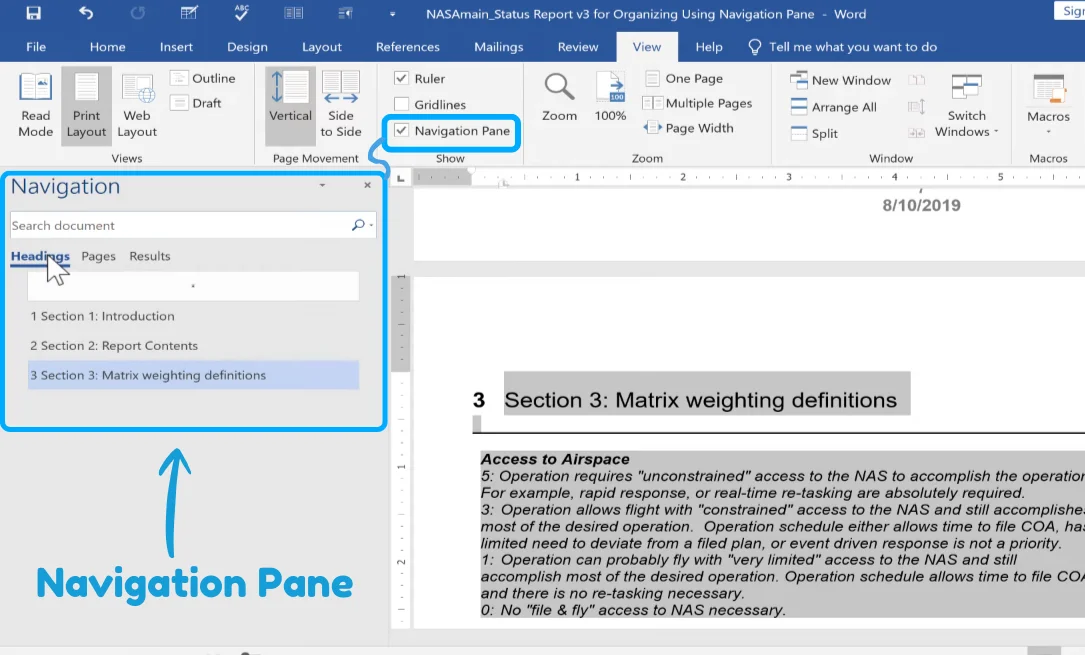
You can access it by going to the View tab and then checking the Navigation Pane option. It helps you quickly move between headings, pages, and search results in a document.
There is a keyboard shortcut in MS Word, Pressing Ctrl + F opens the Navigation pane on the left side of the screen.
Navigation Pane in Gmail
In Gmail, the Navigation Pane is seen on the left side of the screen. It shows options like Inbox, Sent, Drafts, Spam, and Trash.
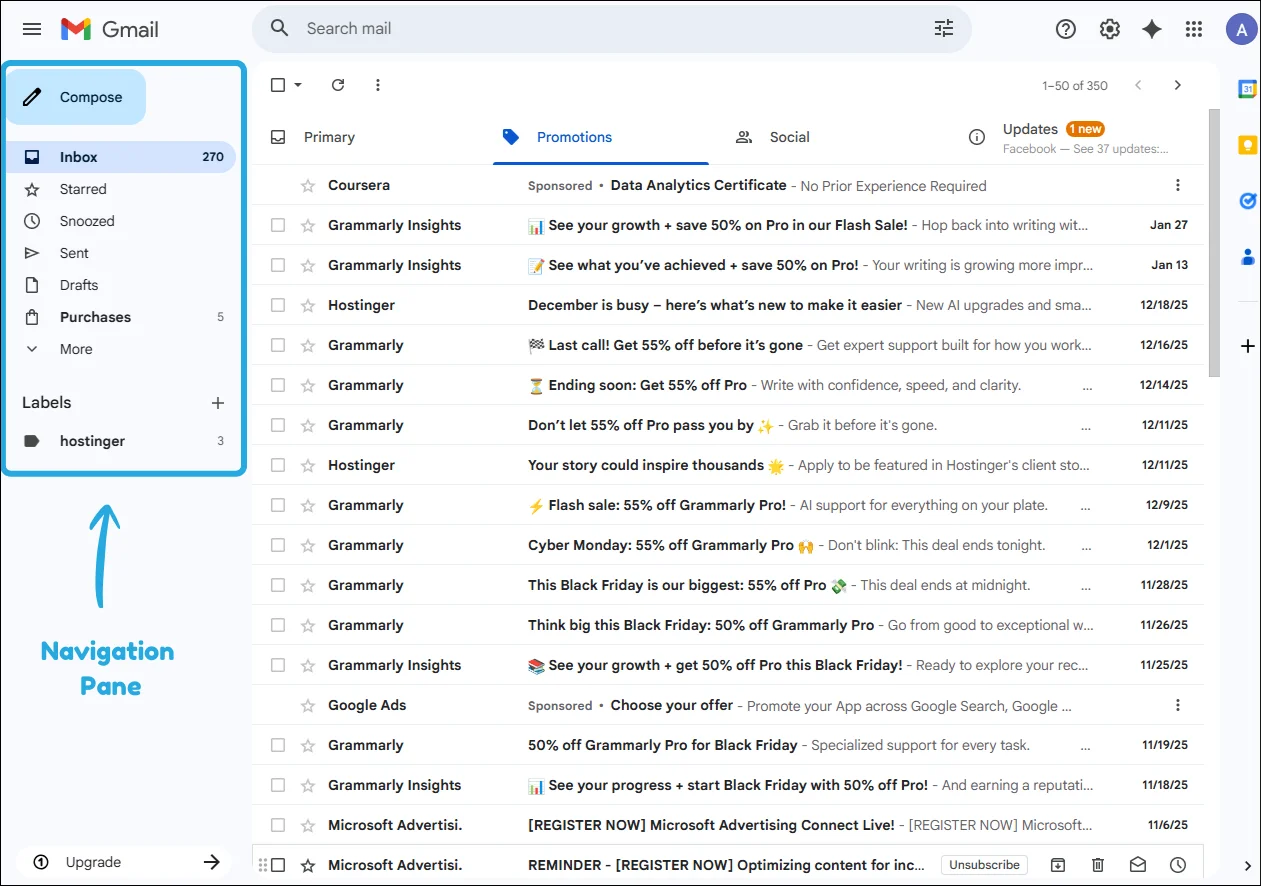
- Simply opening Gmail, it appears by default.
- If it is hidden, click the ☰ (three lines / menu icon) in the top-left corner to show it again.
This pane helps you move between emails and folders easily.
Navigation Pane in Settings
In Settings (like in Windows), the Navigation Pane is on the left side of the window. It shows different categories or sections, such as System, Devices, Personalization, Accounts, etc.
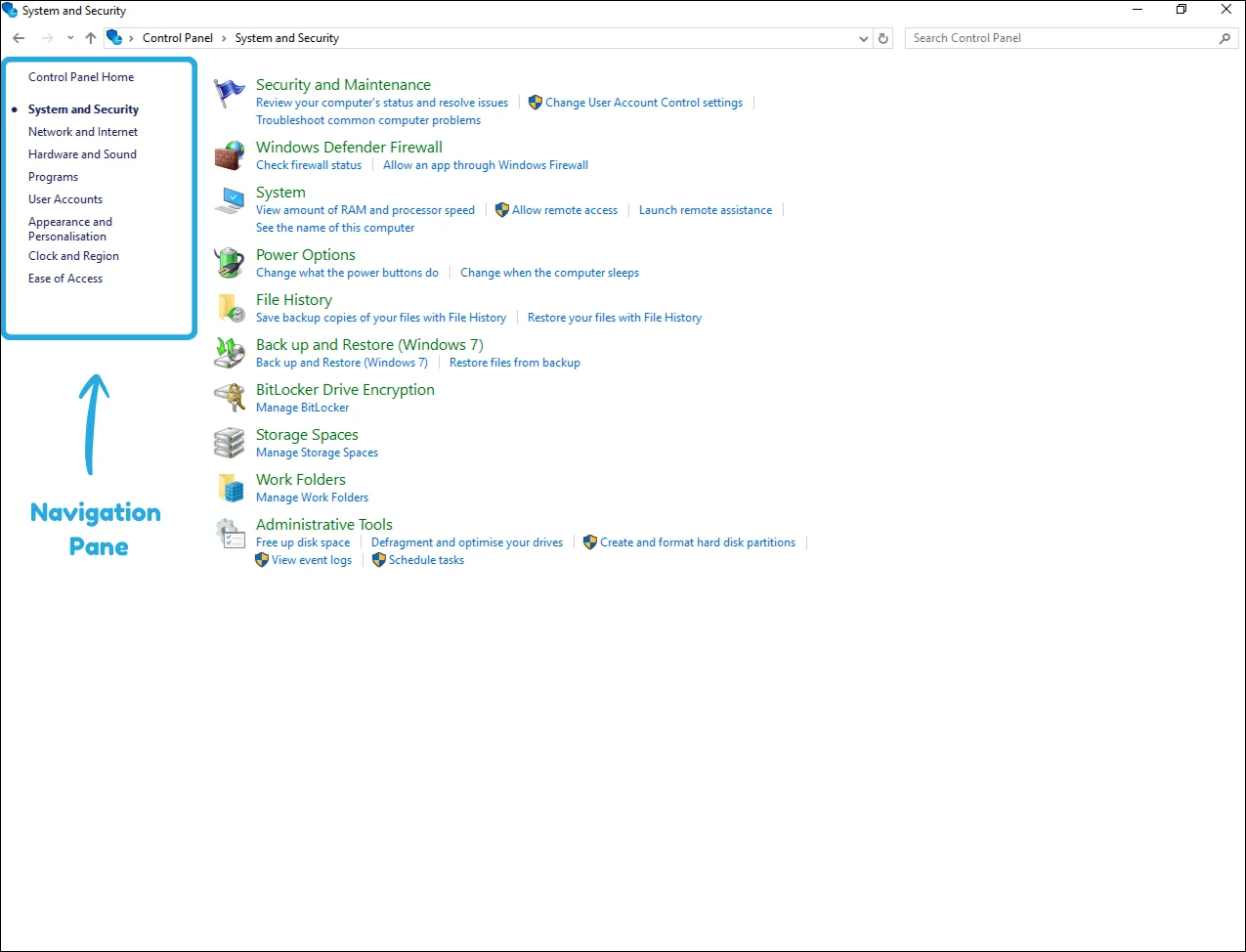
It helps you quickly move between different settings without getting lost.
Final Words
In this article, we covered what a navigation pane is and how it appears in File Explorer, MS Word, Gmail, and system Settings, showing how it helps users stay organized and save time.
If you still have any confusion or want to share your experience, feel free to ask in the comments, I’d love to help you out!
Frequently Asked Questions (FAQ’s)
In this section we will take a look on some questions related to navigation pane for your better understanding.
Yes, in many programs like File Explorer, users can choose which folders appear in the Navigation Pane. You can show important locations and hide ones you don’t use often to keep things neat and easy to access.
No, the Navigation Pane uses very little system power and does not slow down your computer noticeably. Even on older systems, it runs smoothly because it is a simple navigation feature.
The Navigation Pane is available in most modern versions of Windows and many popular software applications. However, its design and features may vary slightly depending on the program or system version.
The Navigation Pane itself does not create security risks because it only shows existing files and options. However, users should still be careful about opening unknown files or folders, just like anywhere else on the computer.


- Be Respectful
- Stay Relevant
- Stay Positive
- True Feedback
- Encourage Discussion
- Avoid Spamming
- No Fake News
- Don't Copy-Paste
- No Personal Attacks
- Be Respectful
- Stay Relevant
- Stay Positive
- True Feedback
- Encourage Discussion
- Avoid Spamming
- No Fake News
- Don't Copy-Paste
- No Personal Attacks
