What is Monitor | Working – Types | History | Pros & Cons
Published: 10 Jan 2026
You click, type, or scroll, and suddenly, everything appears, but do you know what makes it all visible? How does it show you everything so clearly?
No worries. In this guide, we’ll explore the main features, types, and functions of a monitor, and show you how it connects with your computer to make everything visible and smooth.
By the end, we’ll understand what a monitor is and how it plays an important role in our everyday computer life.
Basic Concept: How a Monitor Works
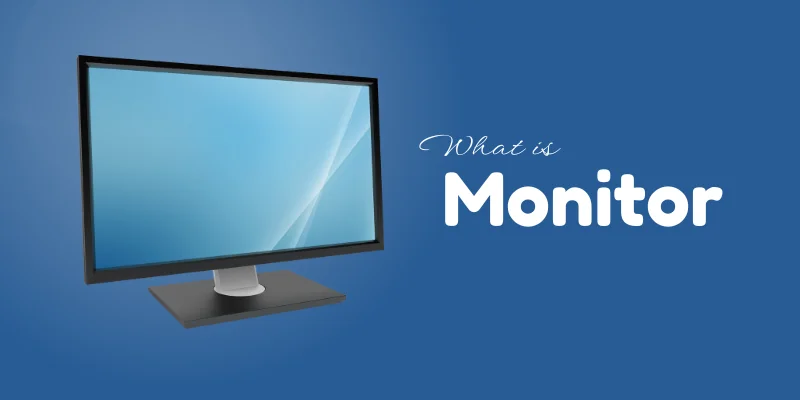
Definition: A monitor is an output device that takes the information sent by your computer’s graphics card and turns it into images you can see. Inside, there’s a screen made of tiny pixels – thousands of them. Each pixel lights up in different colors and brightness levels to form pictures, videos, or text.
When you do any action on the computer, it sends signals to the monitor really fast, and the pixels change instantly, so you see everything smoothly according to what you’re working on the Computer.
In layman’s Language, your monitor is like a translator: it takes digital signals and shows them as visuals you can understand.
Working Style: Different Types of Monitor:
It can be confusing to see so many types of monitors and wonder how each one works. In this section, we’ll look at the working style of different monitors and see what makes each type unique and useful.
1. CRT Monitors (Cathode Ray Tube):
CRT monitors use a large vacuum tube and a special screen coated with tiny phosphor dots. Inside, an electron gun shoots a beam of electrons across the screen.
When the electrons hit the phosphor coating, it lights up to create images. By moving the beam very quickly across the screen in patterns, the monitor can display text, pictures, and videos in real time.
2. LCD Monitors (Liquid Crystal Display):
LCD (Liquid Crystal Display) monitors use a layer of liquid crystals sandwiched between glass panels. These crystals don’t emit light themselves, so a backlight shines through them.
By controlling how the crystals twist and block the light, the monitor creates images, colors, and videos on the screen. LCDs are thinner, lighter, and use less energy than old CRT monitors.
3. LED Monitors (Light Emitting Diode):
LED monitors are actually a type of LCD monitor, but instead of a regular backlight, they use LEDs (Light Emitting Diodes) to light up the screen.
These LEDs make the display brighter, sharper, and more energy-efficient. By adjusting each LED, the monitor can show better colors, deeper blacks, and clearer images, making it perfect for work, movies, and gaming.
4. OLED Monitors (Organic LED):
OLED (Organic Light Emitting Diode) monitors are different from LCD and LED screens because each pixel produces its own light.
This means they don’t need a separate backlight. As a result, OLED monitors have vivid colors, deep blacks, and super sharp images. They’re also very thin and fast, which makes them great for gaming, movies, and high-quality visuals.
| Advantages of Monitor |
|---|
|
| Disadvantages of Monitor |
|---|
|
History of Monitor
Karl Ferdinand Braun, in 1897, invented the first CRT (Cathode Ray Tube) monitor. It was the first widely known monitor. Later, monitors became smaller and more common for personal computers, still mostly CRTs.
LCD stands for Liquid Crystal Display. The technology was invented way back in 1964 by George H. Heilmeier, an American engineer. He discovered that liquid crystals could control light when electricity passes through them.
Nick Holonyak Jr. invented the first visible-light LED in 1962, but it was a single light, not a full-screen display. The first true LED display, meaning a screen made entirely of LEDs, was indeed developed later, and James P. Mitchell is credited with creating a significant LED display in 1977. This was the start of using LEDs for full screens rather than just indicator lights.
LCD and LED monitors became popular for computers because they were thin, light, and used much less power than the old, bulky CRT monitors.
| Monitor Care & Maintenance Tips |
|---|
|
Here are some Care & Maintenance Tips to keep your screen safe and long-lasting:
|
Final Words:
So, guys, now you clearly understand what a monitor is and how it works in a computer system. We covered its basic concept, working style, different types, advantages, disadvantages, history, and even simple care tips.
A monitor is not just a screen; it’s the main way a computer shows you everything, from text and images to videos and games.
My honest recommendation for you buddies is to choose and use a monitor wisely. Take care of your eyes, sit properly, and keep your monitor clean and safe. A well-used monitor makes learning, working, and entertainment more comfortable and enjoyable.
That’s it, folks! Keep learning, stay curious, and stay tuned for more easy computer information.
- CRT Monitor (Cathode Ray Tube)
- LCD Monitor (Liquid Crystal Display)
- LED Monitor (Light Emitting Diode)
- OLED Monitor (Organic Light Emitting Diode)
💡 Easy exam line:
“The four types of monitors are CRT, LCD, LED, and OLED.”
A Simple monitor is a basic output device that shows text, images, and videos from a computer on the screen. It is mainly used for everyday tasks like typing, reading, browsing, and watching videos.
💡 Easy exam line:
“A simple monitor is a basic screen used to display output from a computer.”
Yes, you can use a monitor without a laptop, but not by itself. A monitor needs a device that sends video signals, like a cpu (desktop computer), gaming console, or media box.
- Monitor = only shows the display
- Needs a device to send output
💡 Easy exam line:
“A monitor can be used without a laptop, but it needs another device to work.
Yes, you can use a monitor as a TV, but with a few conditions.
How it works:
- If the monitor has built-in speakers and an HDMI port, you can connect a TV cable box, streaming device, or console.
- Many monitors don’t have speakers, so you may need external speakers or headphones.
Things to remember:
- Monitors usually don’t have a TV tuner, so they can’t receive cable channels directly.
- You’ll need a set-top box, Fire Stick, Chromecast, or similar device.
💡 Easy exam line:
“A monitor can be used as a TV with an external device, but it does not work like a TV on its own.”
No, monitors do not use the internet by themselves. A monitor is only an output device. It just shows what another device sends to it.
- Monitor = display only
- Internet is used by a computer, a laptop, or a smart device, not a monitor
💡 Easy exam line:
“A monitor does not use the internet; it only displays content.”

- Be Respectful
- Stay Relevant
- Stay Positive
- True Feedback
- Encourage Discussion
- Avoid Spamming
- No Fake News
- Don't Copy-Paste
- No Personal Attacks
- Be Respectful
- Stay Relevant
- Stay Positive
- True Feedback
- Encourage Discussion
- Avoid Spamming
- No Fake News
- Don't Copy-Paste
- No Personal Attacks
