12 Examples of Input Devices – Complete Guide for Beginners with Images
Published: 24 Aug 2026
Have you ever felt confused when someone talks about input devices and you are not sure what they actually mean? Don’t worry, you are not alone.
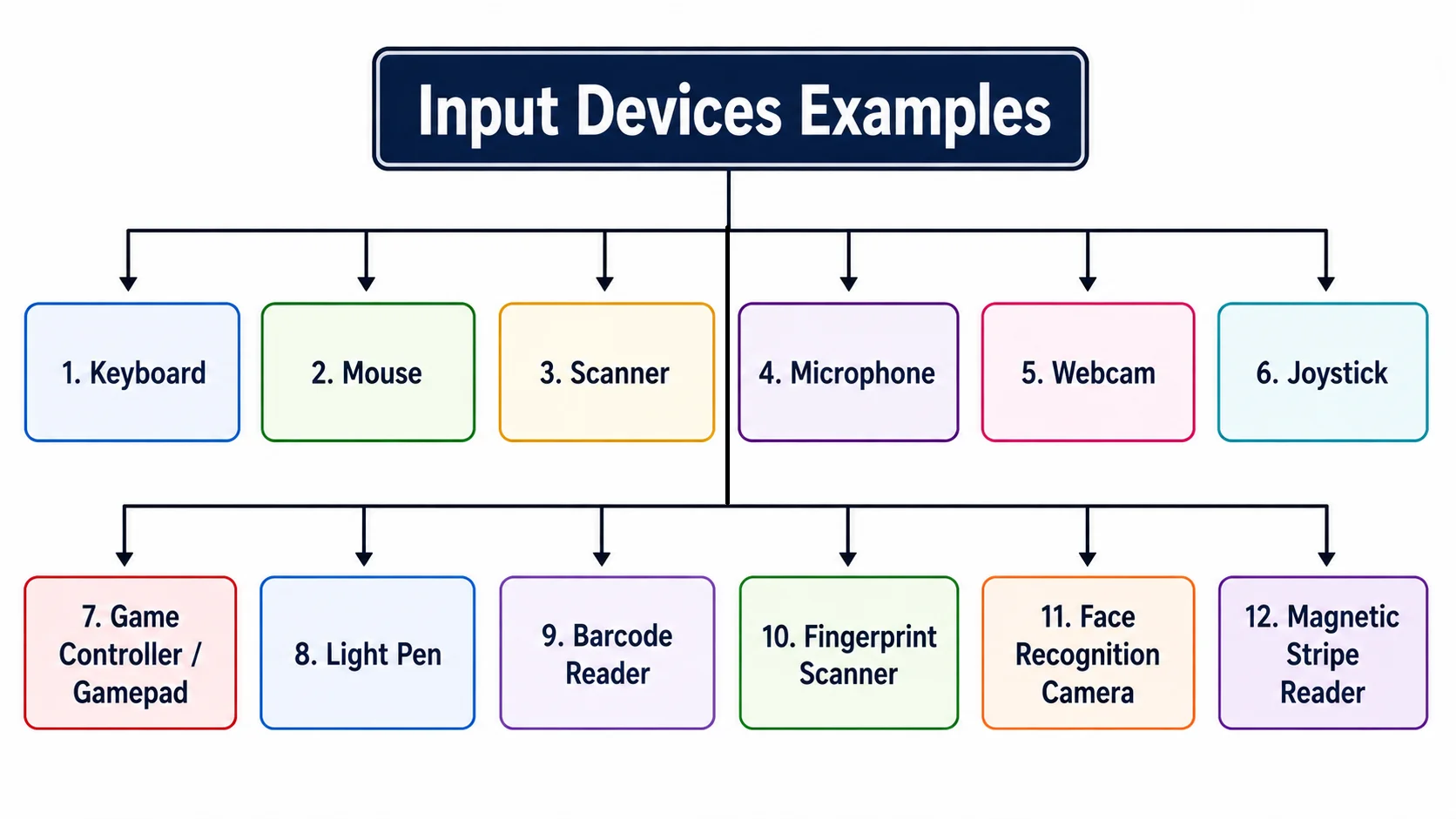
Many people hear terms like keyboard, mouse, scanner, or microphone but do not know why they are called input devices.
Believe me! Input devices are very easy, In this article we’ll cover input devices of computer with examples. Let me explain everything for you:
Input Devices introduction
Definition: “Input devices are the parts of a computer that help you send information or commands into the system”.
So in simple, what is the purpose of an input device? They let you control the computer, type, click, speak, scan, or touch so the computer knows what you want it to do. Anything you use to give data to the computer falls in this category. Take a look at the following input devices:
Keyboard
A keyboard is one of the most common input devices because you use it to send information into the computer. Every time you press a key, you’re giving a command or typing data that the computer receives and understands.
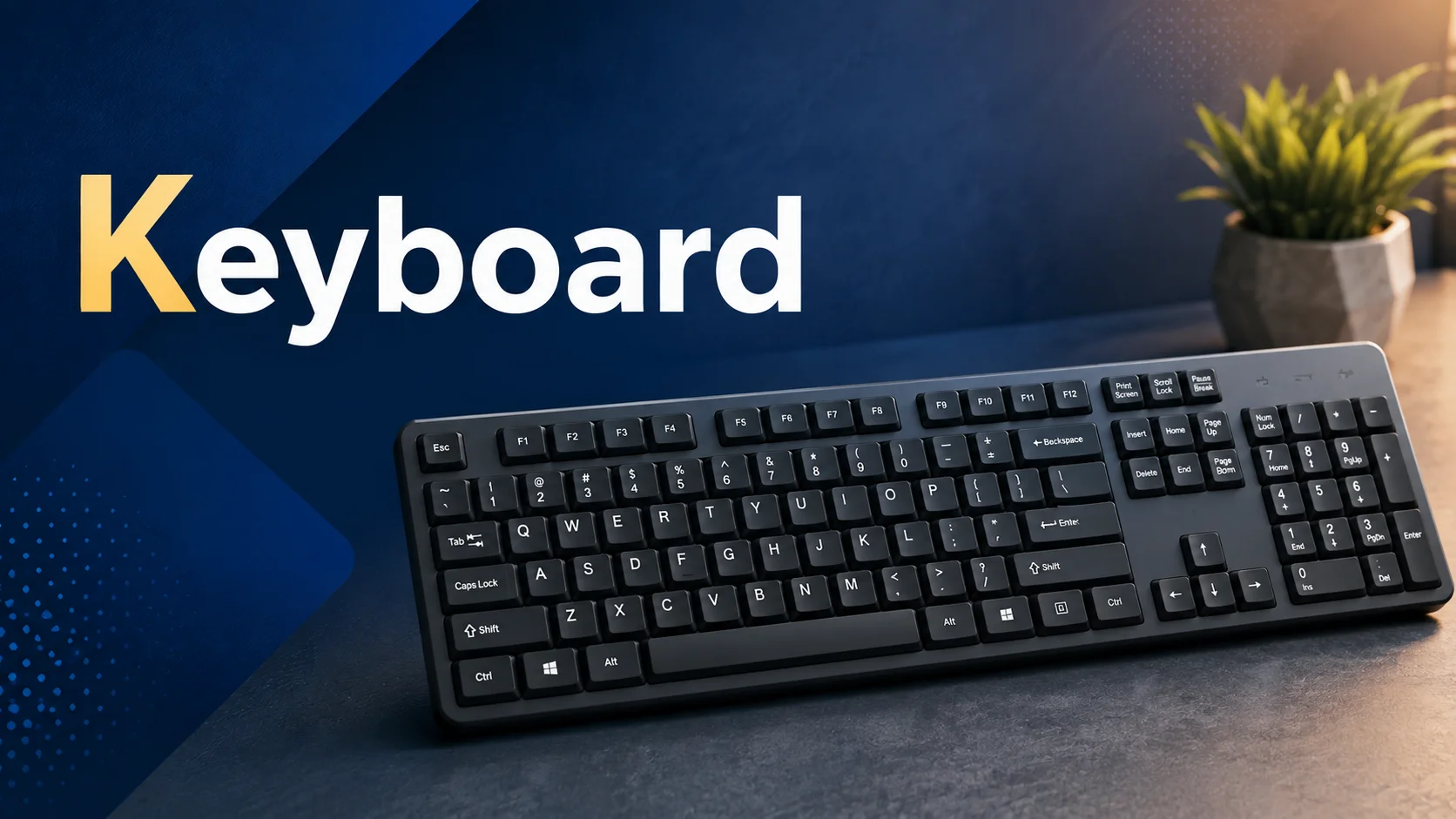
It has different sets of keys. Letters for typing text, numbers for calculations, function keys for shortcuts, arrow keys for movement, and special keys like Enter, Shift, and Backspace that help you control actions.
When you press any key, the keyboard converts that press into an electronic signal. The computer reads that signal and performs the action you wanted, whether it’s writing a sentence, searching for something, or even playing a game.
Mouse
A mouse is an input device because you use it to send commands to the computer. When you move it, the pointer on the screen moves with it. This movement lets you select items, open files, drag objects, and control different tools in apps.
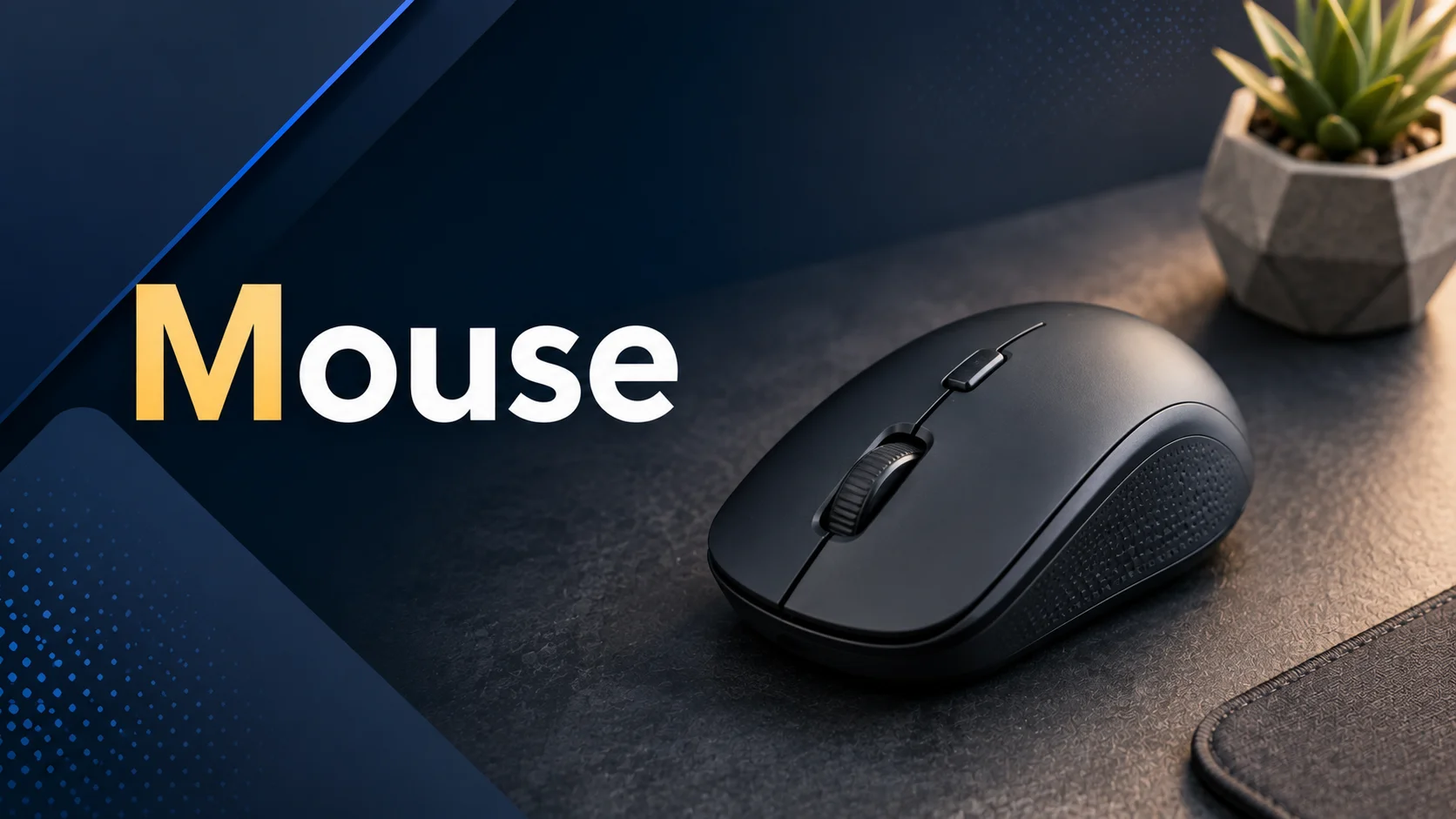
Modern mice use optical or laser sensors, so they track movements smoothly on most surfaces. Many have a scroll wheel that makes navigation faster and easier. It’s one of the most used devices because it gives you quick and direct control over everything on the screen.
Scanner
A scanner is an input device that reads documents, photos, or images and sends them to the computer. When you place a paper on it, the scanner captures all the details and turns them into digital files. This way, you can save, edit, or share physical documents on your computer.
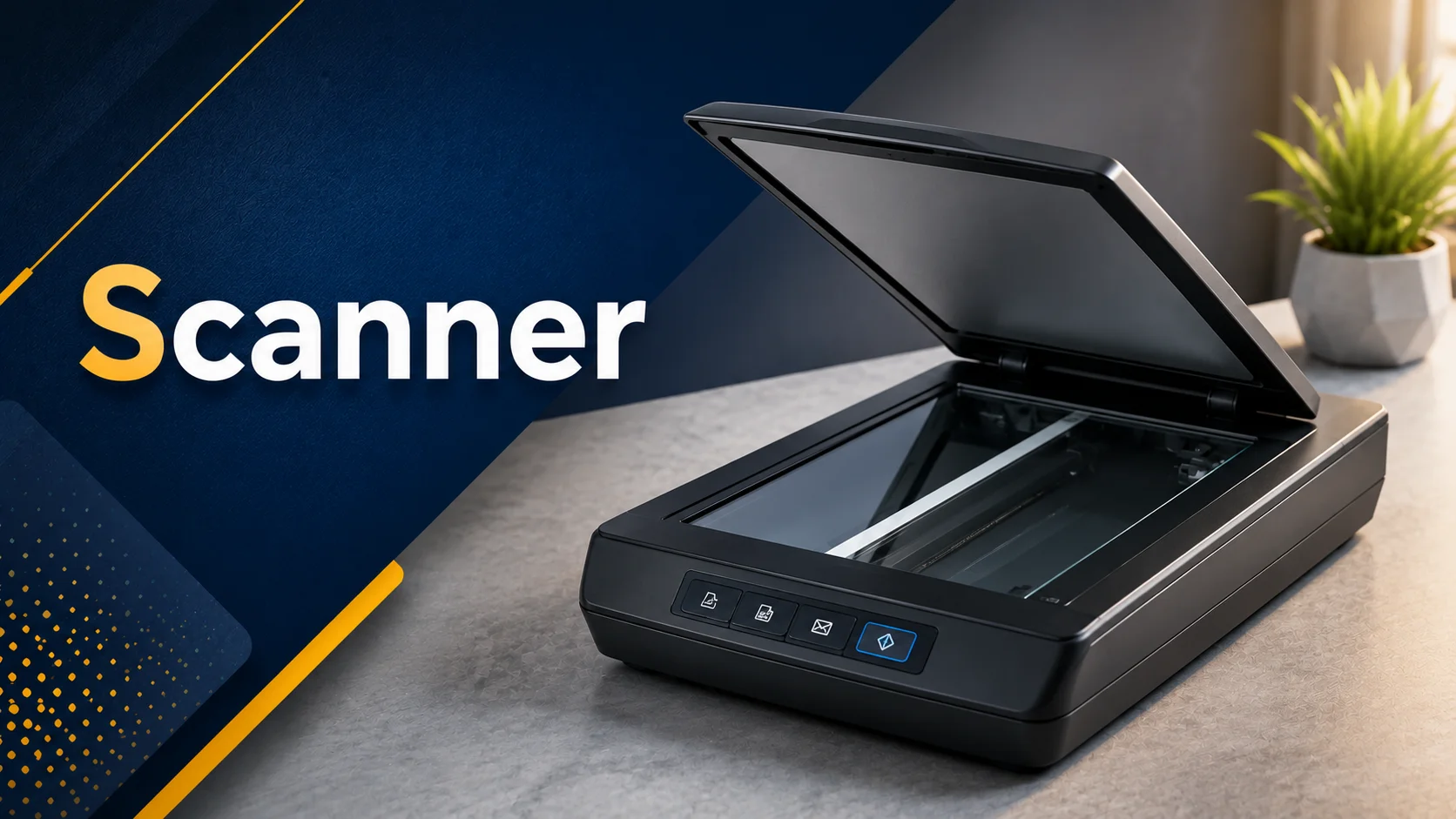
Scanners are useful for making copies, storing important papers, or turning printed images into editable digital versions. They work quietly and give accurate results, making them a handy tool for both home and office use.
Microphone
A microphone is an input device that lets the computer listen to/hear sounds. When you speak, sing, or make any noise, the microphone captures it and sends it to the computer as digital signals. You can use it for recording audio, making calls, talking in online meetings, or even giving voice commands.
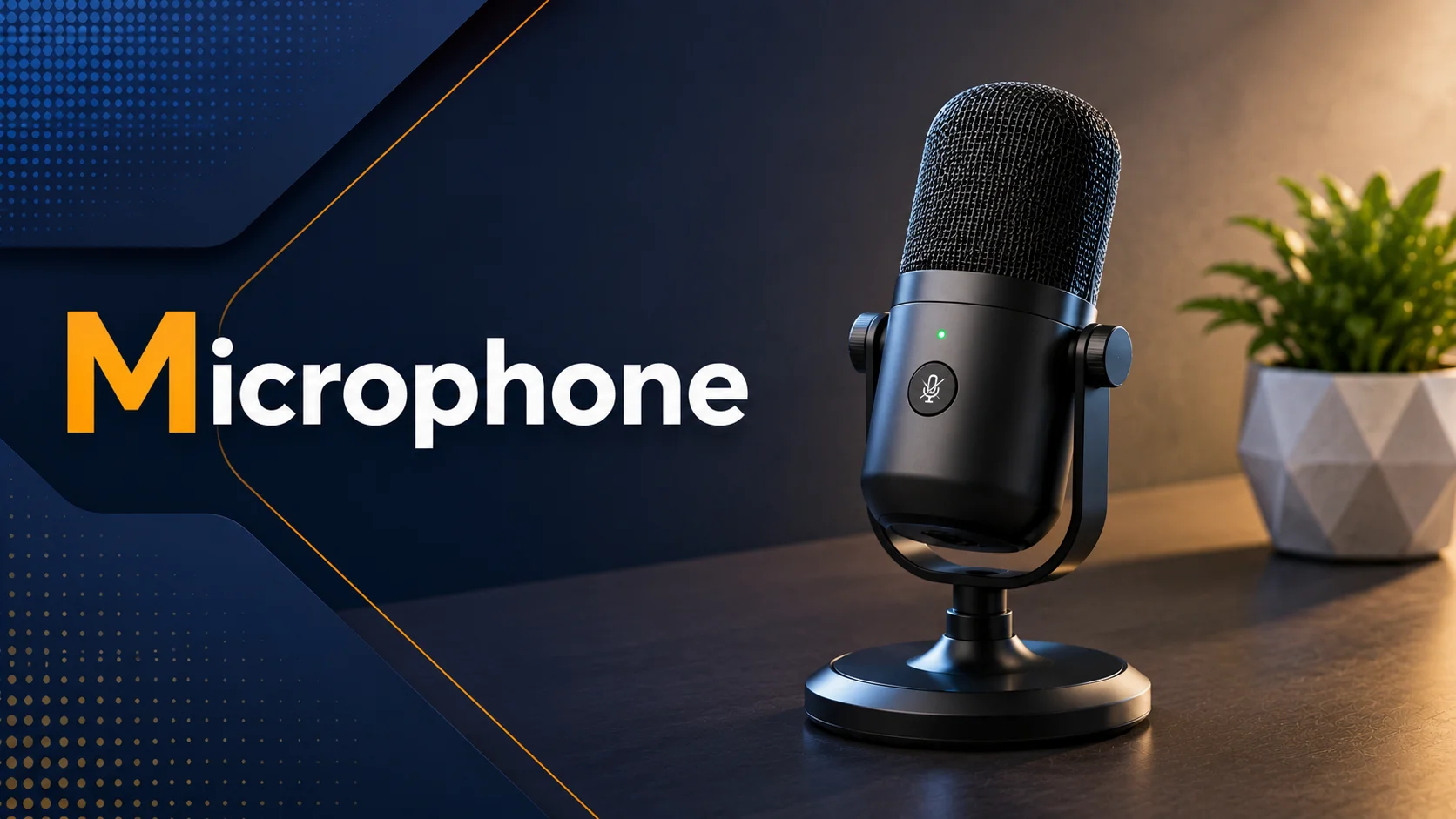
Modern microphones can pick up clear sound and reduce background noise, so your voice comes through loud and clear. It’s simple but super powerful for communication and creating content.
Webcam
A webcam is an input device that captures live video and sends it to the computer. You can use it for video calls, online classes, streaming, or recording videos.
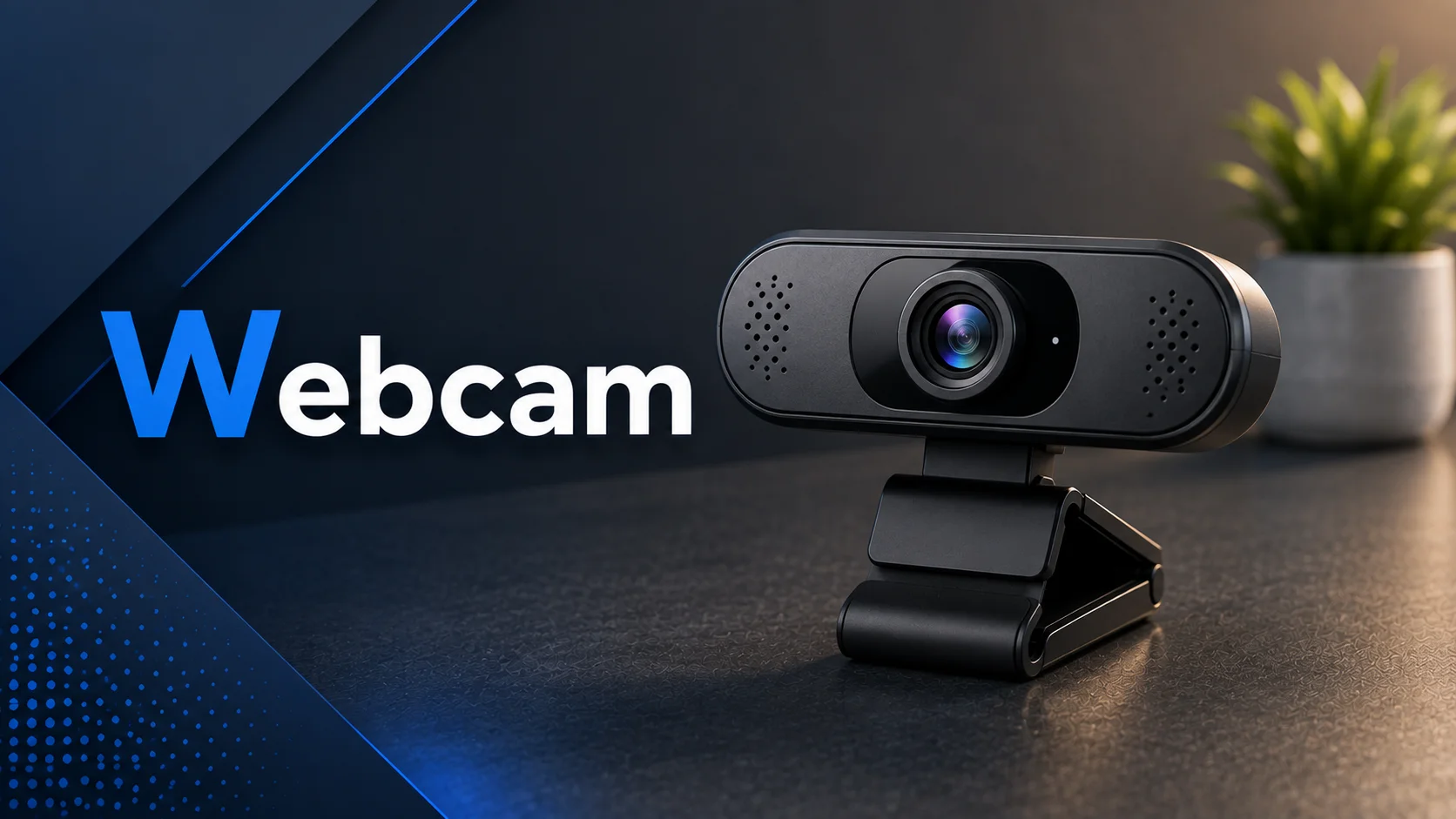
Modern webcams also capture clear images, even in low light, and some have built-in microphones. Basically, it lets your computer “see” the real world and share what’s happening in real time.
Joystick
A joystick is an input device that helps you control cursor movement by moving a stick in different directions.
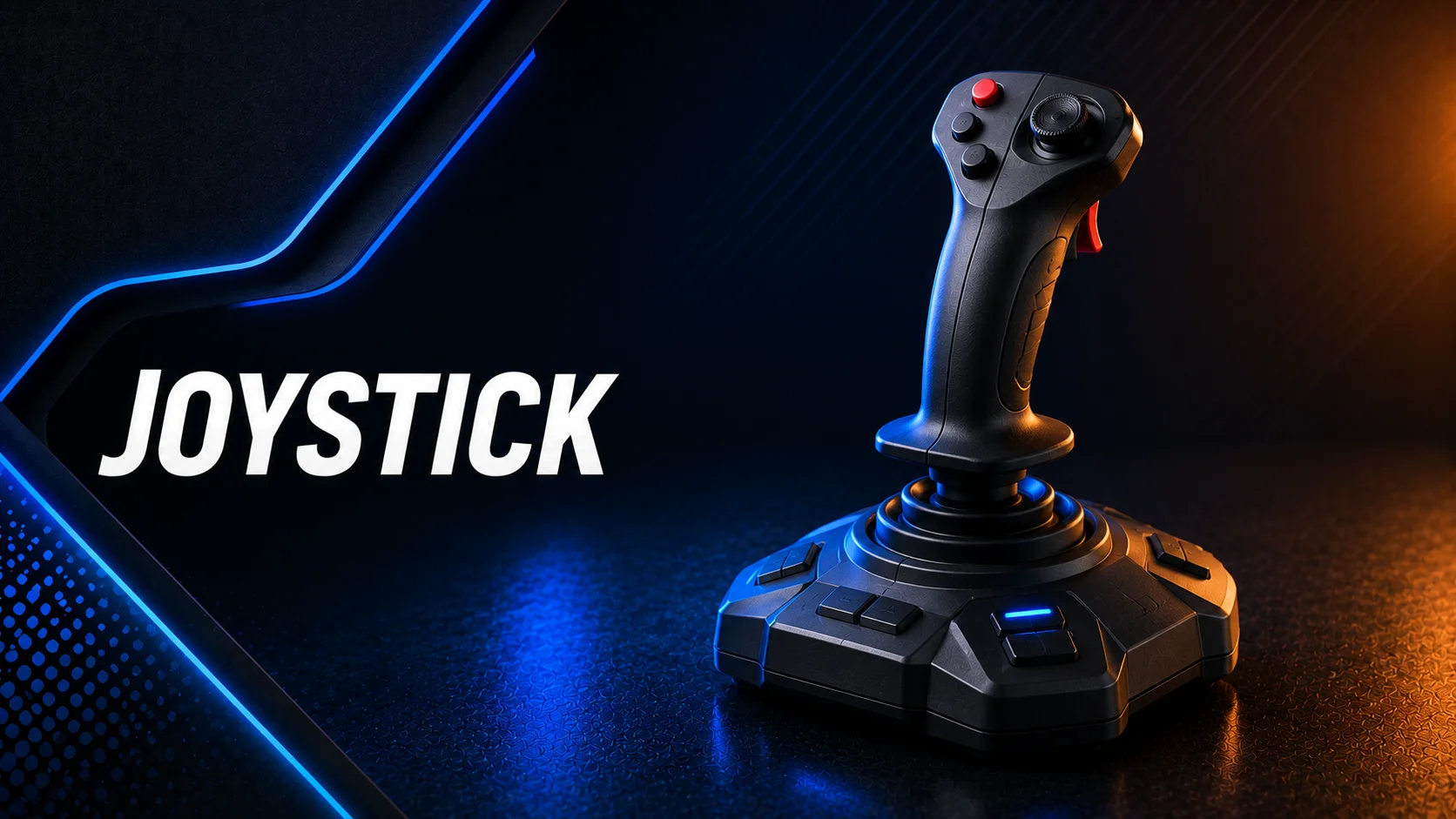
When you push, pull, or tilt the stick, the computer receives signals and moves objects or characters on the screen accordingly. Many joysticks also have buttons for extra actions like shooting or jumping in games. They give precise control, making them popular for gaming, etc.
Game Controller / Gamepad
A game controller, or gamepad, is an input device that lets you play games by pressing buttons, moving sticks, or using triggers.
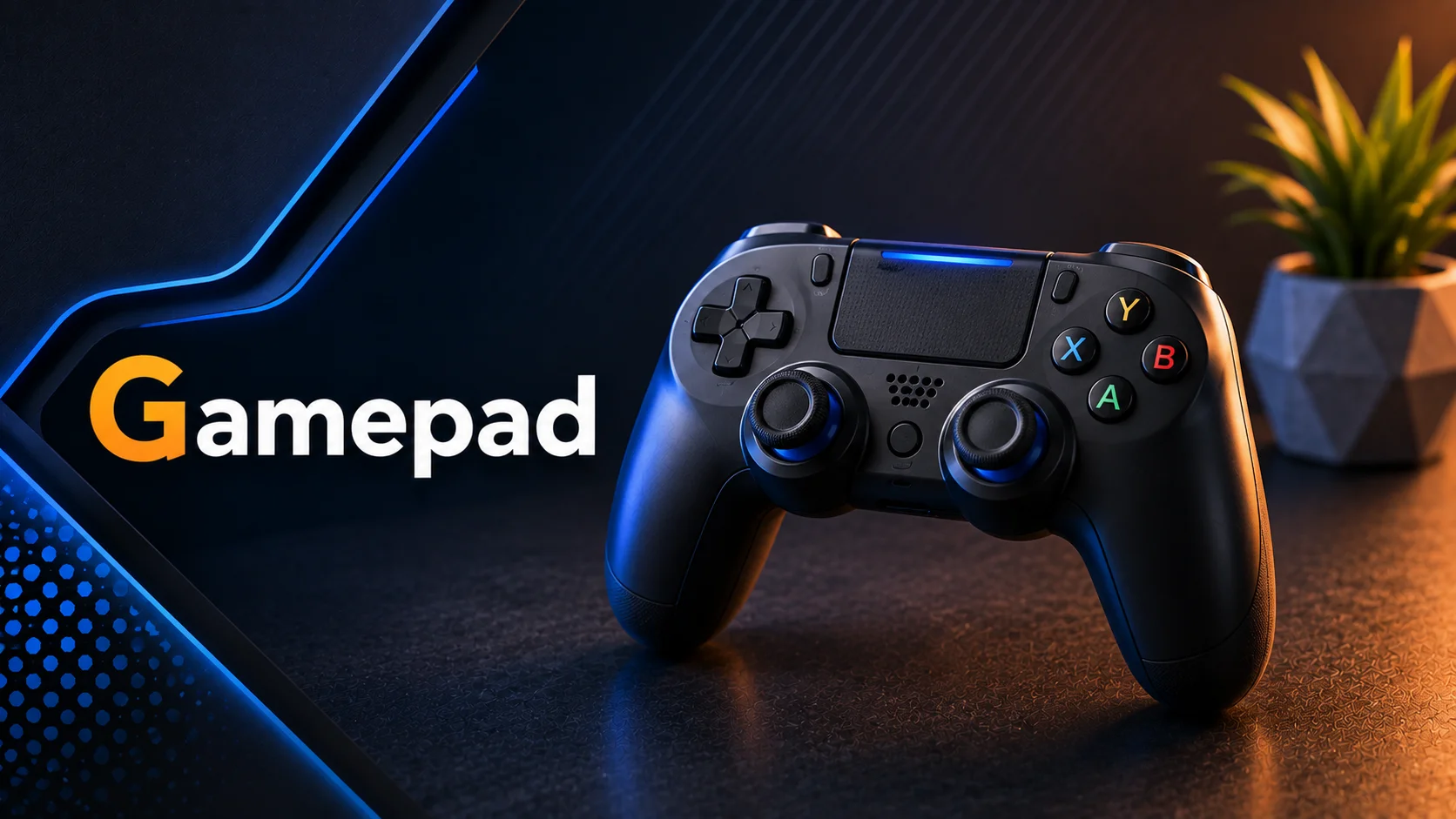
It sends your commands to the computer or console so you can move characters, jump, shoot, or perform actions in the game. Gamepads are designed to fit comfortably in your hands and make gaming more fun and easy. Some even vibrate to give feedback, making the experience feel more real.
Light Pen
A light pen is an input device that lets you interact directly with the screen by pointing at it. When you touch the screen with the pen, it detects the position and sends that information to the computer.
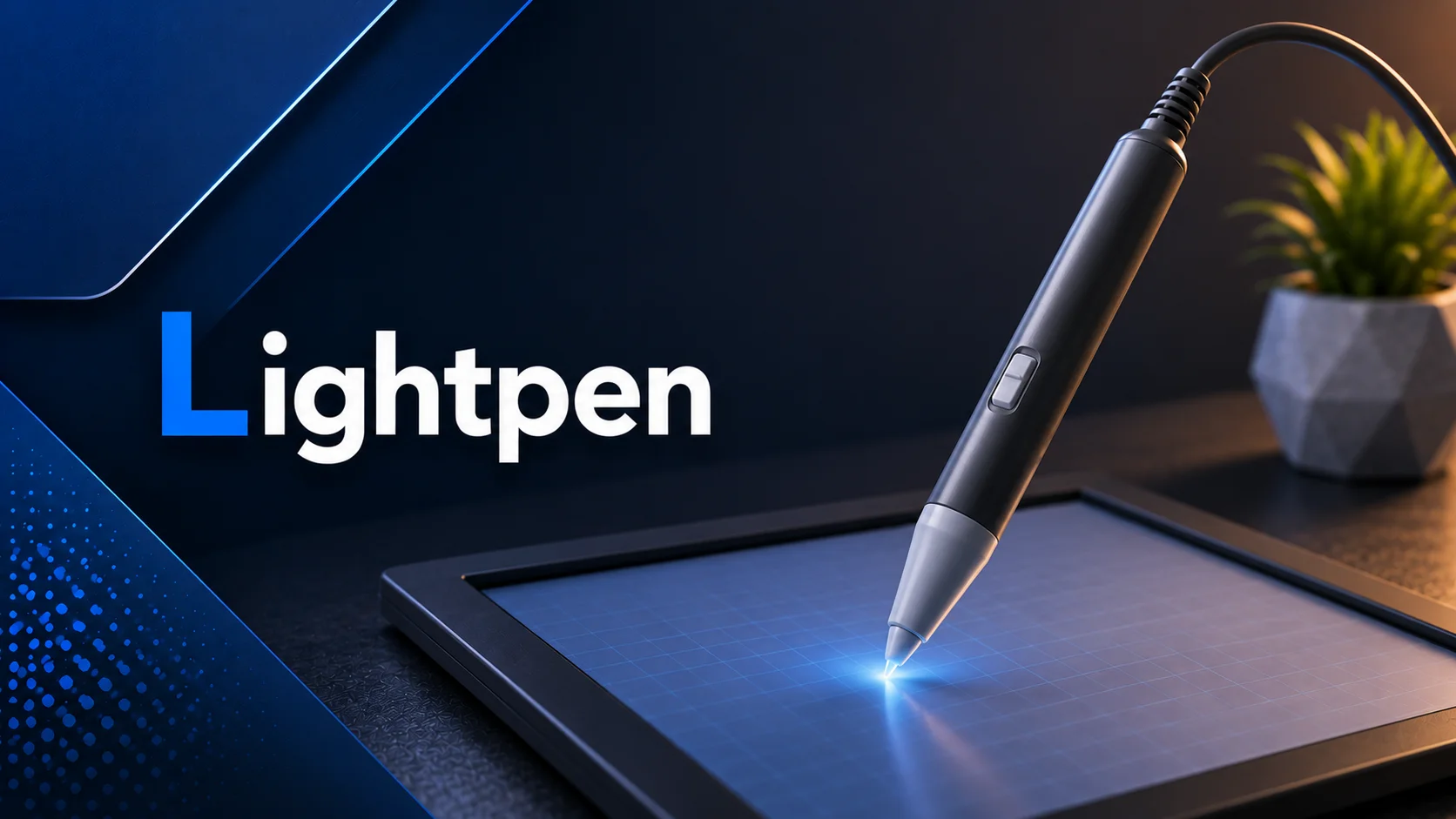
You can use it to draw, select items, or write on the screen. Light pens were more common in older systems, but the idea is similar to modern styluses used on tablets and touchscreen devices.
Barcode Reader
A barcode reader is an input device that reads barcodes on products and sends the information to the computer. When you scan a barcode, it quickly captures the numbers and letters stored in it.
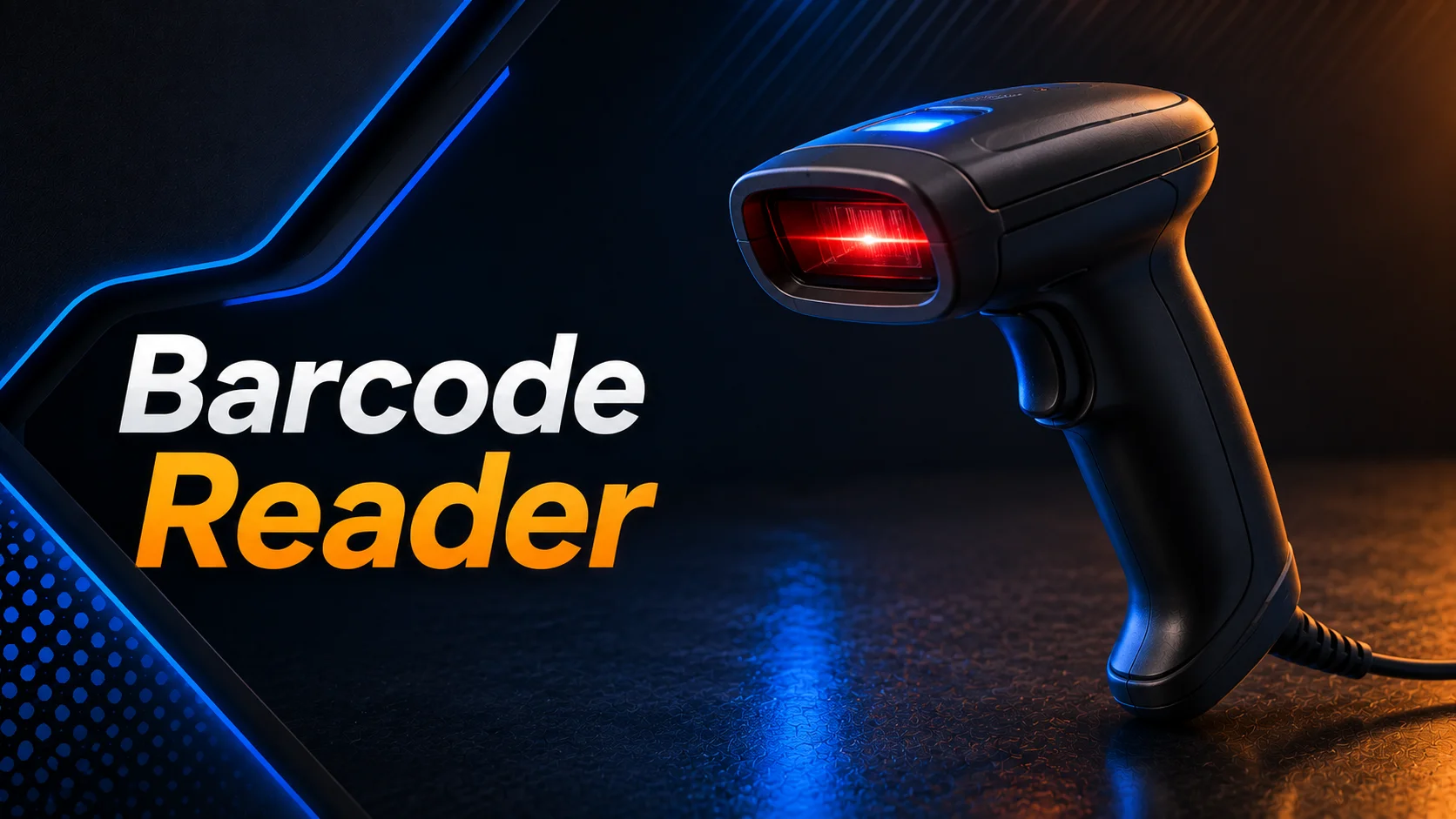
This helps computers identify items, check prices, or track inventory. Barcode readers are widely used in shops, warehouses, and libraries because they make data entry fast, accurate, and easy.
Fingerprint Scanner
A fingerprint scanner is an input device that reads your fingerprint and sends the data to the computer. It helps the system recognize who you are for security purposes.
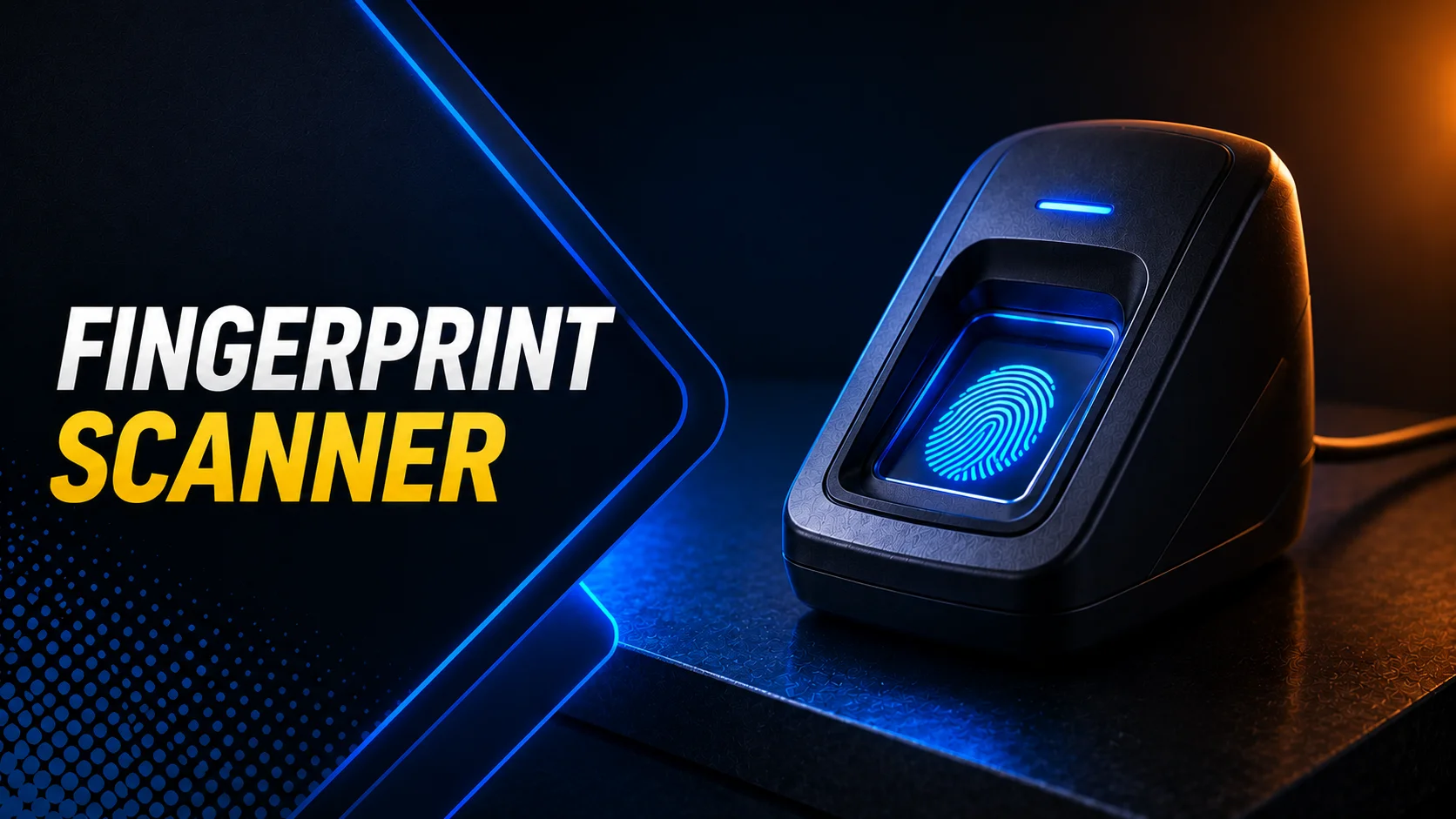
You can use it to unlock devices, log in to accounts, or authorize payments. Fingerprint scanners are fast, accurate, and make sure only the right person can access the device or information.
Face Recognition Camera
A face recognition camera is an input device that scans your face and sends the data to the computer. It helps the system identify or verify your identity.
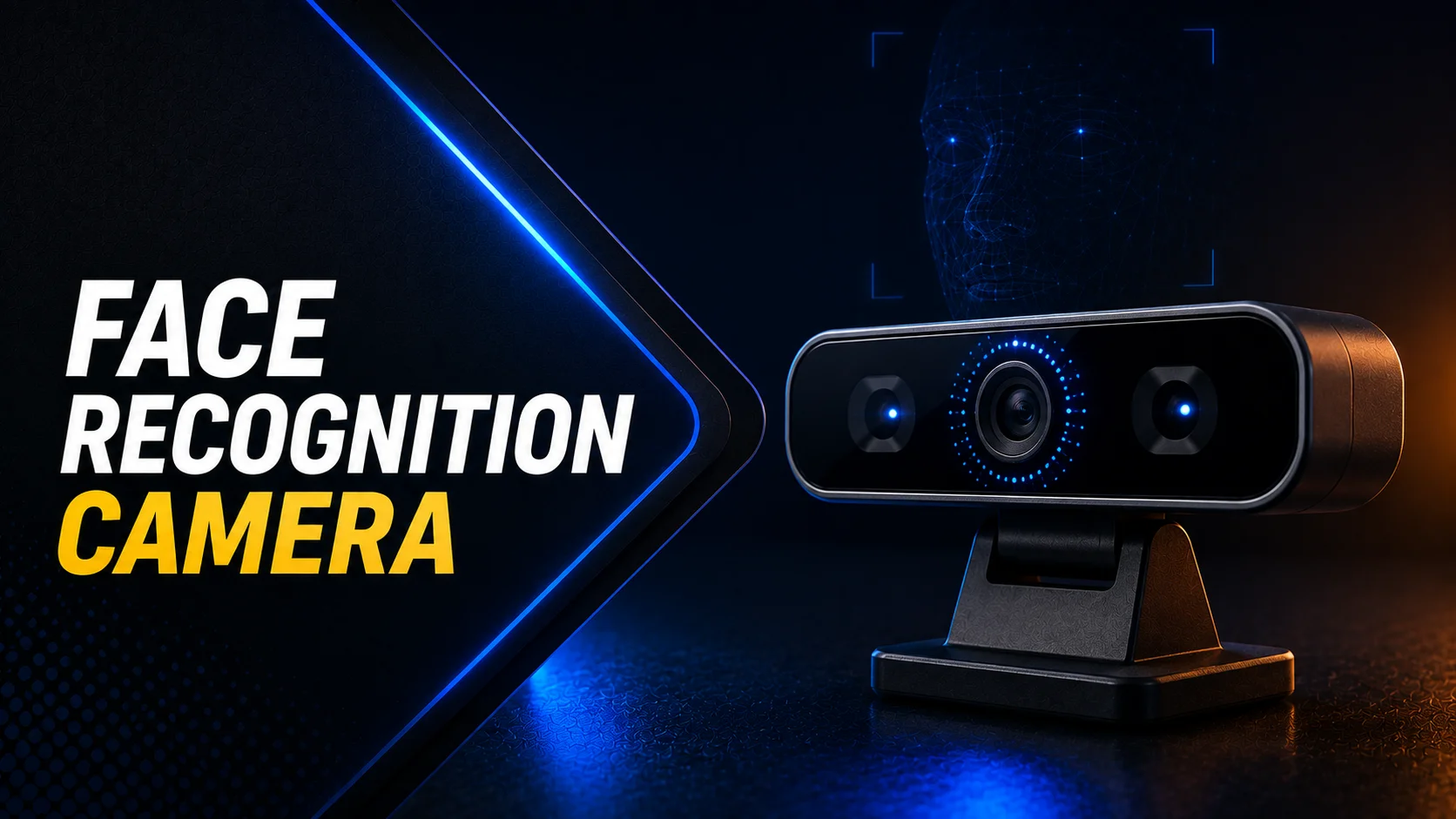
You can use it to unlock devices, log in to apps, or authorize payments without typing passwords. These cameras are fast, accurate, and make security easy and convenient.
Magnetic Stripe Reader
A magnetic stripe reader is an input device that reads the information stored on the magnetic stripe of cards and sends it to the computer.
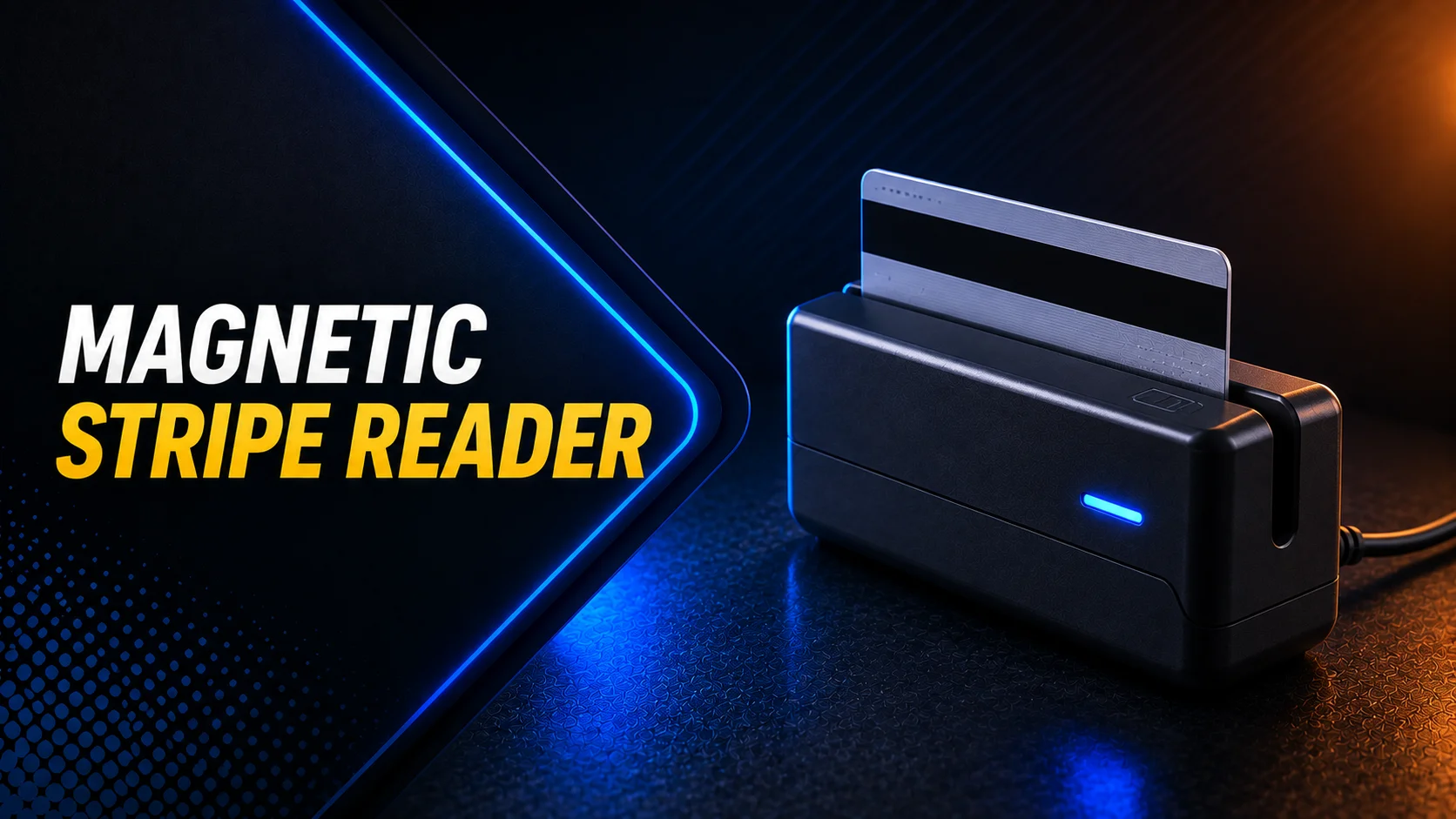
You swipe a card, like a credit or ID card, through the reader, and it quickly captures the data. These readers are widely used in banks, stores, and access systems because they make transactions and identification fast and accurate.
Conclusion
Now you have a clear understanding of input devices, their simple definition, and common examples. From keyboards and mice to scanners, microphones, webcams, and fingerprint scanners, each input device helps us enter data or give commands to a computer.
Knowing these devices makes it easier to understand how we interact with computers in our daily lives. If you have any questions, feel free to ask us in the comments below.
Frequently Asked Questions
The input devices name list includes:
- Keyboard,
- Mouse,
- Scanner,
- Microphone,
- Webcam,
- Joystick,
- Game controller,
- Light pen,
- Barcode reader,
- Fingerprint scanner,
- Face recognition camera,
- Magnetic stripe reader.
Input devices types are different categories of devices used to enter data and commands into a computer. Common types include:
- Text input devices such as keyboards,
- Pointing devices such as mice and joysticks,
- Scanning devices such as scanners and barcode readers,
- Audio input devices such as microphones,
- Biometric input devices such as fingerprint scanners and face recognition cameras.
Each type helps the computer receive a specific kind of input from the user.

- Be Respectful
- Stay Relevant
- Stay Positive
- True Feedback
- Encourage Discussion
- Avoid Spamming
- No Fake News
- Don't Copy-Paste
- No Personal Attacks
- Be Respectful
- Stay Relevant
- Stay Positive
- True Feedback
- Encourage Discussion
- Avoid Spamming
- No Fake News
- Don't Copy-Paste
- No Personal Attacks
