What is Input Device of Computer? Types, Working, Benefits & Examples
Published: 31 Aug 2026
When you use a computer, you constantly give it information through different devices. But many people get confused about what are input devices and how they send information to a computer. Because some devices can even perform more than one function, which makes things even less clear.
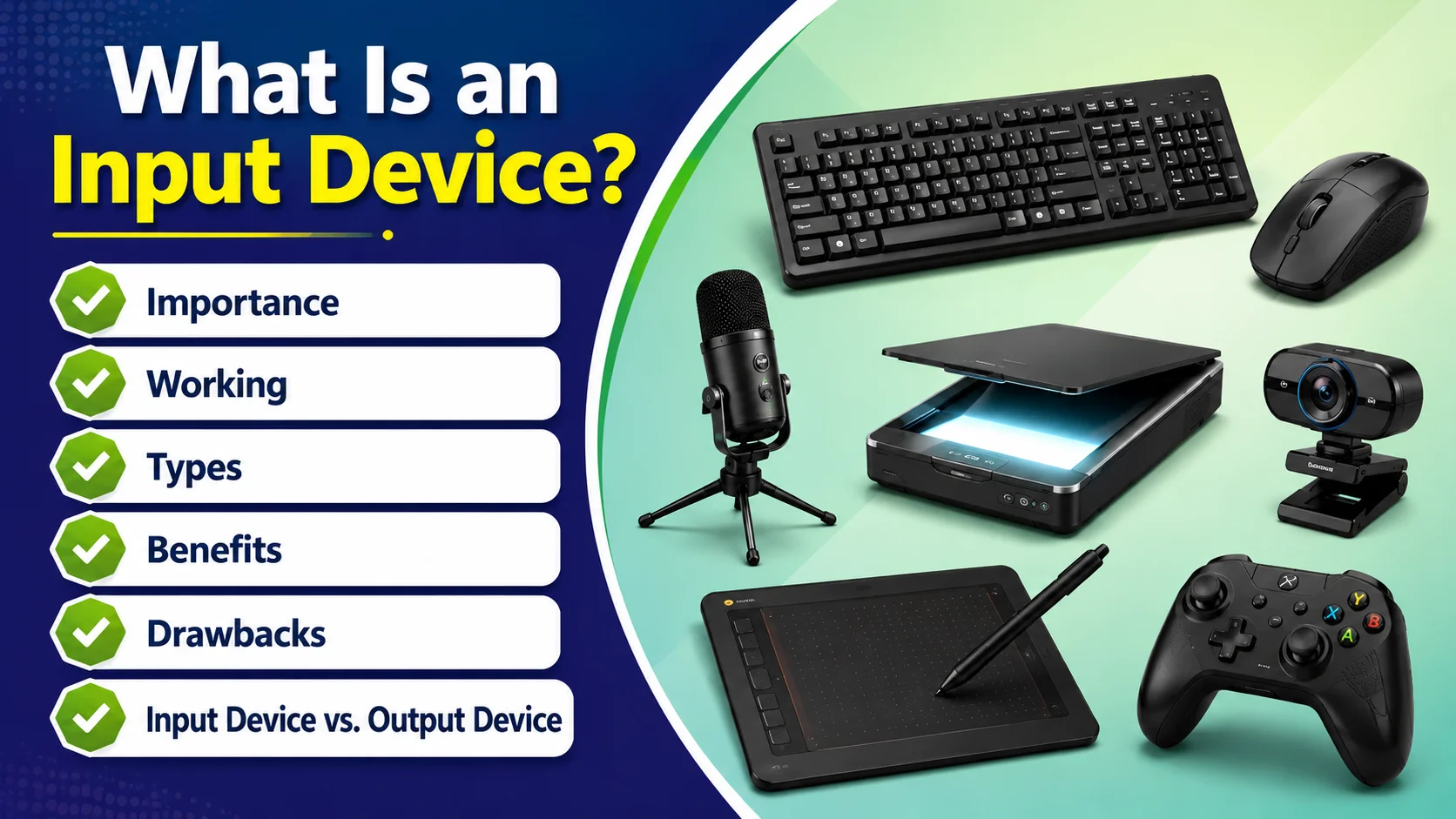
In this article, we will explain what an input device is, how it works, and what are the main types of input devices of computer with common examples. We will also cover input devices designed for physically challenged users, and common problems you may face while using them.
What Is an Input Device?
Definition: “An computer input device is a hardware component that allows a user to enter data, instructions, or commands into a computer.”
This simple input device definition explains the main purpose of these devices. So, if you want to define input device in simple words, you can say that it is a hardware device used to enter data and instructions into a computer.
Importance
From typing a document to scanning a picture or recording sound, input devices in a computer system playing a major role. A computer needs input devices. Without them, you would not be able to easily type, click, scan, record sound, or enter new information.
This is why input devices of computer system are important for everyday tasks. The computer could still process existing data and show results, but you would have very limited control over what it does.
How Do Input Devices Work?
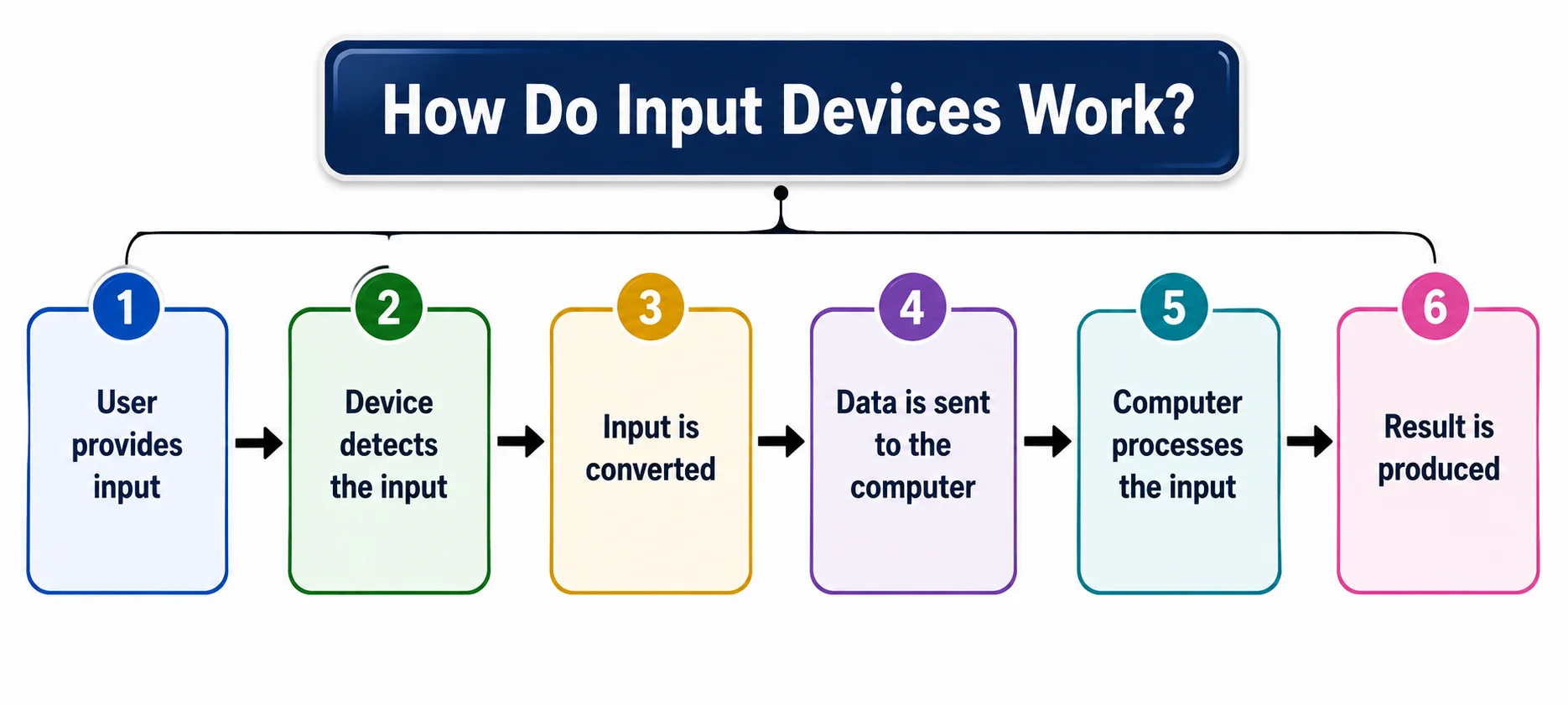
The basic process is:
- User provides input: You type, click, touch, speak, scan, or perform another action.
- Device detects the input: The input device captures your action or information.
- Input is converted: The device converts the input into digital signals that the computer can understand.
- Data is sent to the computer: The signals travel through a wired or wireless connection.
- Computer processes the input: The cpu and other components process the received data.
- Result is produced: The computer performs the requested action and shows or provides the result known as output.
This process explains how an input device of computer system works when you provide information to the computer.
Types of Input Devices
There are many types of input devices, and each one is designed for a specific purpose.
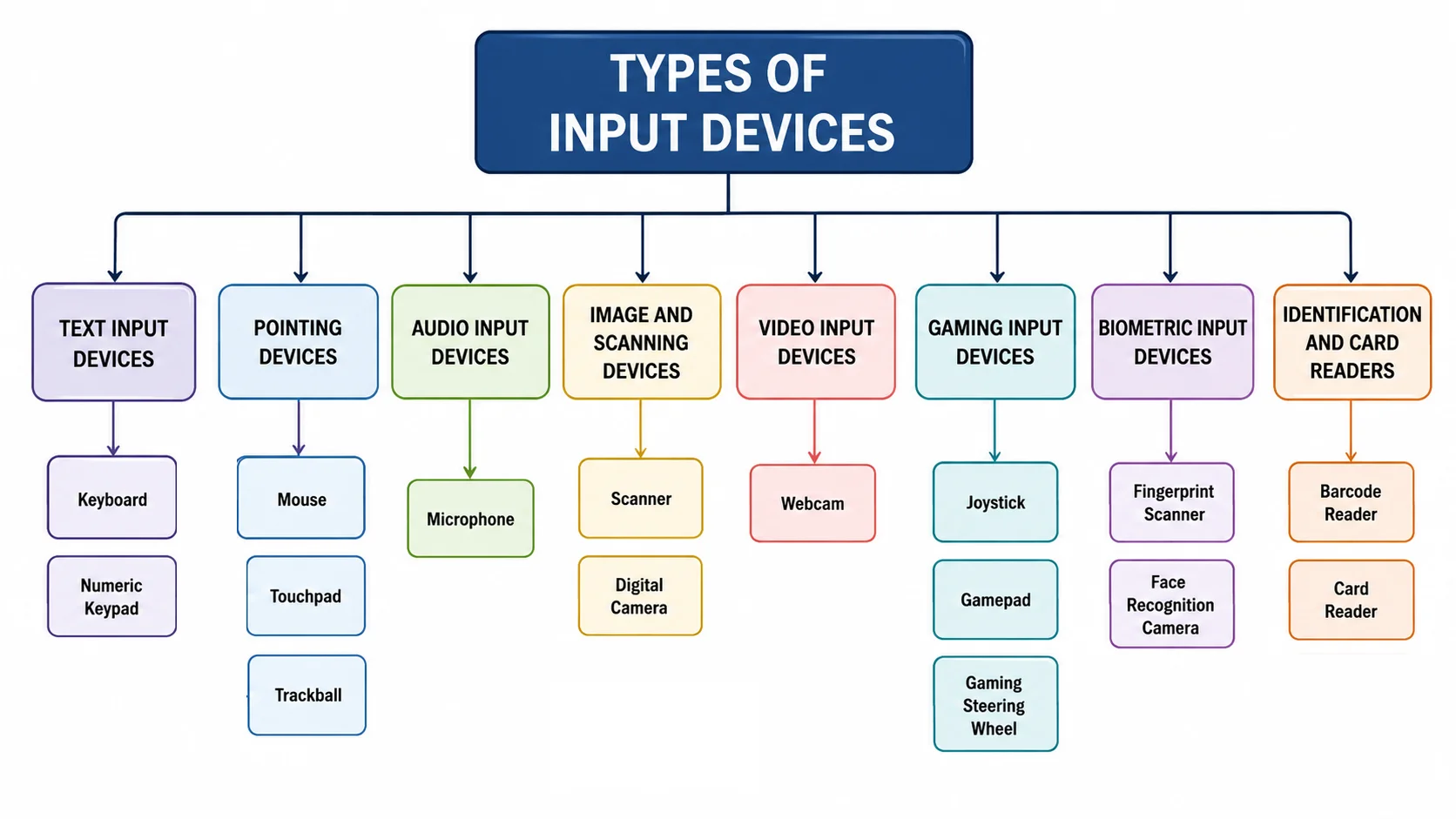
- Text Input Devices: Used to enter letters, numbers, symbols, and other text into a computer. Examples: Keyboard, numeric keypad.
- Pointing Devices: Used to control the pointer and interact with items on the screen. Examples: Mouse, touchpad, trackball.
- Audio Input Devices: Capture sound or voice and send it to the computer. Examples: Microphone.
- Image and Scanning Devices: Capture documents, photos, or physical images and convert them into digital data. Examples: Scanner, digital camera.
- Video Input Devices: Capture live video and send it to a computer. Examples: Webcam.
- Gaming Input Devices: Help users control games through buttons, joysticks, or other controls. Examples: joystick, gamepad, gaming steering wheel.
- Biometric Input Devices: Capture unique physical features for identification or verification. Examples: Fingerprint scanner, face recognition camera.
- Identification and Card Readers: Read information from cards, barcodes, or RFID tags and send it to the computer. Examples: Barcode reader, card reader.
Input Devices for Physically Challenged Users
Special input devices help people with physical disabilities use computers more easily and independently. These devices are designed to work with different needs, such as limited hand movement, difficulty typing, or problems using a regular mouse.
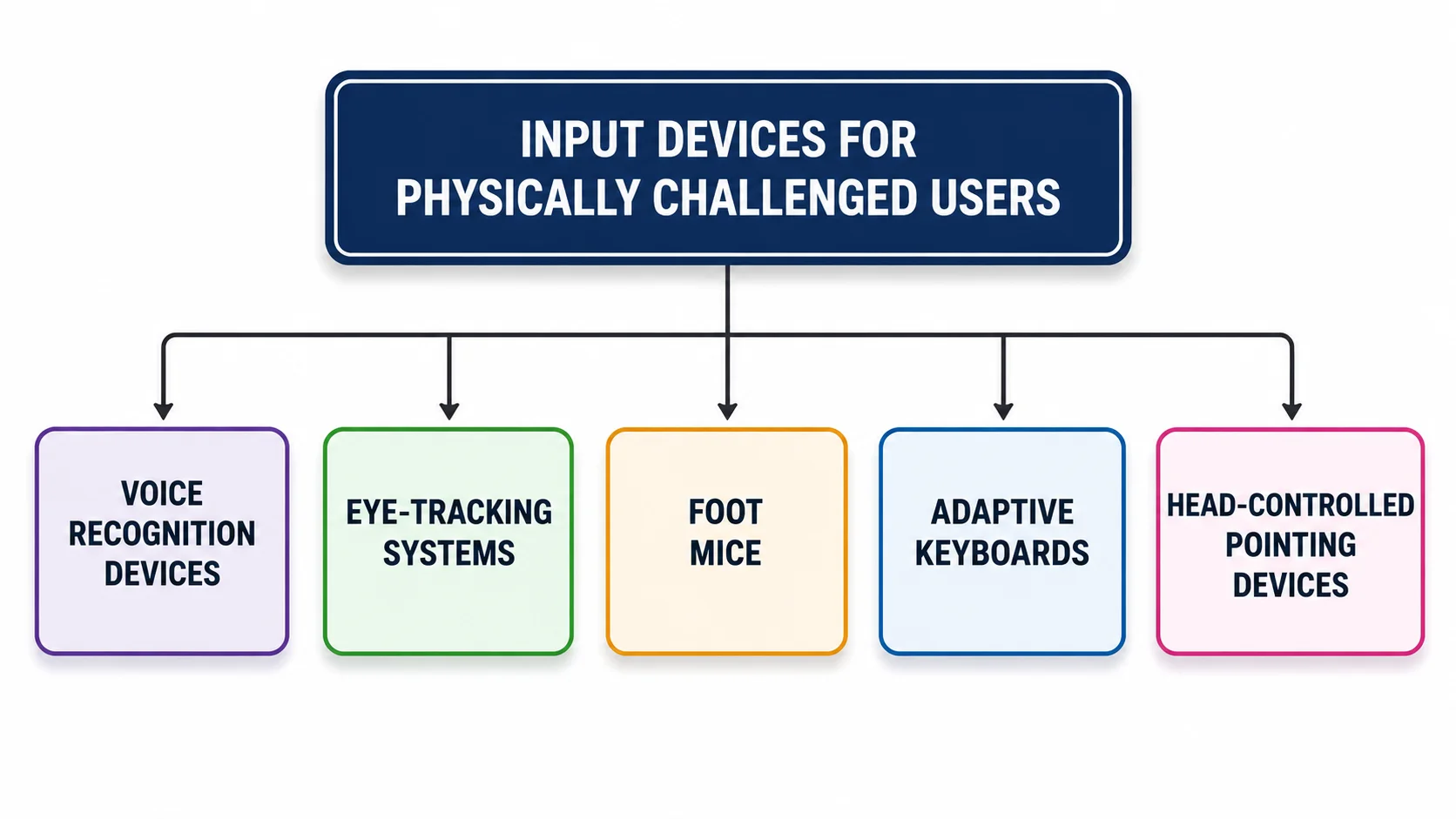
Examples include voice recognition devices, eye-tracking systems, foot mice, adaptive keyboards, and head-controlled pointing devices. These input devices can make computer use more accessible and comfortable.
Benefits of Input Devices
- Easy Communication: Help users communicate with a computer through commands and data.
- Quick Data Entry: Make it easy to enter text, numbers, images, and other information.
- Better Control: Allow users to control software, files, and other computer functions.
- Save Time: Make many tasks faster and more convenient.
- Support Different Tasks: Different devices are useful for typing, scanning, recording, gaming, and more.
- Accessibility: Special input devices help people with disabilities use computers more independently.
Drawbacks of Input Devices
- Can Be Expensive: Some advanced input devices can cost a lot.
- May Stop Working: hardware faults can make an input device unusable.
- Need Maintenance: Devices may require cleaning, updates, or repairs.
- Connection Problems: Wired and wireless devices can sometimes have connection issues.
- Limited Compatibility: Some devices may not work with every computer or operating system.
Common Input Device Problems and Troubleshooting
- Input devices can sometimes stop working properly because of connection issues, outdated drivers, low battery, or hardware problems.
- Common issues include a keyboard not responding, a mouse cursor not moving, a microphone not detecting sound, or a scanner not being recognized.
- To fix these problems, check the connection, restart the device and computer, replace batteries if needed, update or reinstall the device driver, and try another USB port when possible.
Input Device vs. Output Device
| Input Device | Output Device |
|---|---|
| Sends data and commands to the computer | Receives processed data from the computer |
| Helps the user communicate with the computer | Helps the computer communicate results to the user |
| Converts user actions into signals the computer can process | Converts computer data into a form the user can understand |
| Used to enter text, sound, images, or commands | Used to present text, sound, images, or other results |
| Examples: Keyboard, mouse, microphone, scanner | Examples: monitor, printer, speakers, projector |
| Works mainly before or during data processing | Works mainly after data has been processed |
What Is Input Unit?
The input unit is the part of a computer system that receives data and instructions from the user through different input devices. It accepts the input and sends it to the computer for processing.
For example, when you type using a keyboard, the input unit receives the information and passes it to the computer for processing.
Conclusion
Input devices are an essential part of a computer because they allow users to enter data, commands, and instructions. From keyboards and mice to microphones, scanners, and webcams, different input devices serve different purposes.
Understanding what is input devices and how they work can help you understand how users communicate with a computer. Learning about different types and input hardware examples can also help you choose the right device for your needs.
If you have any questions about input devices, feel free to ask in the comments below.

- Be Respectful
- Stay Relevant
- Stay Positive
- True Feedback
- Encourage Discussion
- Avoid Spamming
- No Fake News
- Don't Copy-Paste
- No Personal Attacks
- Be Respectful
- Stay Relevant
- Stay Positive
- True Feedback
- Encourage Discussion
- Avoid Spamming
- No Fake News
- Don't Copy-Paste
- No Personal Attacks
