What is Wireless Printer | Working – Features | Setup Methods & Troubleshooting
Published: 15 Sep 2026
You ever think what does wireless printer mean? A wireless printer is a printer that can print documents without using any wire or cable.
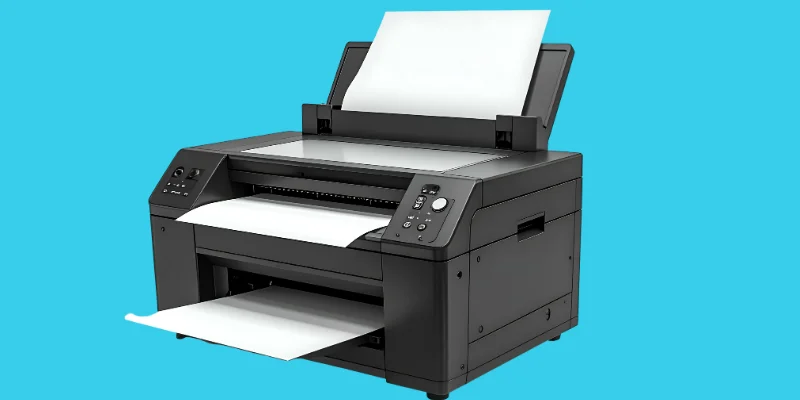
It can connect to devices like mobile phones, laptops, or computers using Wi-Fi or Bluetooth. This means you can give a print command from anywhere in the room without plugging in a cable.
How to print with a wireless printer?
In this section we will take a look on how do wireless printers work:
- First, the wireless printer is turned ON.
- The printer connects to Wi-Fi or Bluetooth.
- Your mobile, laptop, or computer also connects to the same Wi-Fi (or Bluetooth).
- You open the file or photo you want to print.
- You press the Print button on your device.
- The print command is sent wirelessly to the printer.
- The printer receives the command and prints the document or picture on paper.
Invention of First wireless printer
“The first wireless printers were invented in the 1990s. In 1993, Andrew Clams created the first wireless printer that could connect to computers and devices without using a cable.”
Features or Specifications:
- Wireless Connectivity: Wi-Fi (2.4GHz / 5GHz), Wi-Fi Direct, sometimes Bluetooth supported.
- Wi-Fi Standards: Mostly 802.11 a/b/g/n, some modern models support faster Wi-Fi versions.
- Print Resolution: Usually 600 × 600 DPI to 1200 × 1200 DPI (or higher in color photo printing).
- Print Speed: Home printers: around 8 – 20 pages per minute, Office printers: 30+ pages per minute possible.
- Printing Support: Apple AirPrint, Mopria, Cloud printing, mobile apps.
- Duplex Printing (Double-Side Printing): Manual or automatic in many modern models.
- Paper Handling: Support for A4, Letter, envelopes, photo paper, etc.
- Operating System Support: Works with Windows, mac OS, Chrome OS, mobile OS.
- Display / Control Panel: Buttons or small LCD / touchscreen panel.
Advantages
|
Disadvantages
|
How to Setup a Wireless Printer
Here we will see main methods to setup a wireless printer in simple wording:
1. Wi-Fi Setup Method
- Turn ON your printer and enable its Wi-Fi mode.
- Connect your computer or mobile to the same Wi-Fi network.
- Use the printer software or app to complete the connection and print a test page.
2. Bluetooth Setup Method
- Turn ON Bluetooth on both printer and device.
- Pair the printer with your device via Bluetooth settings.
- Open a document or photo and send it to print wirelessly.
3. NFC (Near Field Communication) Method
- Make sure your printer has an NFC logo and NFC is enabled.
- Tap your NFC-enabled mobile device on the printer’s NFC area.
- Follow prompts on your device to complete the connection and print instantly.
Troubleshooting Common Setup Issues
Sometimes a wireless printer does not work properly during setup. Don’t worry, most problems are small and easy to fix if you follow the right steps.
- Restart printer, router, and computer: Restarting devices can fix temporary network or connection errors. Turning everything off and then on again often solves setup problems.
- Check Wi-Fi is turned ON on printer: Many printers have a button or setting that must be enabled before setup works.
- Enter correct Wi-Fi name and password: Wrong SSID or password is a very common setup mistake. Even small typing errors can stop connection.
- Keep printer near the router: Weak signal or walls can block wireless connection. Moving the printer closer can improve setup success.
- Remove USB cable during wireless setup: Sometimes USB connection stops printer from switching to Wi-Fi mode.
- Install or reinstall printer drivers: Wrong or corrupted drivers can cause setup failure. Installing latest drivers often fixes issues.
- Update printer firmware: New firmware improves compatibility with modern Wi-Fi networks and fixes bugs.
- Check router settings (2.4 GHz vs 5 GHz): Many printers work best on 2.4 GHz Wi-Fi. Wrong band can stop connection.
- Clear stuck print jobs: Old print jobs can block new printing tasks. Clearing queue can fix printing problems.
Wireless Printer vs Wired Printer
| Feature | Wireless Printer | Wired Printer |
|---|---|---|
| Connection | Without wire (Wi-Fi / Bluetooth) | With cable / wire |
| Movement | Can print from anywhere in room | Must stay near computer |
| Devices | Many devices can connect | Usually one device connected |
| Setup | First time setup little difficult | Easy plug and play |
| Speed | Sometimes slower | Usually faster |
| Price | Usually more expensive | Usually cheaper |
| Modern Use | New and modern technology | Older and basic technology |
Final Words
Guys, today we learned all about a wireless printer, a printer that can print documents without using any wire or cable.
We saw how it works, its main features, advantages, disadvantages, and even the different ways to set it up like Wi-Fi, Bluetooth, and NFC. We also learned who invented the first wireless printer in the 1990s and how it changed printing forever.
Personally, I recommend using a wireless printer because it makes printing super easy and flexible.
So buddies, keep exploring these cool gadgets and learning how they make our life simpler. If you have any confusion, you can ask in comments section, Stay tuned and keep learning with me!
Frequently Asked Questions:
You may still have some questions about what is a wireless printer. Here are some common questions and simple answers to help you understand better.
Yes, you can print from your phone if your printer supports wireless printing. Most modern wireless printers allow printing from smartphones and tablets. You just need to connect your phone and printer to the same WiFi or use Bluetooth. Some printers also have special mobile apps for easy printing.
No, wireless printers do not always need the internet. They only need a wireless connection like WiFi, Bluetooth or NFU(Near Field Communication) to communicate with your device.
Yes, many devices can use one wireless printer. If they are connected to the same network, they can all send print commands. This is why wireless printers are popular in homes, schools, and offices. It makes sharing one printer very easy.
Wireless printers are better for convenience and flexibility. You can print from anywhere in the room without cables. But sometimes wired printers can be faster and more stable. Both types are useful depending on your need.
Yes, most wireless printers are easy to set up. You usually just connect the printer to WiFi and add it to your device. Many printers also have simple setup buttons or apps. After setup, printing becomes very easy.



- Be Respectful
- Stay Relevant
- Stay Positive
- True Feedback
- Encourage Discussion
- Avoid Spamming
- No Fake News
- Don't Copy-Paste
- No Personal Attacks
- Be Respectful
- Stay Relevant
- Stay Positive
- True Feedback
- Encourage Discussion
- Avoid Spamming
- No Fake News
- Don't Copy-Paste
- No Personal Attacks
