8 Windows Security Settings Everyone Should Enable
Published: 15 Sep 2026
A computer today holds more of a person’s life than most people realize. It stores bank logins, work files, photos, and private chats. If someone breaks into the system, they get all of it in one go. That is why keeping a PC safe matters so much these days.

Windows already comes with strong built-in tools for protection. Most people never turn them on. They stay hidden in menus that feel confusing or boring. But once you know where to look, turning them on takes just a few minutes.
This guide walks you through the most useful Windows Security Settings in plain language. No confusing steps. Just clear advice you can follow today, even if you are not a tech person.
Why Windows Security Settings Matter: Top Reasons
Many people think hackers only target big companies. That is not true anymore. Home users get attacked every single day. Turning on the right settings can stop most of these attacks before they even start.
Here are the main reasons this matters.
- Hackers scan random computers all day. They do not always pick a specific target. They scan thousands of devices looking for weak spots. A protected PC gets skipped over.
- Ransomware can lock your files forever. This type of attack encrypts your photos, documents, and videos. Without the right settings, you may lose everything with no way to get it back.
- Public Wifi is risky. Coffee shops and airports have open networks. Anyone on that same network can try to peek into your traffic if your PC is not locked down.
- Old software has known holes. Hackers study old versions of Windows and find their weak points. Updates patch these holes fast, but only if you allow them.
- Phishing emails trick even smart people. One wrong click can install harmful software. Good settings act like a safety net when your judgment slips for a second.
- Identity theft is on the rise. Once someone gets your login details, they can open loans or credit cards in your name. Strong protection reduces this risk a lot.
- Kids and family members use shared PCs. A child might click on something risky without knowing better. Proper settings protect the whole household, not just you.
- Recovery after an attack is costly. Fixing a hacked PC often costs more than the time it takes to turn on free protection today.
Precautions to Take Before Tweaking Windows Settings
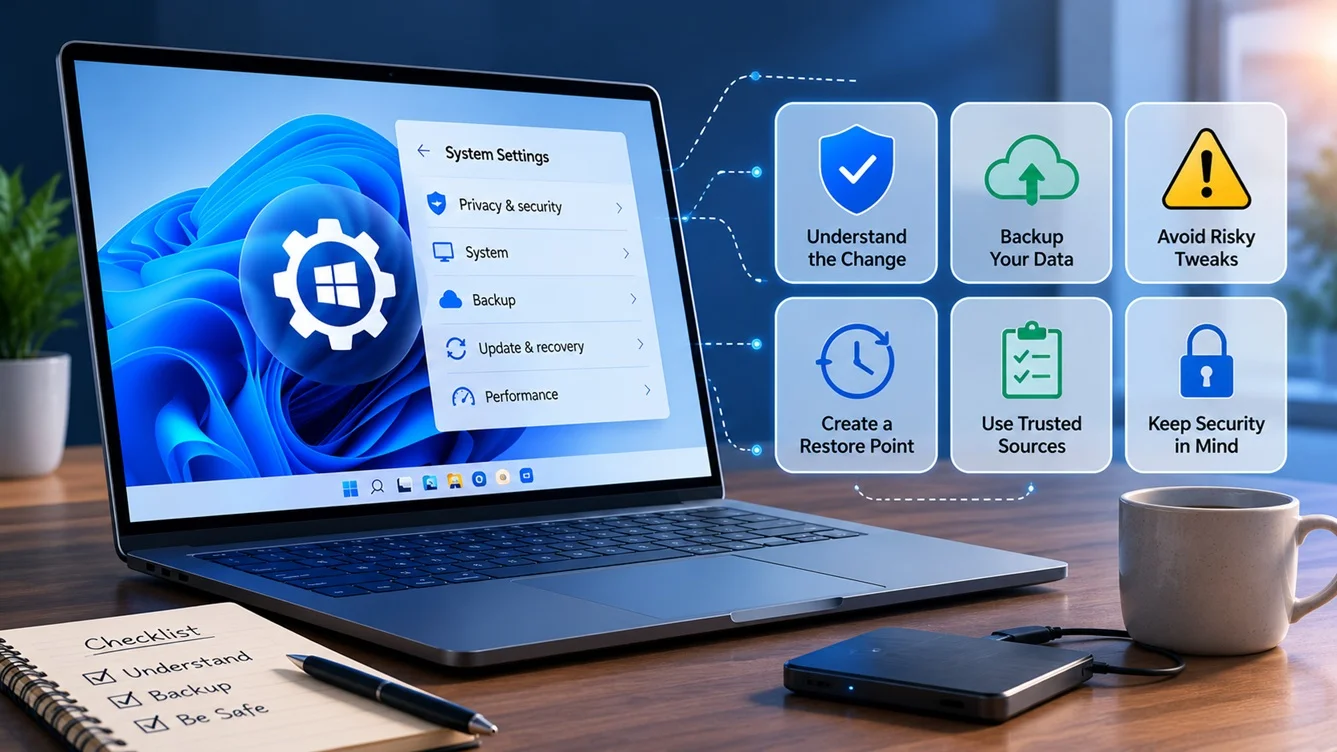
Before you start changing anything, slow down for a moment. A few small steps now can save you a big headache later. Here is what smart users do first.
- Back up your files. Copy your important documents and photos to an external drive or cloud storage. This way, nothing is lost if something goes wrong.
- Write down your current settings. Take quick notes or screenshots of your existing setup. This helps you undo a change if it causes trouble.
- Check your Windows version. Some settings only appear on certain versions. Knowing your version helps you follow the right steps without confusion.
- Close important programs first. Some settings need a restart. Save your work in other apps before you begin, so nothing gets lost.
- Make sure you have admin access. Many security settings need administrator rights to change. Confirm you can log in as an admin before you start.
- Avoid making changes on a work laptop without approval. If your PC belongs to your company, check with your IT team first. They may have rules in place already.
- Update Windows before you begin. An outdated system can behave oddly when you try new settings. A quick update first avoids many small glitches.
- Go one setting at a time. Do not change everything at once. This makes it easier to spot what caused a problem, if one shows up.
Top 8 Windows Security Settings to Enable Right Now
Now that you are ready, let us go through the actual Windows Security Settings you should turn on. Each one plays a different role in keeping your PC safe. Together, they build a strong wall around your system.
1. Windows Defender Antivirus
Windows Defender comes free with every copy of Windows. Many people turn it off by mistake or install another antivirus and forget to check if Defender is still active in the background.
This tool scans your files in real time. It blocks known viruses, spyware, and other harmful programs before they can cause damage. Keeping it on gives you a steady layer of protection with zero extra cost.
How it helps:
- Scans downloads and email attachments automatically
- Blocks known malware before it runs
- Updates itself with new virus definitions
- Works quietly without slowing your PC down much
Step 1: Open Settings, then go to Privacy and Security, then Windows Security.
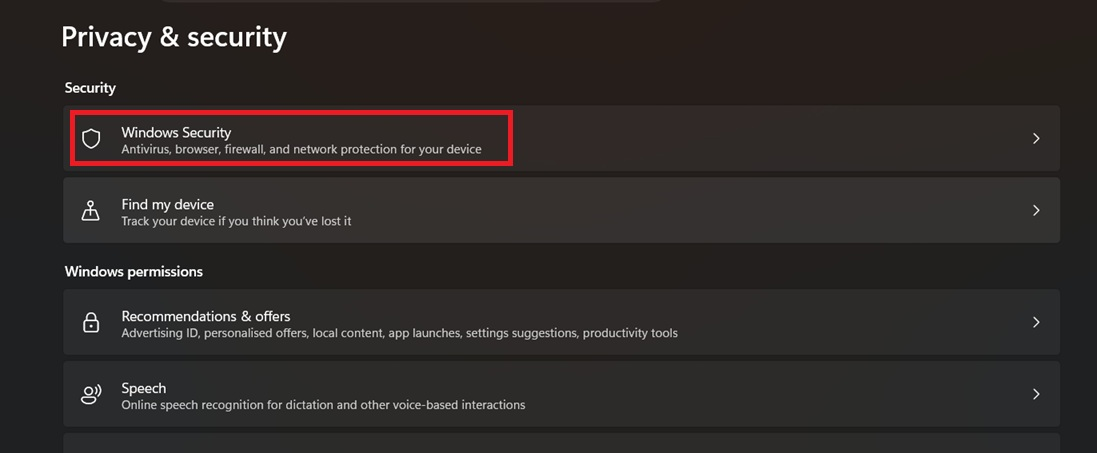
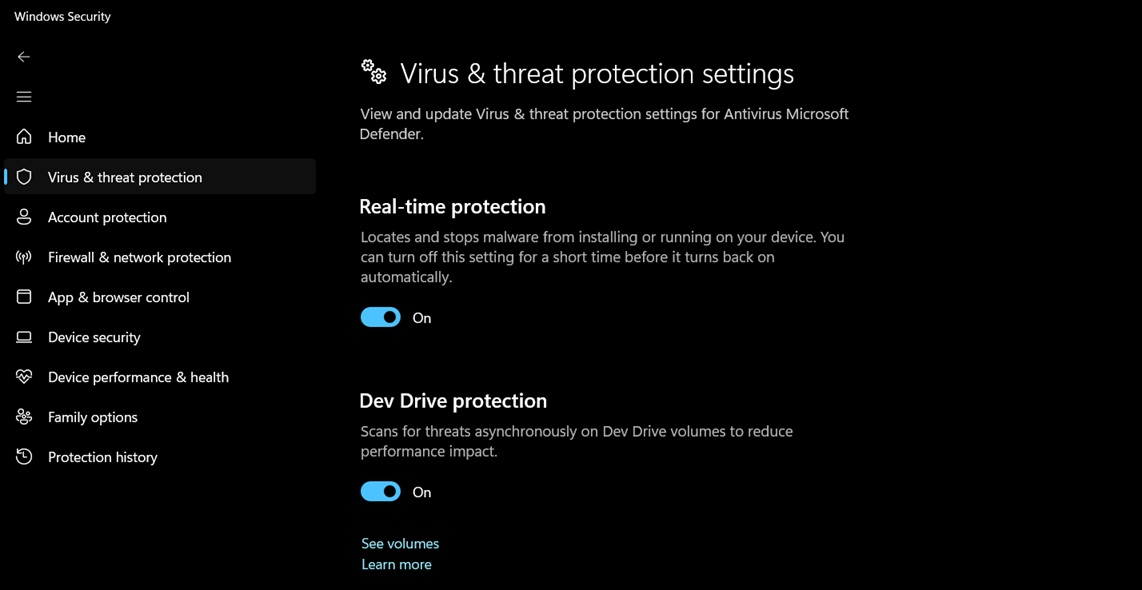
Step 2: Click Virus and Threat Protection, then turn on Real-Time Protection.
2. Firewall Protection
A firewall acts like a guard at your front door. It checks every bit of data trying to enter or leave your PC. Without it, harmful programs can talk to outside servers without you ever knowing.
Windows has a built-in firewall that is often already on, but it pays to check. Turning it off, even for a short time, leaves your PC wide open to attacks from your network.
How it helps:
- Blocks unwanted incoming connections
- Stops some malware from sending your data out
- Lets you control which apps can access the internet
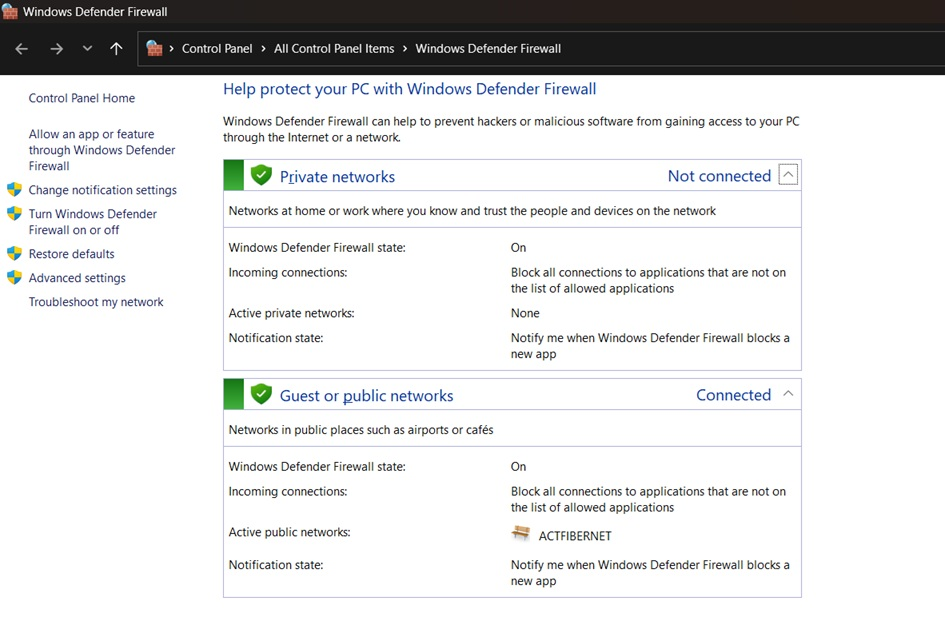
- Works separately for private and public networks
Step 1: Search for Windows Defender Firewall in the Start menu.
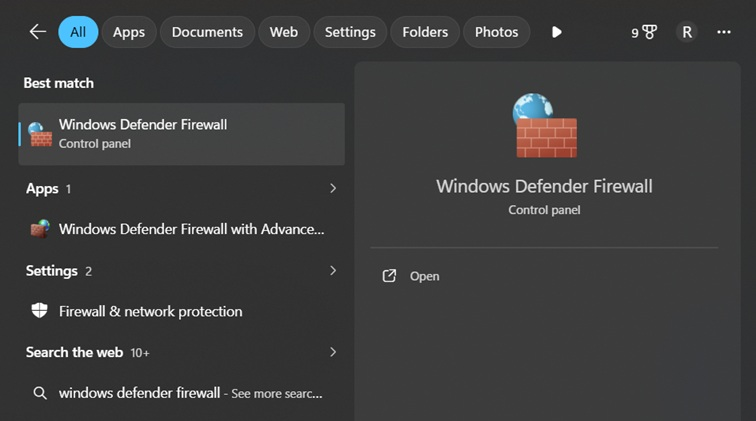
Step 2: Click Turn Windows Defender Firewall On or Off, then select On for both networks.
3. Automatic Windows Updates
Updates are not just about new features. Most updates fix security holes that hackers already know how to use. Skipping updates leaves those doors open on your system.
Turning on automatic updates means your PC gets these fixes without you needing to remember. It happens quietly in the background, often overnight, so it barely interrupts your work.
How it helps:
- Closes security gaps as soon as fixes are ready
- Reduces the risk of known exploits
- Keeps drivers and system files current
- Saves you from manually checking for updates
Step 1: Go to Settings, then Windows Update.
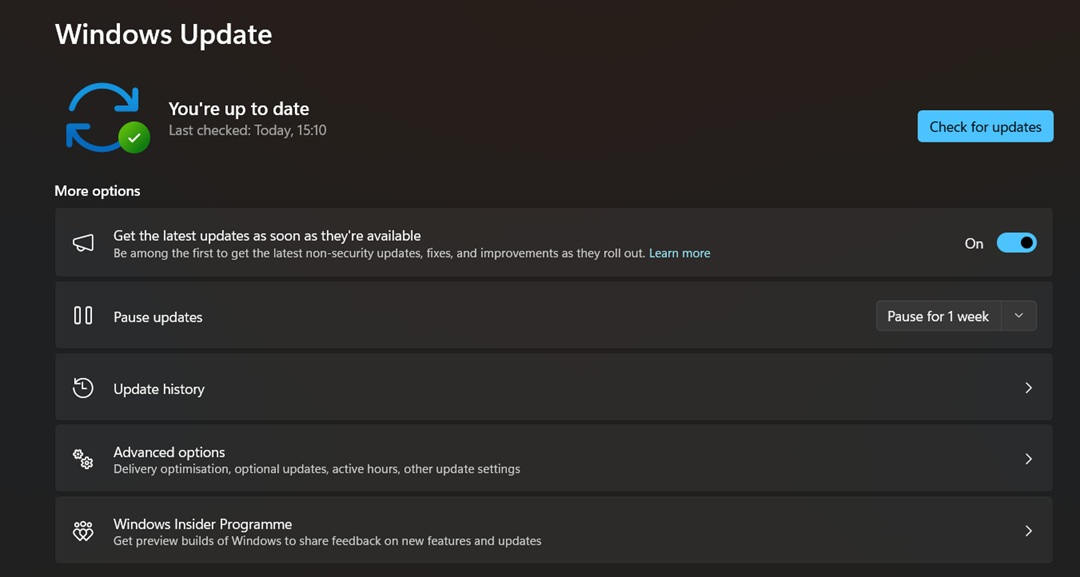
Step 2: Turn on Get the latest updates as soon as they’re available (In latest Windows 11 versions, the toggle is right on the Windows Update page, not inside Advanced Options).
4. Two-Factor Authentication for Your Microsoft Account
Passwords alone are not enough anymore. If someone steals your password, they can log in freely unless you add a second layer of protection.
Two-factor authentication asks for a code from your phone or email after you enter your password. Even if a hacker knows your password, they cannot get in without that second code.
How it helps:
- Blocks logins even if your password leaks
- Sends alerts when someone tries to sign in
- Protects your linked apps like OneDrive and Outlook
- Adds only a few seconds to your normal login
Step 1: Go to account.microsoft.com and sign in, then open the Security tab.
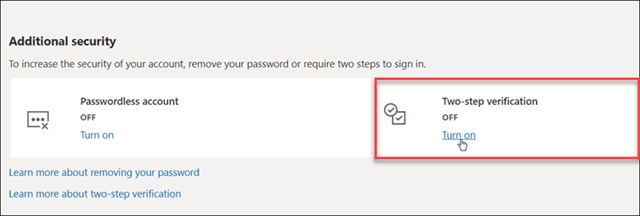
Step 2: Click Advanced Security Options and turn on Two-Step Verification.
5. BitLocker Drive Encryption
If your laptop gets lost or stolen, anyone can remove the hard drive and read your files unless they are encrypted. BitLocker locks your entire drive with a key only you have.
This setting is especially useful for people who travel with a laptop or work from cafes and shared spaces. It turns your data into unreadable code for anyone without the right key.
How it helps:
- Protects files even if the drive is physically removed
- Encrypts the whole drive, not just single files
- Works quietly in the background after setup
- Adds almost no slowdown on modern PCs
Step 1: Search for BitLocker in the Start menu and open Manage BitLocker.
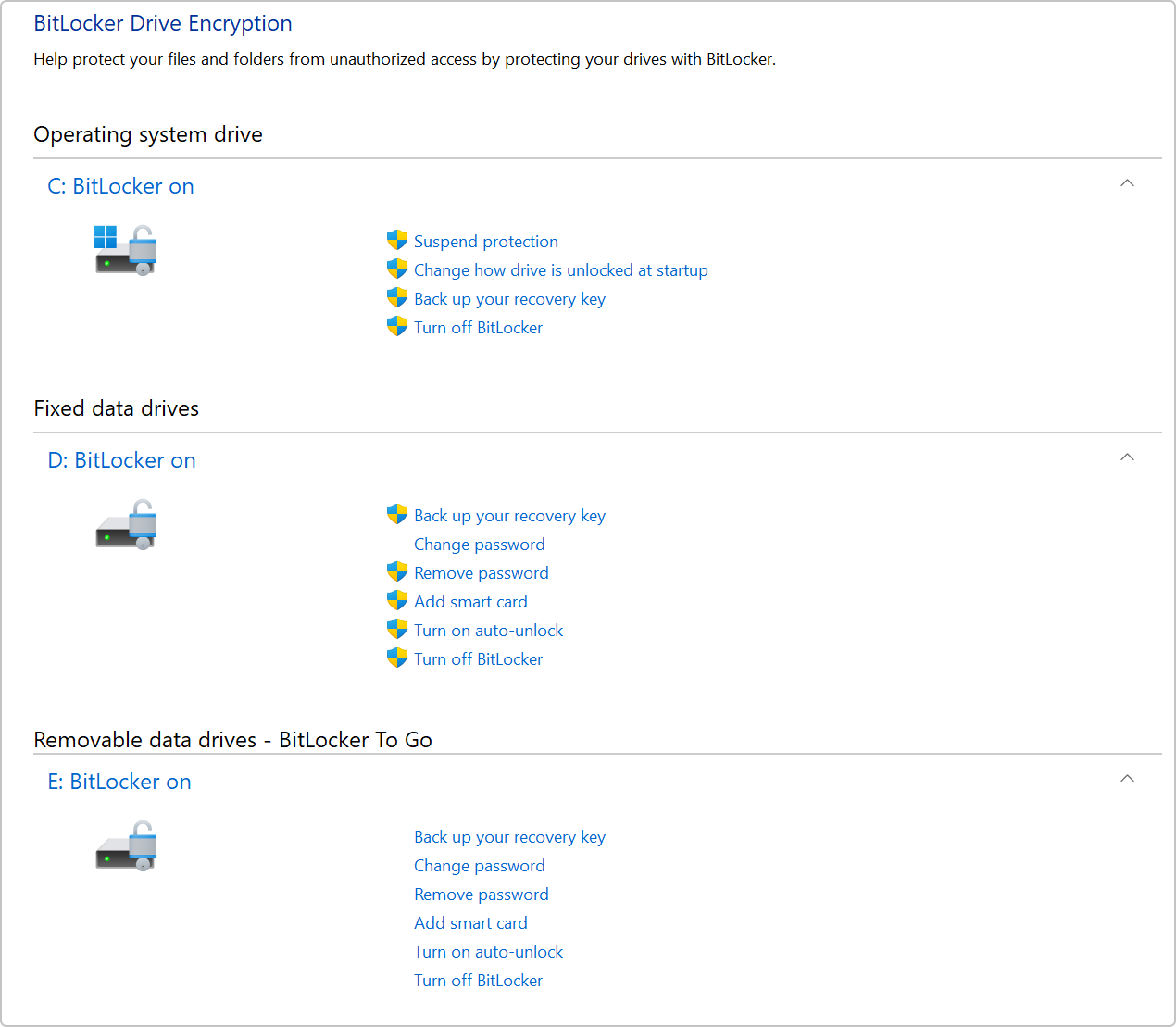
Step 2: Click Turn On BitLocker and follow the setup steps for your main drive.
6. Controlled Folder Access
Ransomware often targets your personal folders first, like Documents and Pictures. Controlled Folder Access blocks unknown programs from touching these folders without your permission.
This setting works like a locked room inside your PC. Only trusted apps get a key. Anything unfamiliar gets stopped at the door, giving you a chance to catch it early.
How it helps:
- Stops ransomware from encrypting your personal files
- Blocks unknown apps from writing to protected folders
- Lets you add trusted apps to an allow list
- Gives early warning of suspicious activity
Step 1: Open Windows Security, then go to Virus and Threat Protection.
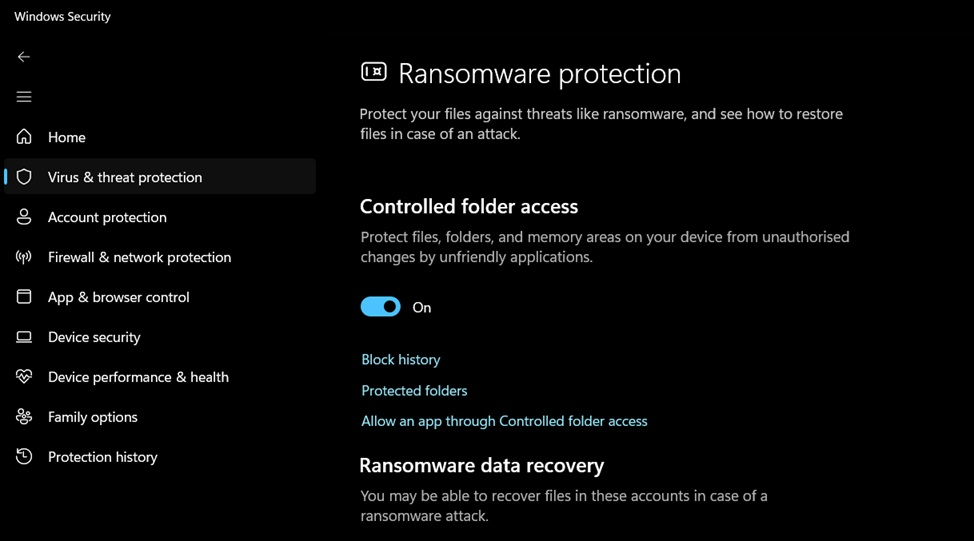
Step 2: Click Manage Ransomware Protection, then turn on Controlled Folder Access.
7. SmartScreen Filter
Many attacks come through fake websites and harmful downloads. SmartScreen checks links and files against a known list of dangerous sites before you open them.
This setting works quietly in Microsoft Edge and across the system. When you try to visit a risky site or open a flagged file, it warns you first instead of letting the damage happen silently.
How it helps:
- Warns before you visit known phishing sites
- Flags harmful downloads before they run
- Checks apps from outside the Microsoft Store
- Reduces risk from fake login pages
Step 1: Open Windows Security, then go to App and Browser Control.
Step 2: Turn on Reputation‑based protection (this includes Check apps and files and SmartScreen for Microsoft Edge).
8. Account Lockout and Sign-In Options
Weak sign-in habits make it easy for attackers to guess their way into your account. Setting up a PIN, fingerprint, or face recognition adds a much stronger barrier than a simple password.
Account lockout settings also stop repeated guessing attempts. After a few failed tries, the system locks temporarily, which slows down anyone trying to force their way in.
How it helps:
- Makes stolen passwords less useful on their own
- Uses biometrics that are hard to copy
- Slows down repeated login attempts
- Adds a fast, secure way to unlock your PC daily
Step 1: Go to Settings, then Accounts, then Sign In Options.
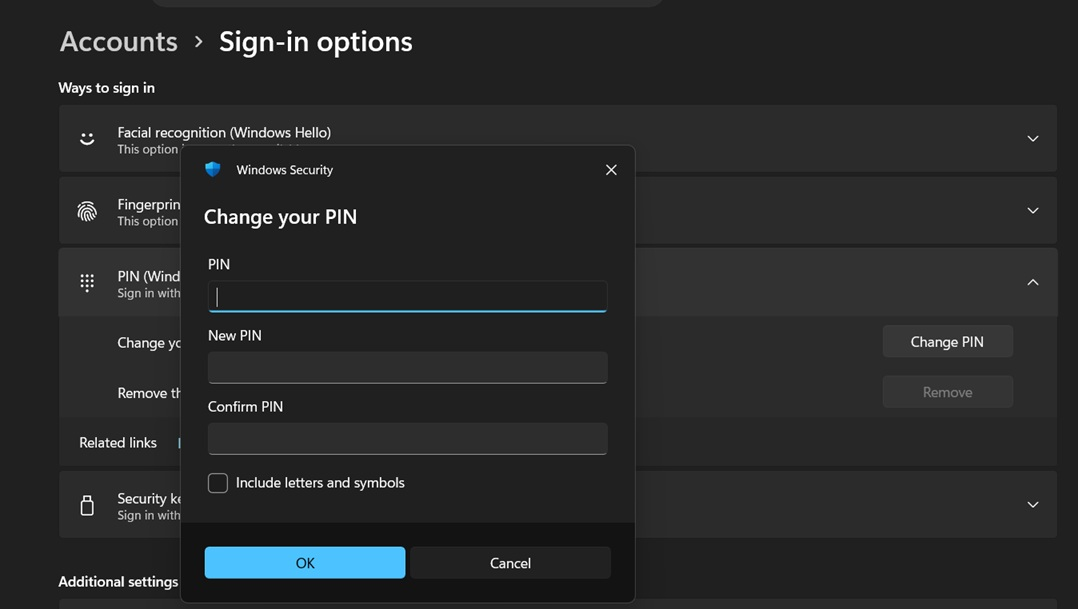
Step 2: Set up Windows Hello with a PIN, fingerprint, or face recognition.
Tips to Make the Most of Windows Security Settings
Turning on these features is a great start, but a few habits help you get even more value from them. Here are simple tips that keep your protection strong over time.
- Review your settings every few months. Software changes, and so do threats. A quick check every season keeps you ahead of new risks.
- Do not ignore warning pop-ups. These alerts exist for a reason. Read them before clicking through without thinking.
- Keep your antivirus definitions updated. An outdated virus list cannot catch new threats. Most updates happen automatically, but it helps to confirm now and then.
- Use strong, unique passwords for every account. Reusing passwords means one leak can affect many accounts at once.
- Keep your drivers updated too. Old graphics, network, or chipset drivers can carry the same kind of security holes as outdated software. A quick check through Windows Update or the manufacturer site once in a while keeps these parts of your system just as safe as the rest. You can refer to this guide on TechCommuters to update drivers all by yourself.
- Avoid downloading software from random websites. Stick to official sources like the Microsoft Store or trusted developer sites.
- Turn on backups alongside your security settings. Even the best protection cannot guarantee zero risk, so a backup is your safety net.
- Teach family members the basics. A shared PC is only as safe as its least careful user, so a little training goes a long way.
- Restart your PC regularly. Some updates and fixes only apply after a restart, so do not keep your PC running for weeks without one.
Conclusion
Keeping your PC safe does not need to be complicated. Windows already gives you strong tools for free. All you need to do is turn them on and use them the right way.
We covered eight settings that cover the most common risks, from viruses to stolen passwords to lost laptops. Each one plays a small part, but together they build a solid shield around your daily digital life.
Take a few minutes today to go through this list. Future you will thank present you the next time a phishing email lands in your inbox or a random website tries something shady.
Frequently Asked Questions (FAQs)
Windows Defender covers most common threats and works well for everyday use. It scans files, blocks known malware, and updates itself regularly. Many home users find it fully sufficient. If you handle sensitive work files or want extra features like a VPN bundled in, a paid option can add value, but it is not a must for most people.
Most of these settings run quietly in the background and use very little system power. Modern PCs handle features like BitLocker and real-time scanning with almost no noticeable slowdown. Older or lower-spec machines might feel a small dip during a full system scan, but daily use stays smooth.
First, disconnect from the internet to stop further damage. Run a full scan using Windows Defender or a trusted antivirus tool. Change your passwords from a different, clean device. Once your PC is clear, go through this guide and turn on each setting to prevent it from happening again.


- Be Respectful
- Stay Relevant
- Stay Positive
- True Feedback
- Encourage Discussion
- Avoid Spamming
- No Fake News
- Don't Copy-Paste
- No Personal Attacks
- Be Respectful
- Stay Relevant
- Stay Positive
- True Feedback
- Encourage Discussion
- Avoid Spamming
- No Fake News
- Don't Copy-Paste
- No Personal Attacks
